
Teachers do not need another list of AI products that all promise to save time. They need the right tool for the work in front of them: planning a lesson, understanding a source, adapting a text, drafting feedback, organizing a course, or explaining a complex topic.
This guide shows you 9 AI tools that can support real educator workflows, including JoggAI, ChatGPT, Gemini for Education, NotebookLM, Notion AI, Claude, MagicSchool, Diffit, Brisk Teaching.
JoggAI Animated Presentation Video is designed for educators, trainers, and course creators who want to turn existing knowledge into structured training content. The other nine tools support research, writing, planning, differentiation, assessment, notes, and teacher productivity.
Quick answer: which AI teacher tool should you try first?
The best choice depends on your starting material and your review job. Use a general assistant for flexible drafting. Use a source-grounded tool when accuracy depends on supplied documents. Choose a teacher-specific tool for classroom templates. Choose a differentiation tool when one concept must work for several reading levels.
| Tool | Best fit | Start with |
|---|---|---|
| JoggAI | Training and lesson presentation content | PDF, webpage, DOCX, PPT, or mixed sources |
| ChatGPT | Flexible lesson planning and drafting | A goal, audience, constraints, and sample material |
| Gemini | Google-centered planning and writing | A prompt plus Workspace context where available |
| NotebookLM | Research grounded in your sources | PDFs, websites, notes, or other references |
| Notion AI | Course planning and knowledge organization | Notes, databases, outlines, and meeting records |
| Claude | Long-form explanation and document work | A document, rubric, or detailed instruction |
| MagicSchool | Teacher-specific planning and classroom resources | Grade, subject, objective, and resource type |
| Diffit | Differentiated reading and activities | Topic, text, link, or source material |
| Brisk Teaching | In-context teacher productivity | A page, document, or existing classroom material |
9 Best AI Teacher Tools
JoggAI Animated Presentation Video
best for turning knowledge into training video
JoggAI Animated Presentation Video is a source-to-structured-presentation workflow for educators, trainers, and course creators. It can work from multiple materials such as PDFs, webpages, URLs, DOCX files, reference material, or existing learning content, then organize the information into a narrative, presentation structure, storyboard, narration, and scene plan.
The useful distinction is that this is more than file conversion. The workflow analyzes source material, identifies key ideas, builds presentation-ready sections, and chooses visual treatments for different parts of the lesson.
The goal is to help an educator move from “I have the knowledge” to “I have a teachable presentation structure” without first writing a full script or designing every slide manually.
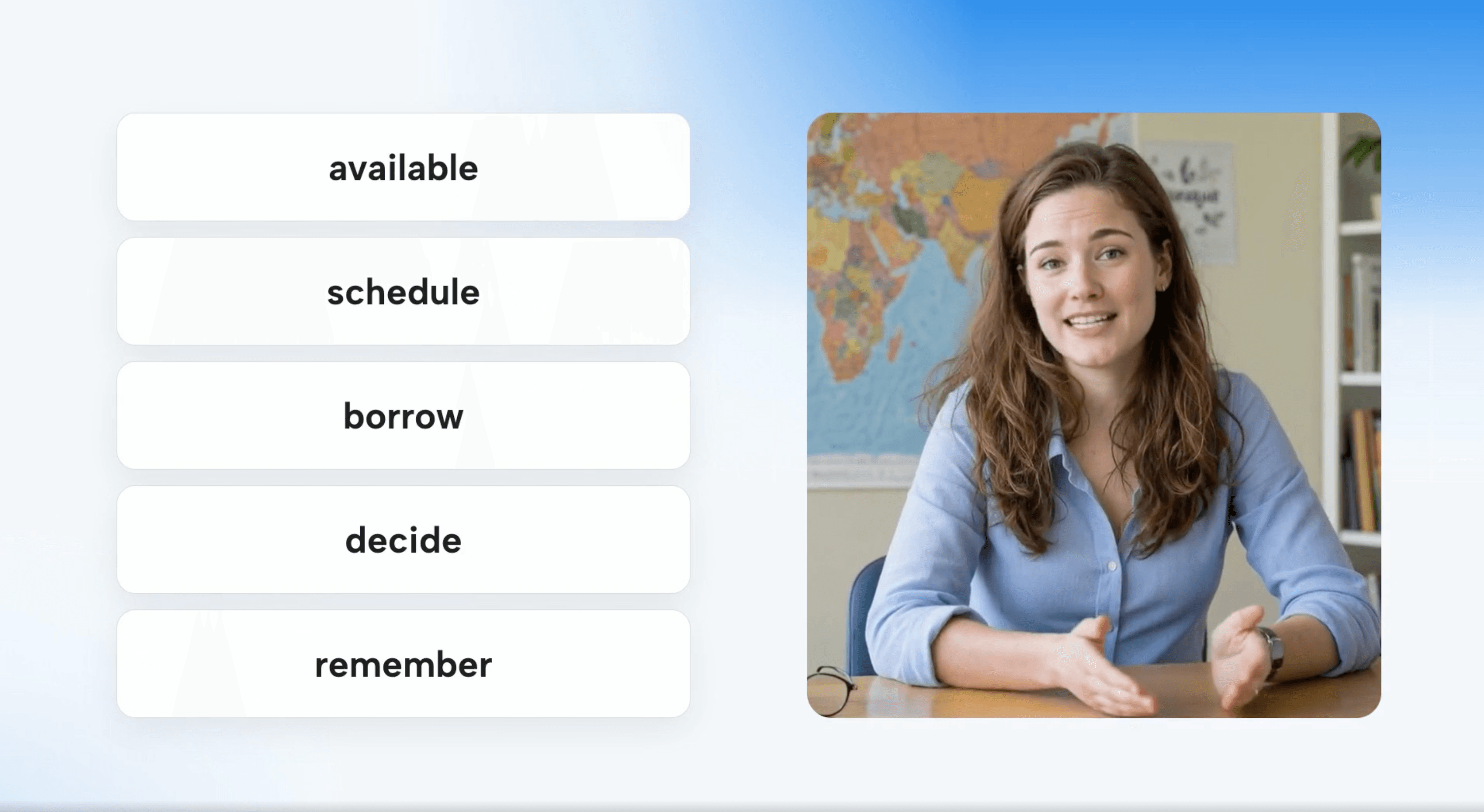
Three ways educators can start in JoggAI
JoggAI is designed around three different starting points:
-
PPT to Video:
Upload a finished PowerPoint, lesson deck, or training presentation.
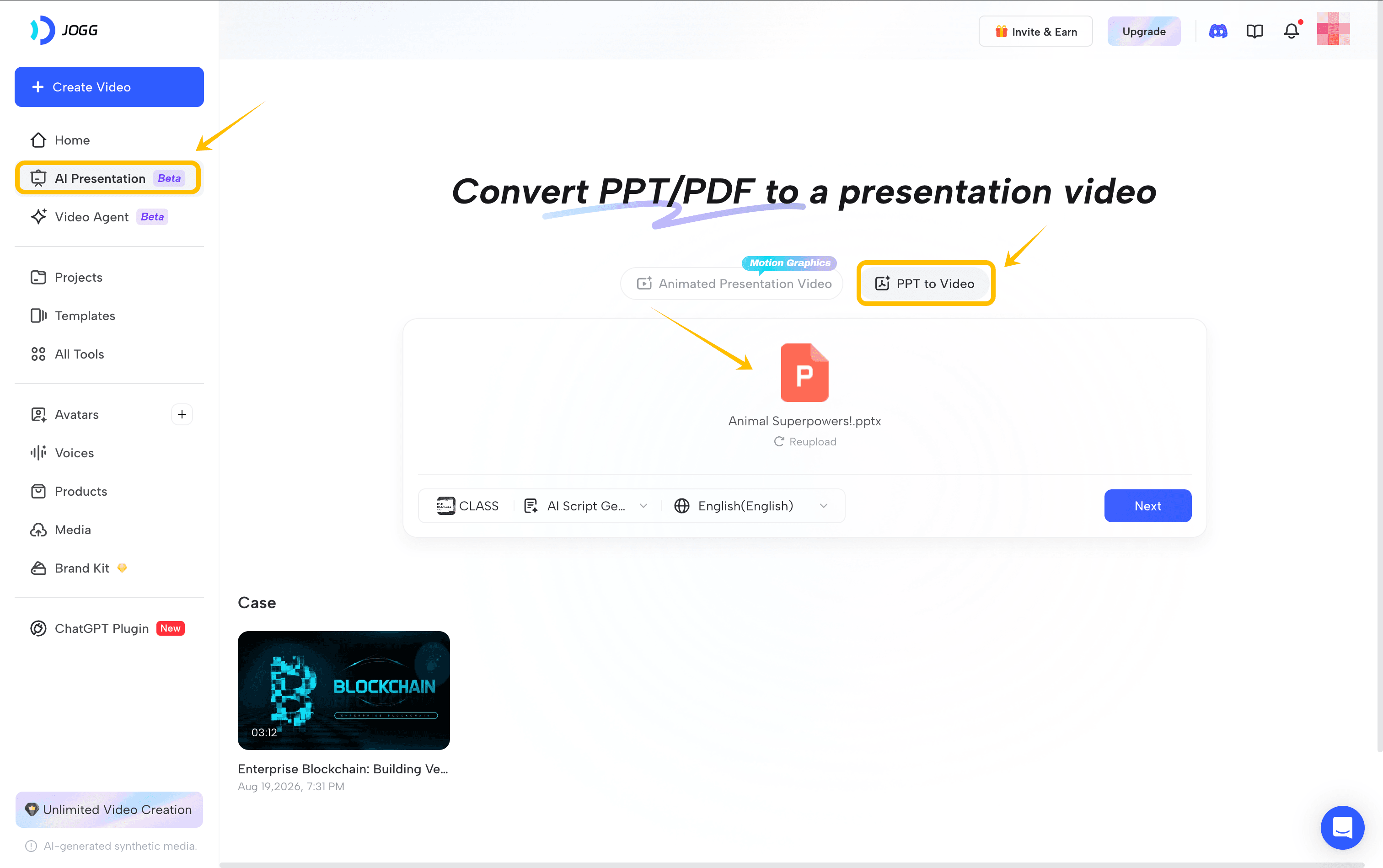
Choose a presenter from the avatar library or use a customized avatar, then generate a presenter-led training presentation. This is the shortest path when the content is already organized into slides.
-
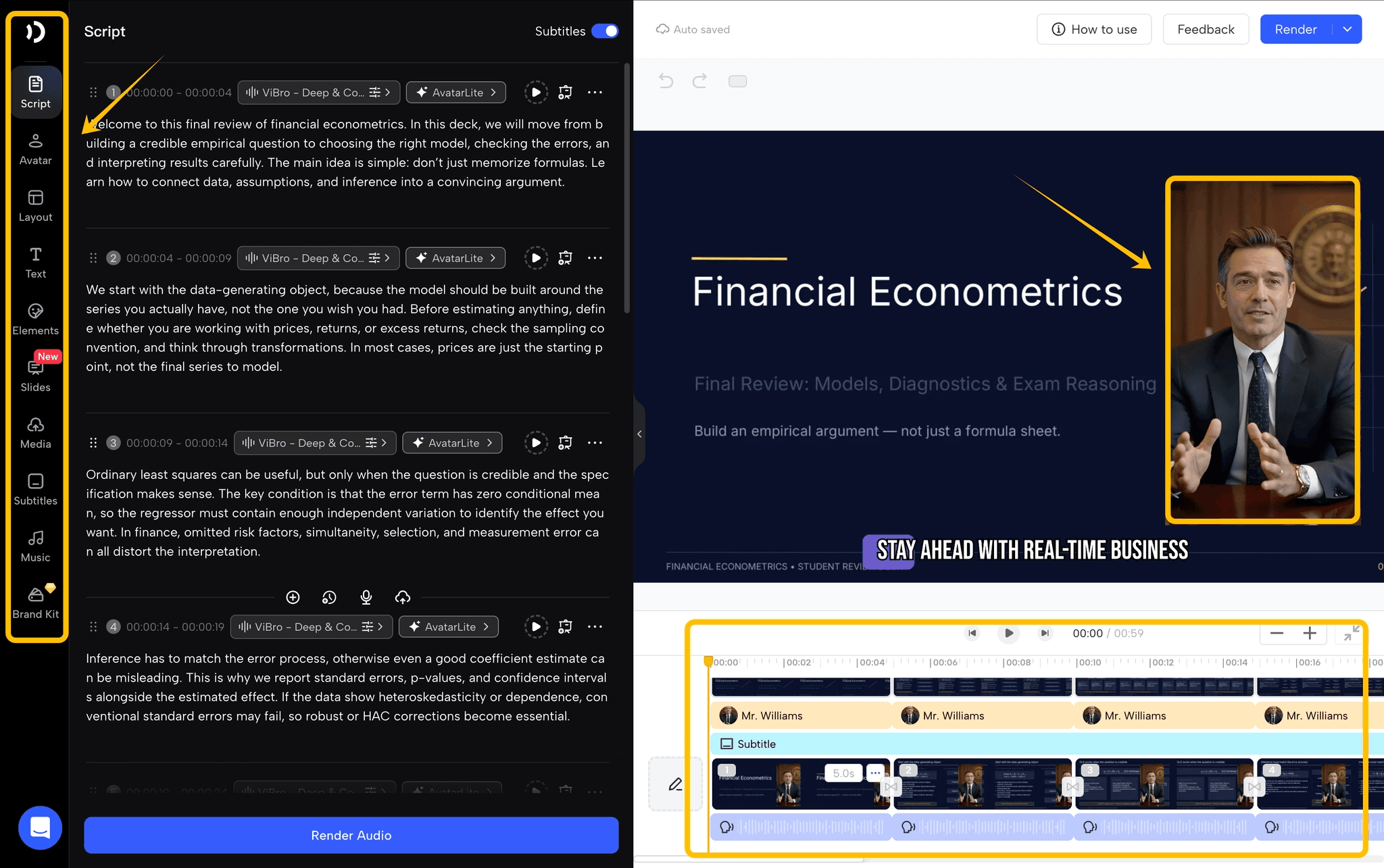
Add a PDF, webpage or URL, DOCX, course material, research packet, or multiple reference sources.
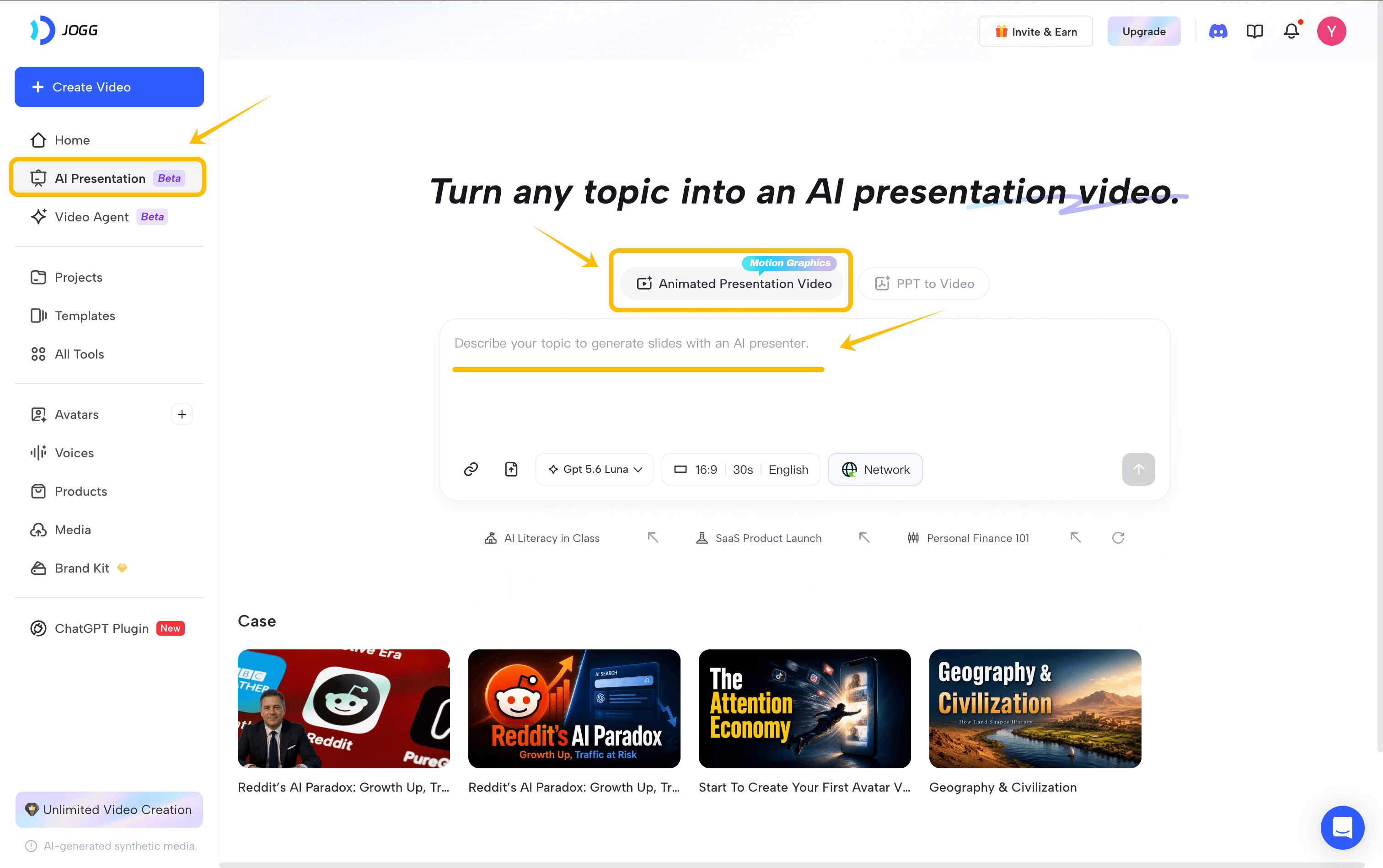
JoggAI can bring those materials into one project instead of treating each file as a separate video request.
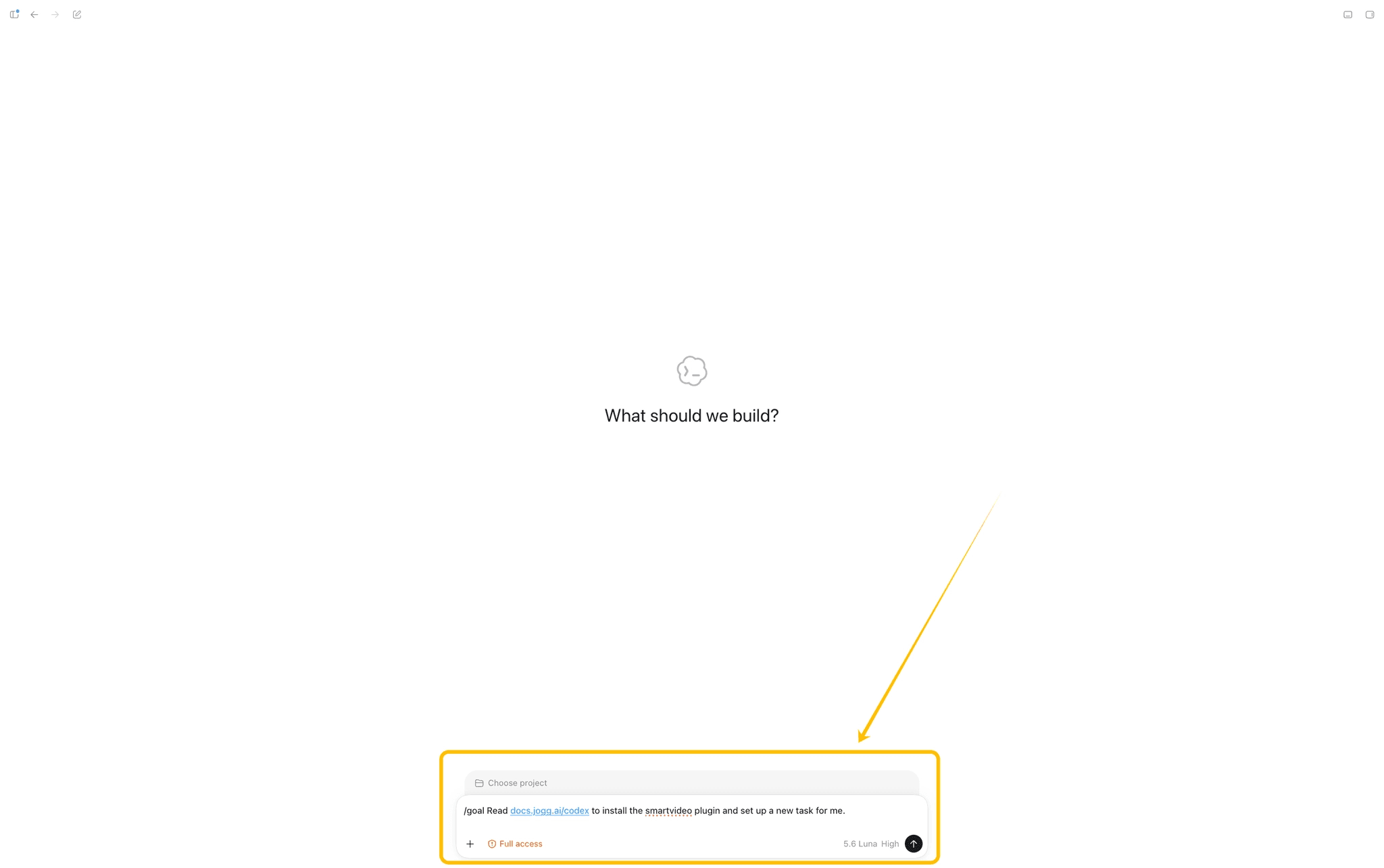
- Smart Video with Codex:
For advanced users working with AI coding or agent workflows, use the Smart Video with Codex path to bring AI Presentation into a more flexible, AI-native content process. This option is described in the JoggAI Codex documentation.
You just need to enter the following prompt into Codex:
/goal Read docs.jogg.ai/codex to install the smartvideo plugin and set up a new task for me.
What happens after you add source material?
The Animated Presentation Video workflow can handle several planning steps in sequence:
-
Understand the sources: Analyze information across documents, identify key ideas, and extract the content that matters for the lesson.
-
Build the presentation structure: Organize those ideas into a narrative with presentation-ready sections and a logical flow.
-
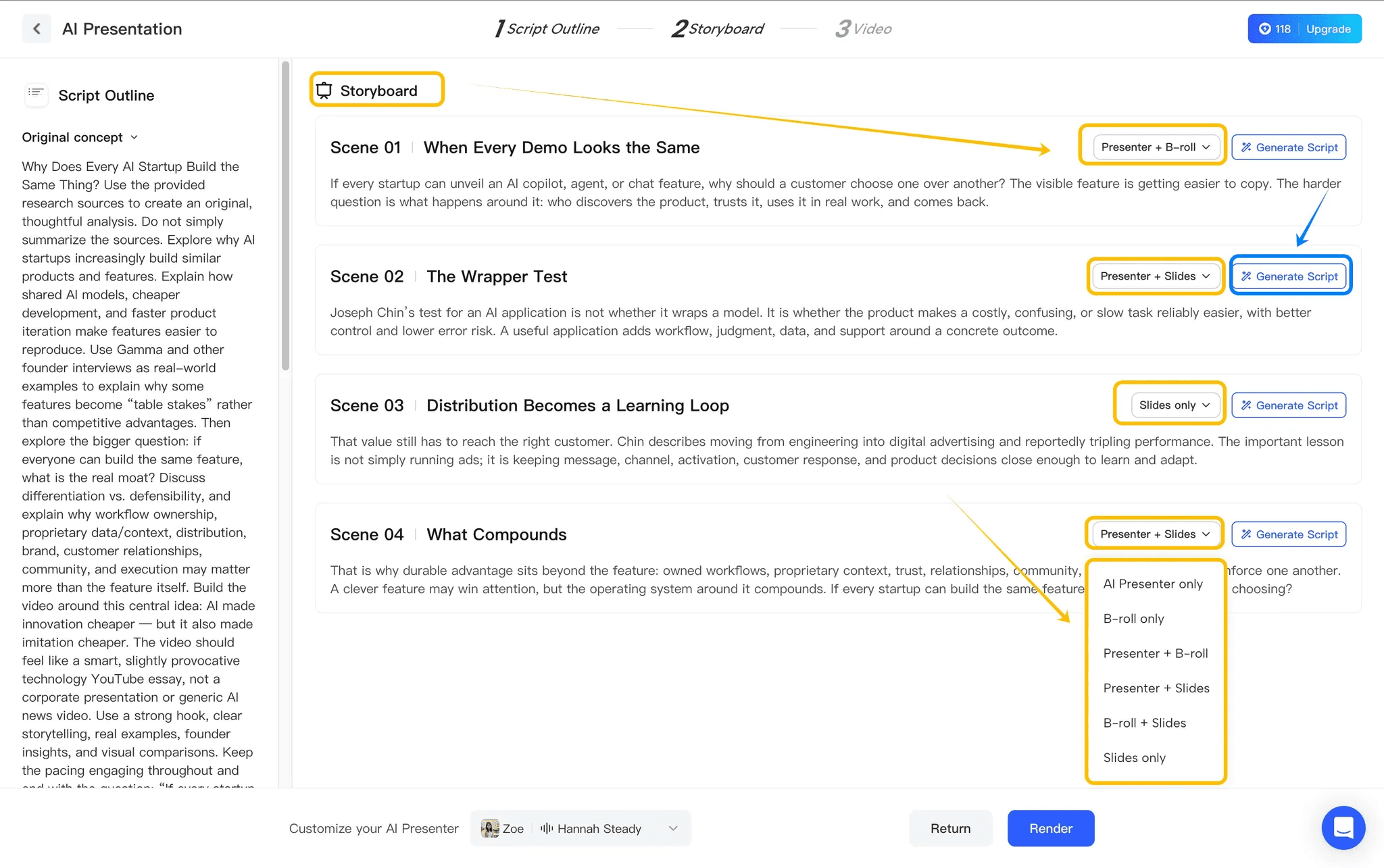
Create the storyboard: Turn the narrative into a scene-by-scene plan that includes narration and the purpose of each scene.
-
Plan the visual treatment: Decide how each idea should appear instead of using the same visual format from beginning to end.
-
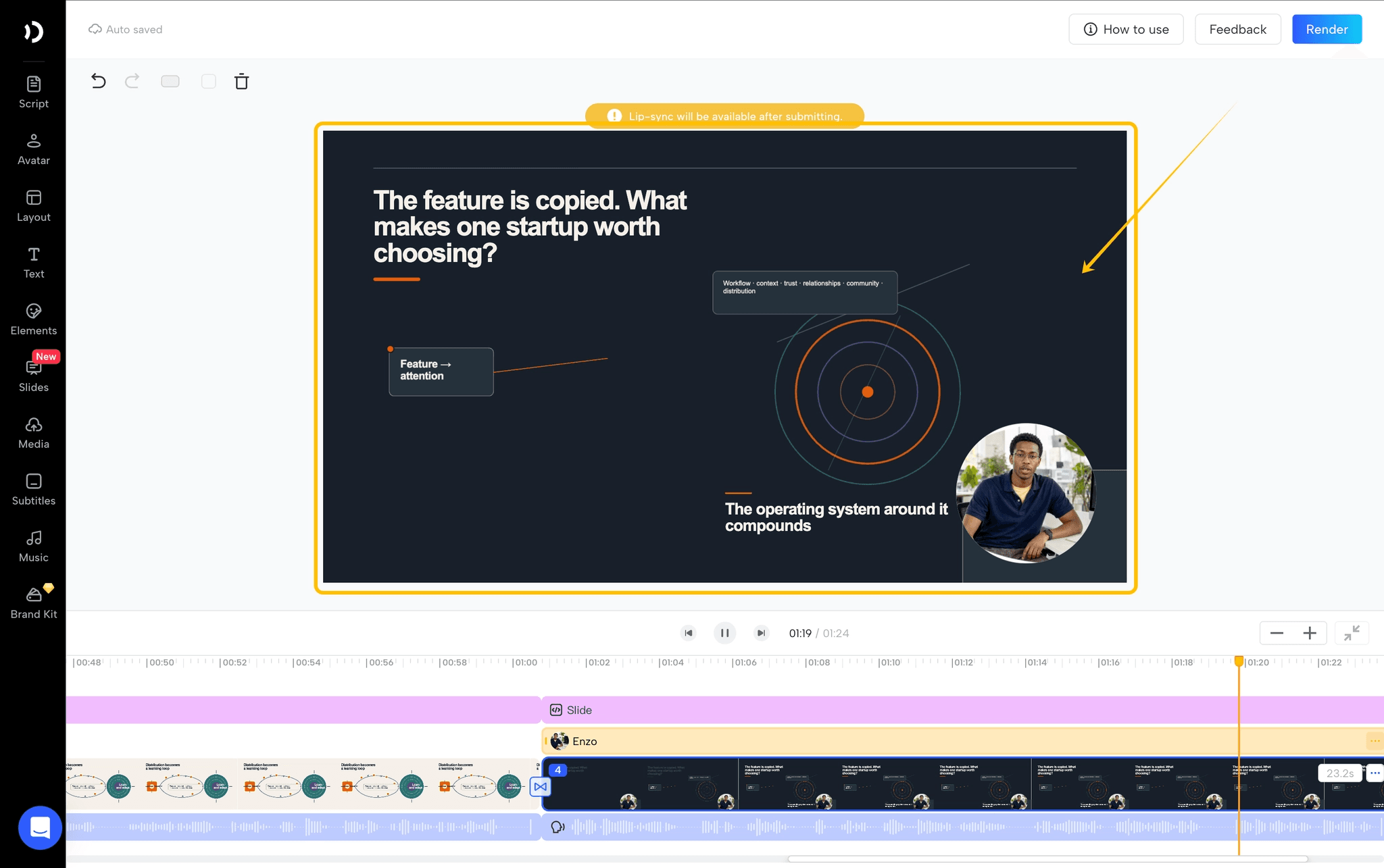
Assemble the presentation: Bring together narration, subtitles, an AI presenter, slides, B-roll, graphics, and timing in one output.
For example, an educator could combine an employee onboarding PDF, a policy webpage, and a reference document in one training project. The useful output is not just a summary of those files. It is a structured lesson with an opening, explanations, examples, visual evidence, and a closing section that a learner can follow.
Why the visual planning matters for educators
A presenter is useful for introducing a topic or closing a lesson, but it is not always the clearest way to explain a process or comparison. JoggAI’s brief describes several visual combinations: AI presenter only, B-roll only, presenter plus B-roll, presenter plus slides, B-roll plus slides, and slides only.
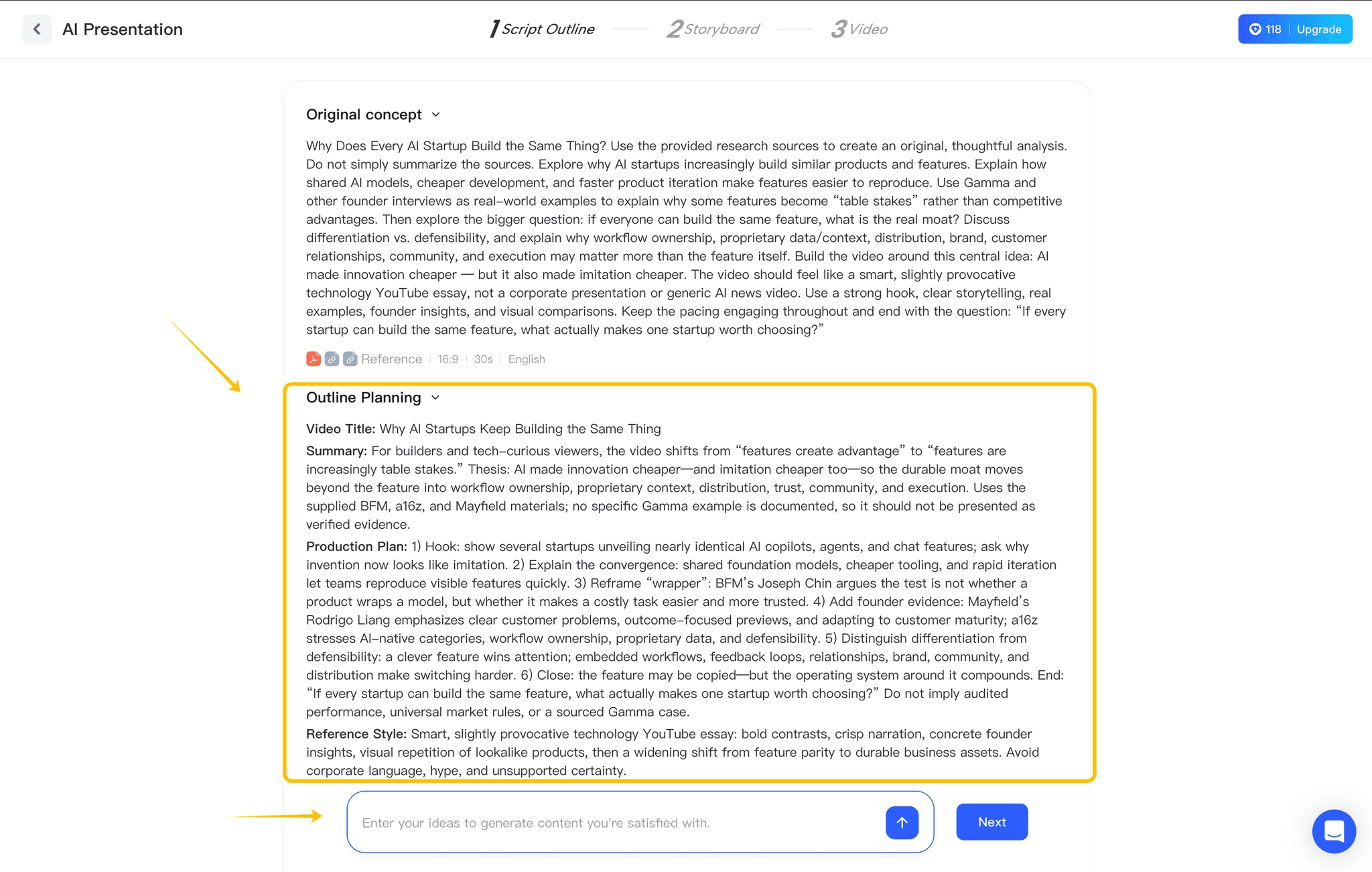
The workflow can also plan visuals for information-heavy subjects. A timeline can explain historical change. A comparison can separate two theories. A process graphic can show a sequence. A map can add geographic context. A data visualization can make evidence easier to inspect.
Best fit: You already have knowledge assets and want a structured presentation video without filming or building every scene manually.
ChatGPT
best for flexible planning and first drafts
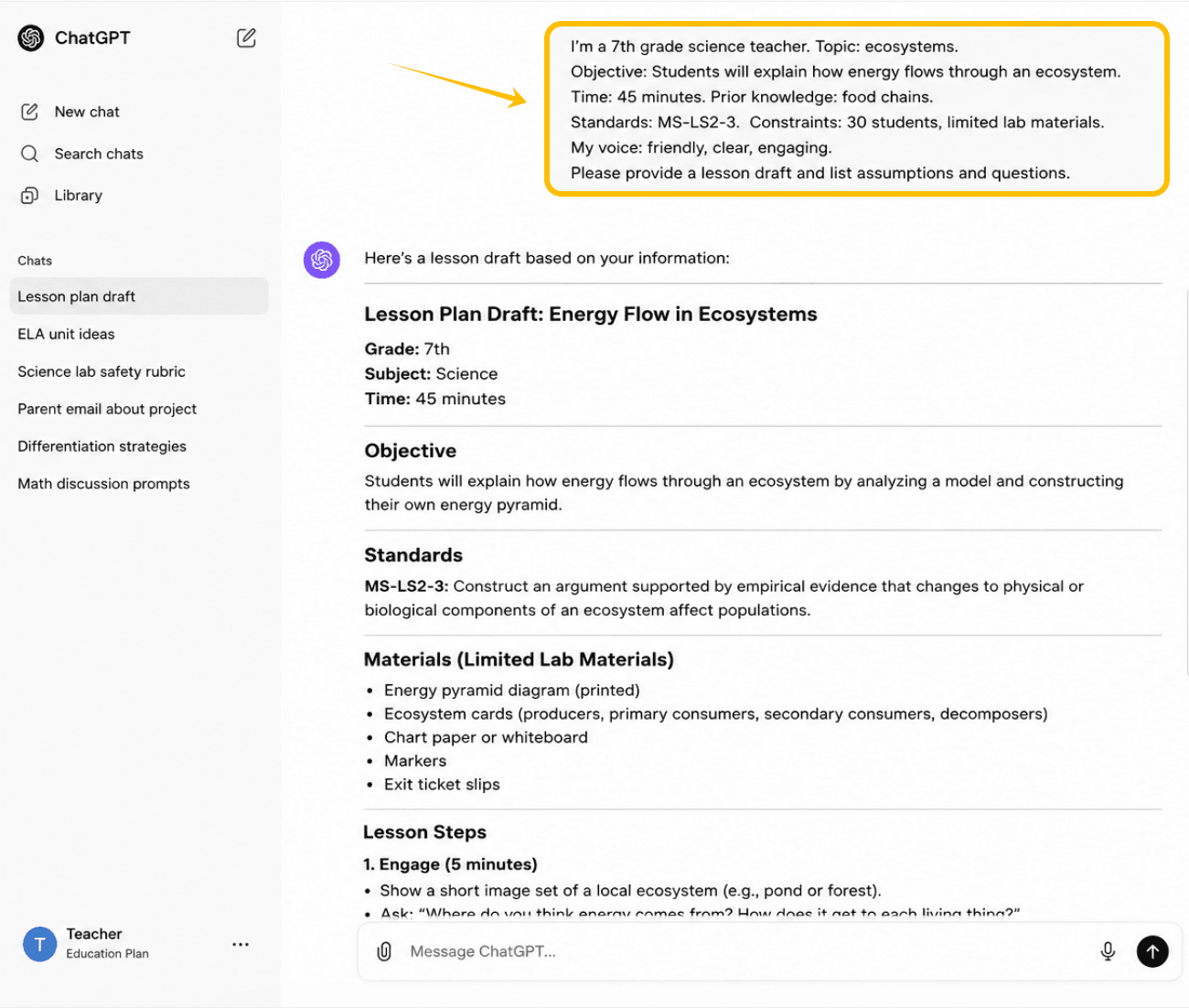
ChatGPT is a general-purpose assistant for lesson outlines, discussion prompts, practice activities, rubric drafts, parent updates, and differentiated explanations. Its flexibility helps when the task is still being defined.
Give it the grade level, subject, objective, time limit, prior knowledge, required standards, classroom constraints, and a sample of your own voice. Ask for a draft plus a list of assumptions and questions that still need your judgment. That creates a more useful review surface than asking for a generic lesson plan.
Best fit: Open-ended planning, rewriting, brainstorming, and teacher communication.
Gemini for Education
best for Google-centered workflows
Gemini for Education is a natural fit for educators whose planning and materials already live in Google’s ecosystem. It can support drafting, summarizing, brainstorming, and explaining within a workflow that may connect to the tools and administrative policies an institution already manages.
The important question is not whether a general assistant can write a lesson. It is whether the school or organization has an approved account, clear data controls, and a review process for classroom use. Start with a non sensitive planning task, then confirm what account tier, age restrictions, data handling, and Workspace permissions apply.
Best fit: Teachers and teams already working in Google-centered document and collaboration workflows.
4. NotebookLM
best for source-grounded research
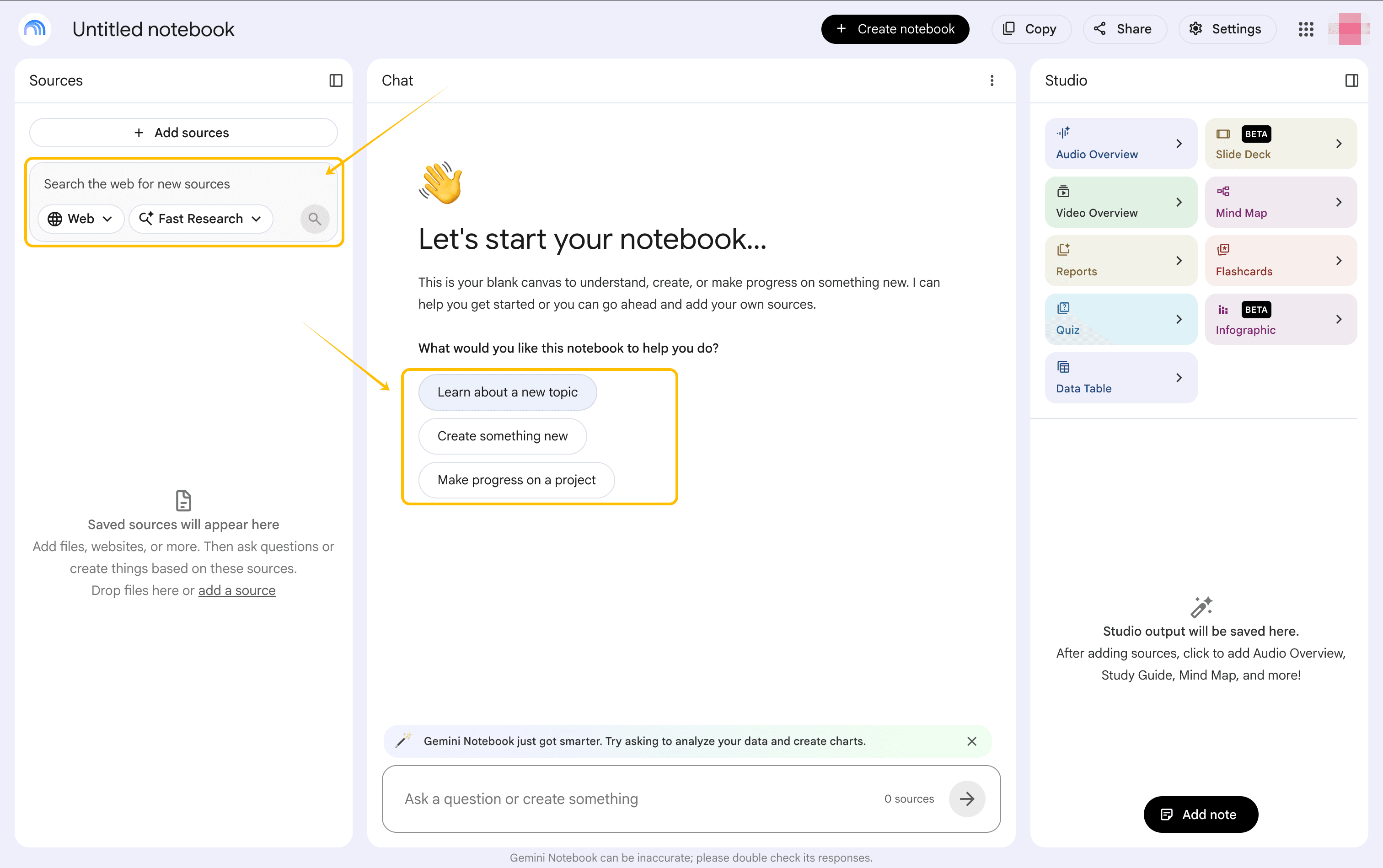
NotebookLM is designed around a source set. Add the PDFs, web pages, notes, or other references that define the topic, then use the notebook to ask questions, summarize material, compare sources, or build study aids. This makes it useful for preparing a lesson from a research packet or helping learners navigate a defined collection of readings.
Source grounding does not make every answer automatically correct. Check whether the source set is complete, whether the tool interpreted a table or figure correctly, and whether an answer is a quotation, a synthesis, or an inference. For a classroom handout, keep the source list with the final draft so another teacher can audit it.
Best fit: Research preparation, reading packets, literature reviews, and source-based study guides.
5. Notion AI
best for course planning and shared knowledge
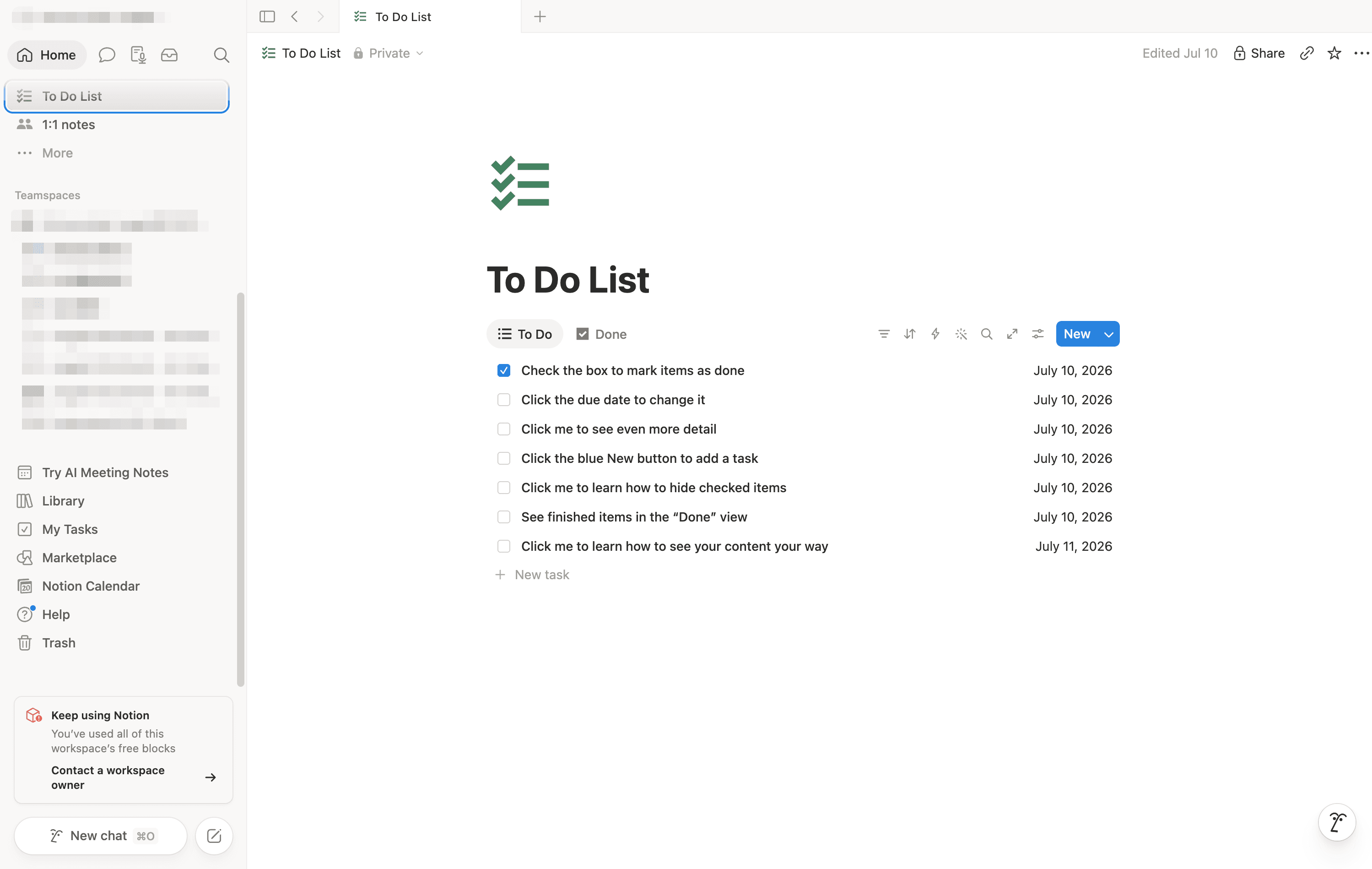
Notion AI is most useful when the problem is not one lesson but the system around many lessons. Teachers and course teams can use a shared workspace for curriculum maps, unit outlines, meeting notes, resource databases, assessment plans, and revision logs, then use AI for summaries, reorganizing, or drafting from that context.
The advantage is continuity. A course plan can link an objective to a lesson, a resource, an activity, and a review note instead of leaving each AI prompt as a disconnected document. The teacher still needs to maintain the source of truth and decide which pages contain approved material.
Best fit: Course creators, instructional designers, and teams managing a growing library of teaching material.
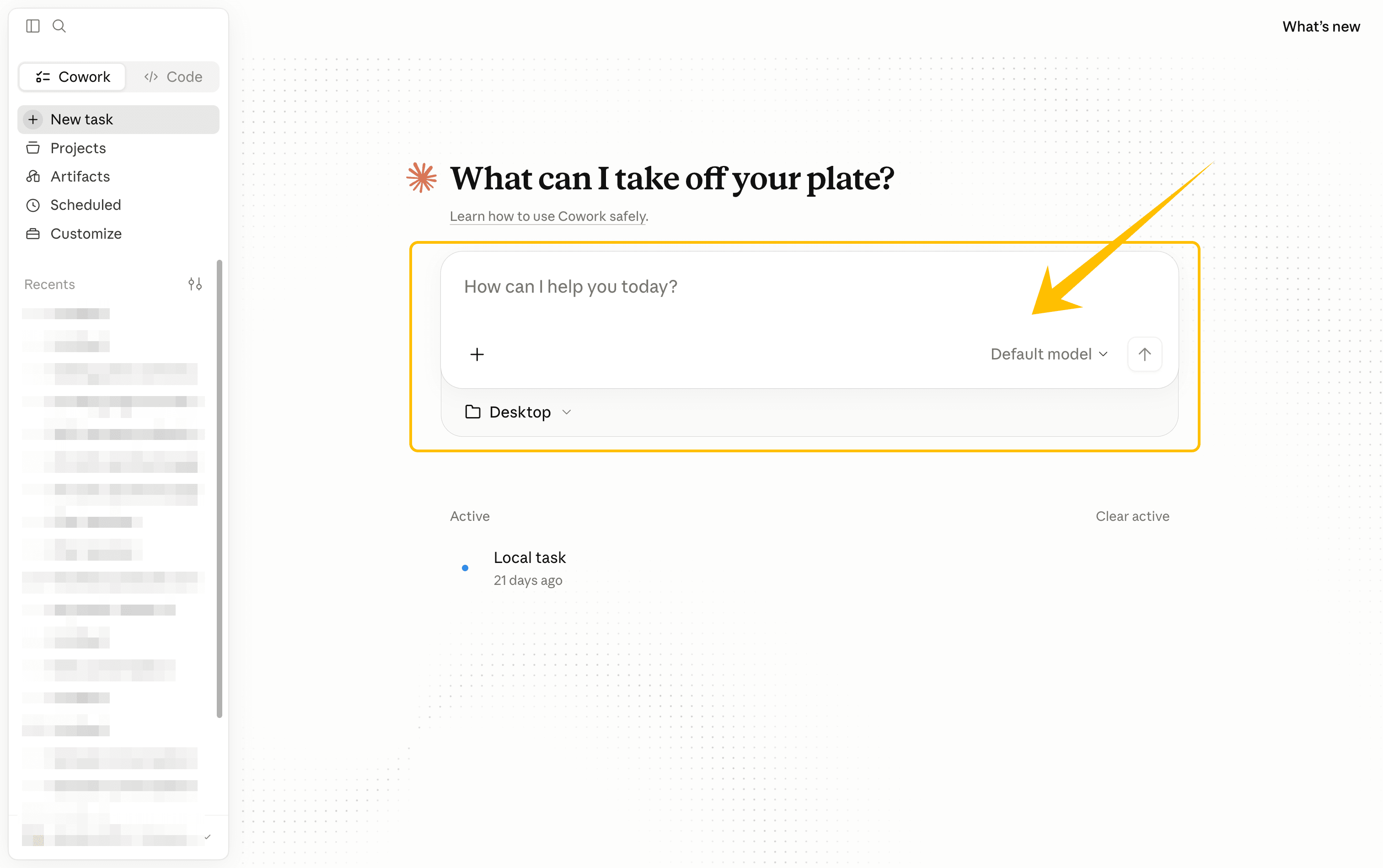
6. Claude
best for nuanced document work
Claude can help educators analyze long documents, explain difficult passages, compare policy language, draft rubric criteria, or rewrite material for a defined audience. It is a strong option when the task depends on preserving nuance rather than producing a short generic answer.
The best prompt gives Claude a role, a source, a target audience, and explicit boundaries. For example, ask it to explain a research passage to first-year students while preserving uncertainty and separating the author’s claim from the tool’s interpretation. Request a short evidence table before asking for polished prose.
Best fit: Long-form reading, complex explanations, policy summaries, and rubric drafting.
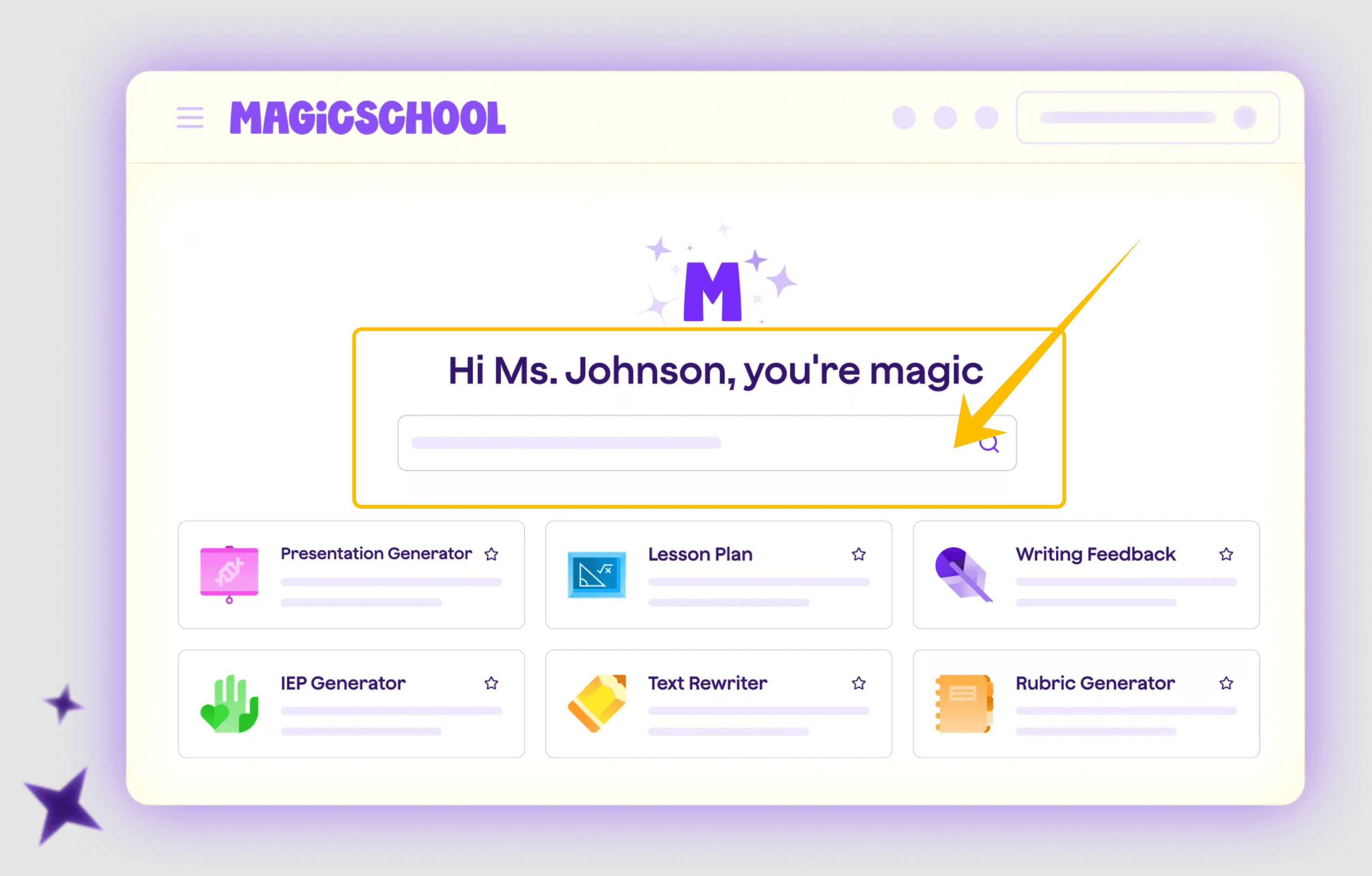
7. MagicSchool
best for teacher-specific planning templates
MagicSchool focuses on teacher workflows rather than general chat. It can help educators create lesson materials, classroom activities, rubric drafts, and other planning resources from inputs such as grade, subject, objective, and resource type.
Teacher specific templates reduce the amount of prompt design required. They do not remove the need for context. Add the learning goal, class profile, time available, language needs, materials, and what students should produce. Then inspect the result for developmental fit and unnecessary complexity.
Best fit: Teachers who want guided, education-specific planning tools.
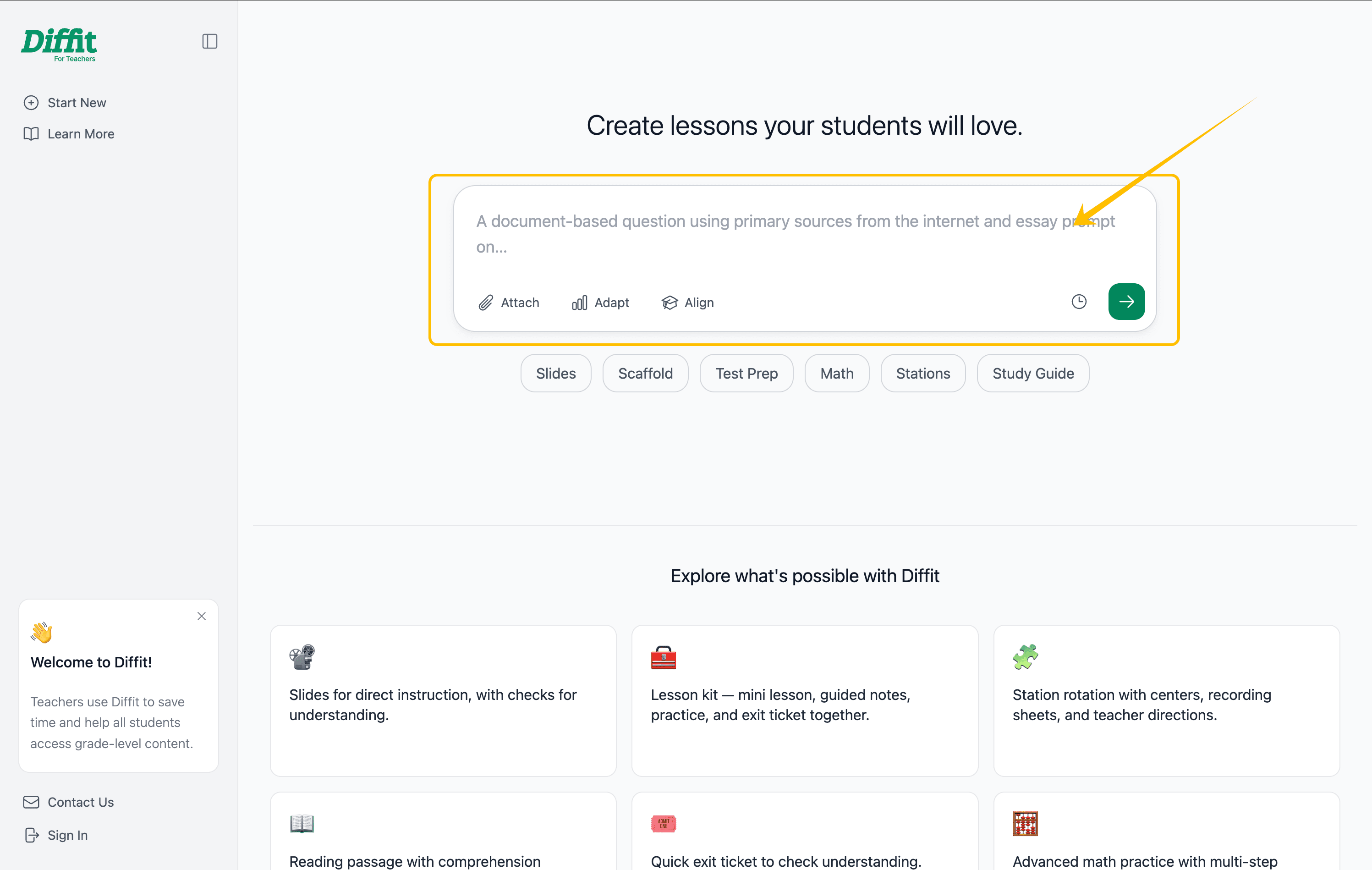
8. Diffit
best for differentiated resources
Diffit is built for adapting instructional material. A teacher can begin with a topic, text, link, or other source and create versions that support different reading levels or activity needs. It is useful when the learning objective should stay stable while the language, scaffolding, or practice format changes.
Use Diffit after defining the non-negotiables: concepts, vocabulary, evidence, and success criteria that every learner must encounter. Compare the generated versions side by side. Simplifying a text should not remove the reasoning students need to practice.
Best fit: Reading support, mixed-ability classrooms, vocabulary scaffolds, and differentiated activities.
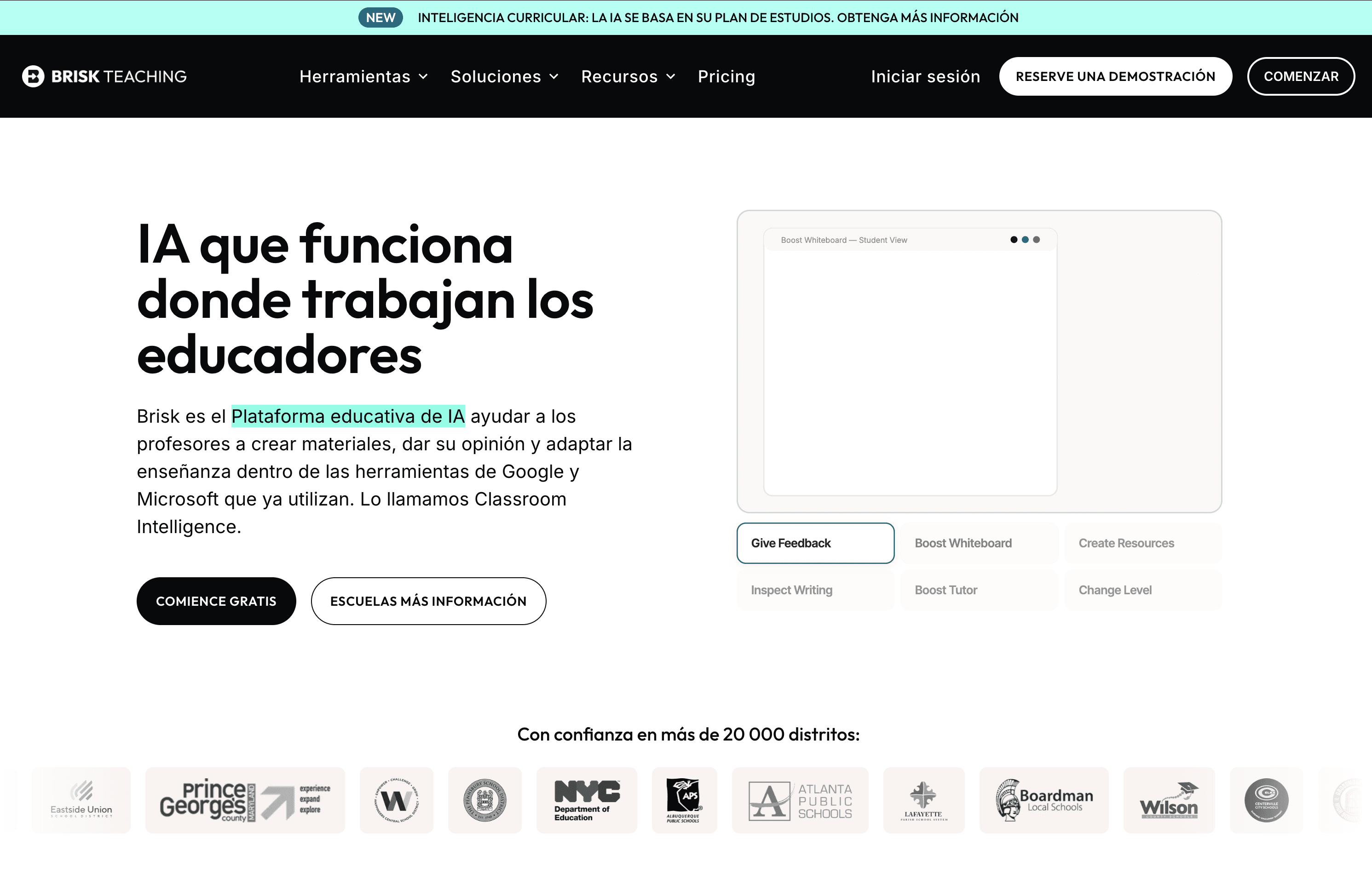
9. Brisk Teaching
best for transforming existing classroom material
Brisk Teaching works in the flow of existing browser-based teaching work. It can help educators adapt, create, or give feedback on classroom material without moving every task into a separate planning environment.
This is valuable when the bottleneck is not idea generation. It handles small edits that happen repeatedly, such as turning a page into an activity or adjusting a resource for a class. Start with a copy. Compare the transformed output with the original so useful context is not lost.
Best fit: In-context editing, resource adaptation, and teacher productivity.
How should you choose among these tools?
Choose by the material you already have:
-
A finished slide deck: Start with JoggAI PPT to Video when the goal is a presenter-led training presentation.
-
A PDF, webpage, DOCX, or mixed source set: Start with JoggAI Animated Presentation Video for structured presentation content, or NotebookLM when the output should remain source-grounded notes and study aids.
-
A blank lesson idea: Start with ChatGPT, Gemini for Education, or MagicSchool, then add your own objective, constraints, and examples.
-
A long or difficult document: Start with Claude or NotebookLM and request evidence, definitions, and uncertainty labels.
-
The same concept for different learners: Start with Diffit, then check alignment and cognitive demand.
The practical takeaway
The best tools for teachers are not the ones with the longest feature lists. They are the ones that fit a real educator workflow and leave a clear review point before students see the result. Start with one recurring task. Use non-sensitive material. Record what the tool changed. Keep the teacher in control of accuracy, privacy, accessibility, and learning design.
For educators whose knowledge already lives in presentations, PDFs, webpages, or training documents, JoggAI animated presentation workflow offers a focused way to turn those materials into a structured presentation video. Explore JoggAI and check the current JoggAI pricing before deciding whether it fits your production workflow.