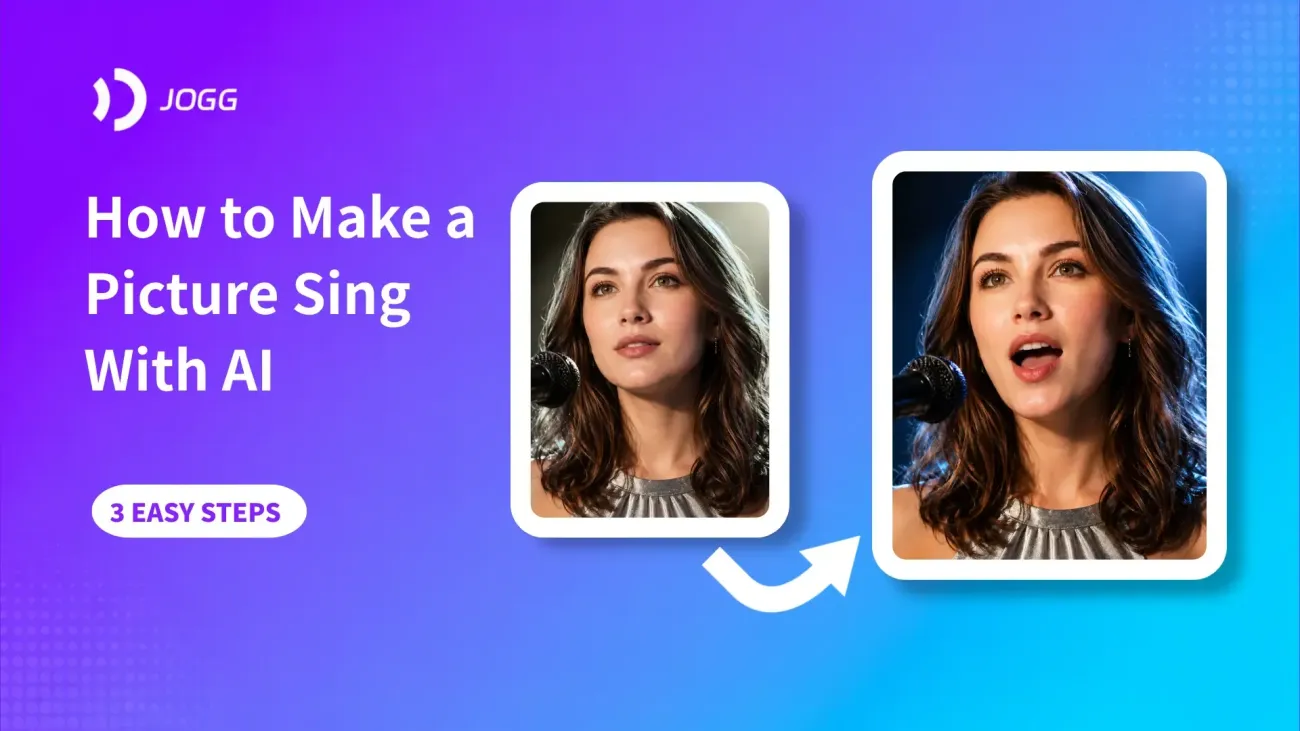

Want to make a picture sing without filming a performance or animating every mouth movement by hand? The difficult part is not adding music. It is making the face follow the vocals without stiff expressions, drifting features, or an obvious delay.
That process used to require animation or video-editing experience. Today, a purpose-built tool can make pictures sing from a still image and an audio track. With JoggAI, you upload the picture, add a song, choose an emotion, and review the generated performance before downloading it.
This guide explains how to make a picture sing, which inputs produce better results, and what to check before sharing the finished video.
Ready to try the workflow? Make a photo sing with JoggAI using your own image and audio.
What Is an AI Singing Picture?
An AI singing picture is a short video created from a still image and an audio track. The face is animated so that its mouth movements and expressions follow the vocals, making a person, character, or illustration appear to perform the song.
This is different from simply placing music over a slideshow. A singing photo AI tool animates the face in time with the uploaded audio, creating the impression that the subject is actually singing.
With JoggAI, you can upload a portrait and a song to create a singing picture directly from your browser. If you already have an avatar or video that needs new audio synchronization, JoggAI’s AI Lip Sync tool provides a separate workflow. When your starting point is a still image, Singing Photos is the more direct option.
What You Need Before You Make a Photo Sing
You do not need animation software, but the source material matters. Before you make a photo sing, prepare:
-
A photo you own or have permission to use.
-
One recognizable face as the main subject.
-
A sharp image with visible eyes and an unobstructed mouth.
-
An MP3 or WAV file with clear, prominent vocals.
-
A specific use case, such as a social post, greeting, music teaser, original character performance, or branded jingle.
For a first test, use a well-lit portrait and a short section of music. A 10- to 20-second hook is easier to review than a full song and makes it faster to identify whether the photo, audio, or emotion needs changing.
How to Make a Picture Sing with JoggAI
The basic workflow takes three steps.
Step 1: Upload Your Picture
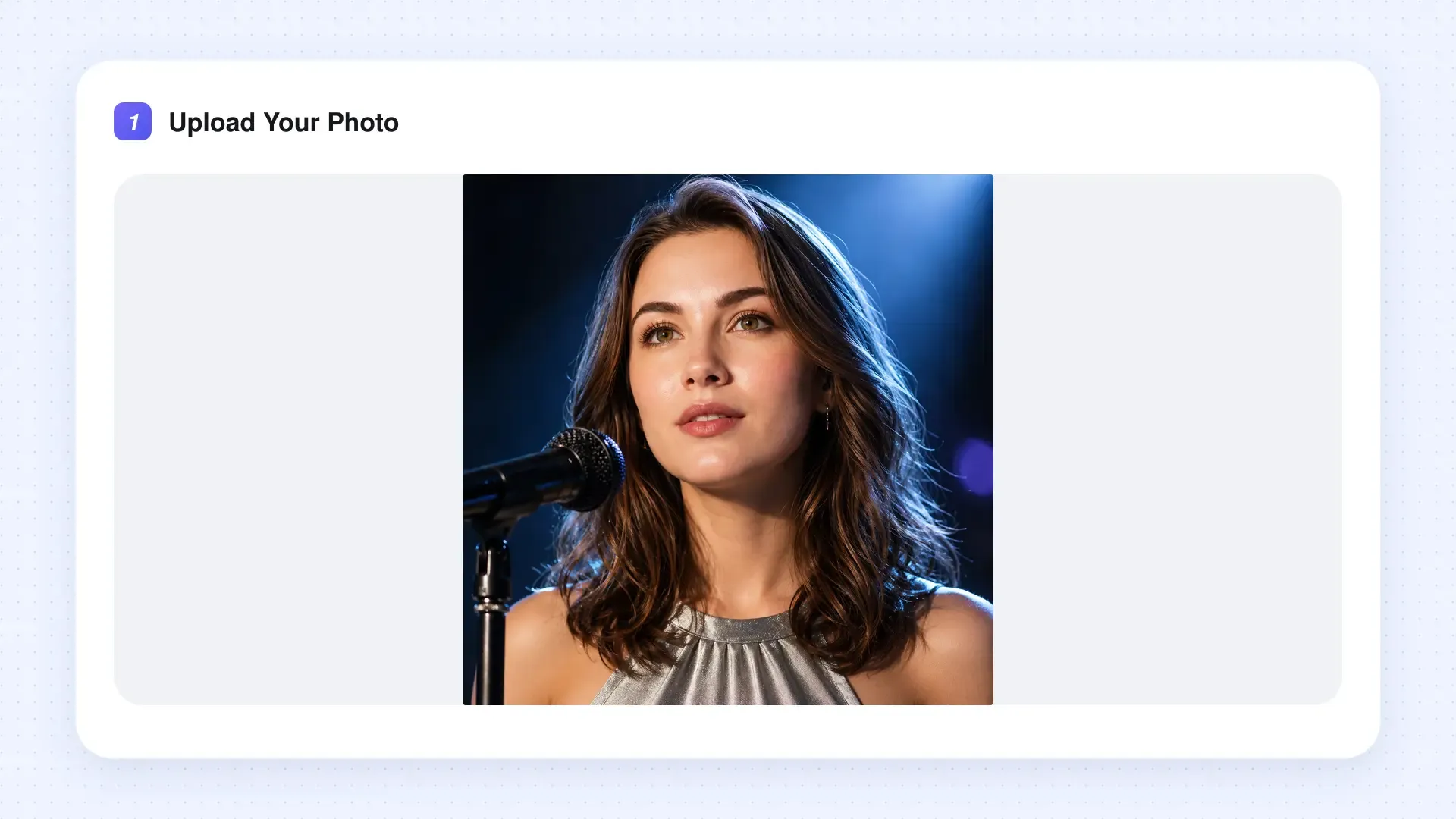
Open JoggAI Singing Photos and upload the image you want to animate. You can use a selfie, portrait, illustration, artwork, or another image with a visible face.
Choose a clear picture with even lighting and enough space around the head. Avoid a tiny face in a group photo, heavy blur, a covered mouth, or a crop that cuts off the chin. JoggAI can work with different viewing angles, but a front-facing or moderately angled portrait remains the safest baseline.
If your goal is to make image sing content for a vertical platform, crop the image to the intended aspect ratio before generating. This helps you judge whether the face will remain large enough on a phone screen.
Step 2: Choose an Emotion and Upload Your Song
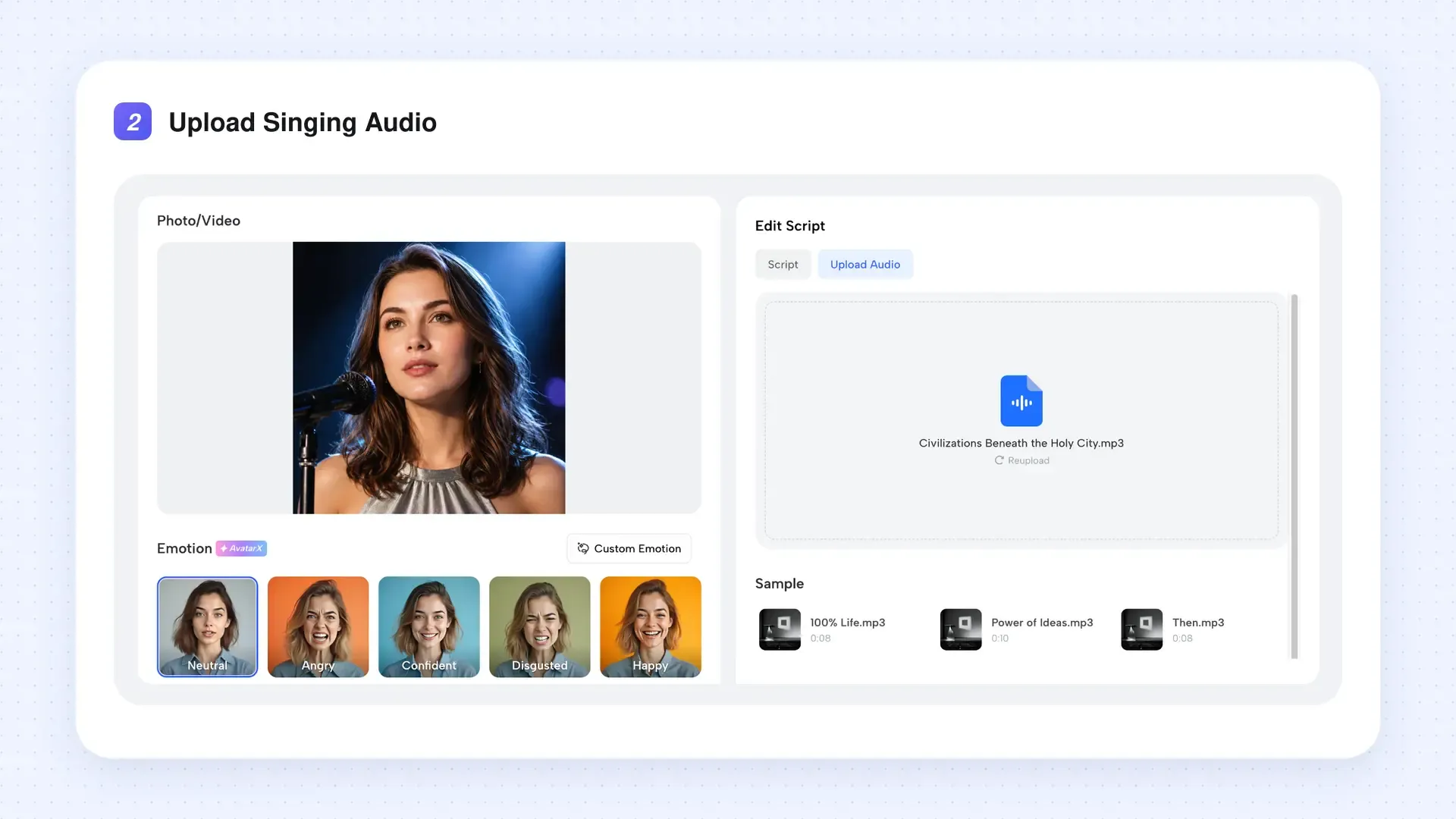
Select an emotion that fits the performance, then upload the song as an MP3 or WAV file. A quiet ballad usually benefits from restrained movement, while an energetic chorus can support a more expressive result.
Check that the vocals begin where expected, the volume stays consistent, and there is no long opening silence. If you only need one lyric or chorus, trim the audio before uploading it. Clear vocals are easier to synchronize and easier for you to evaluate afterward.
Step 3: Generate, Review, and Download
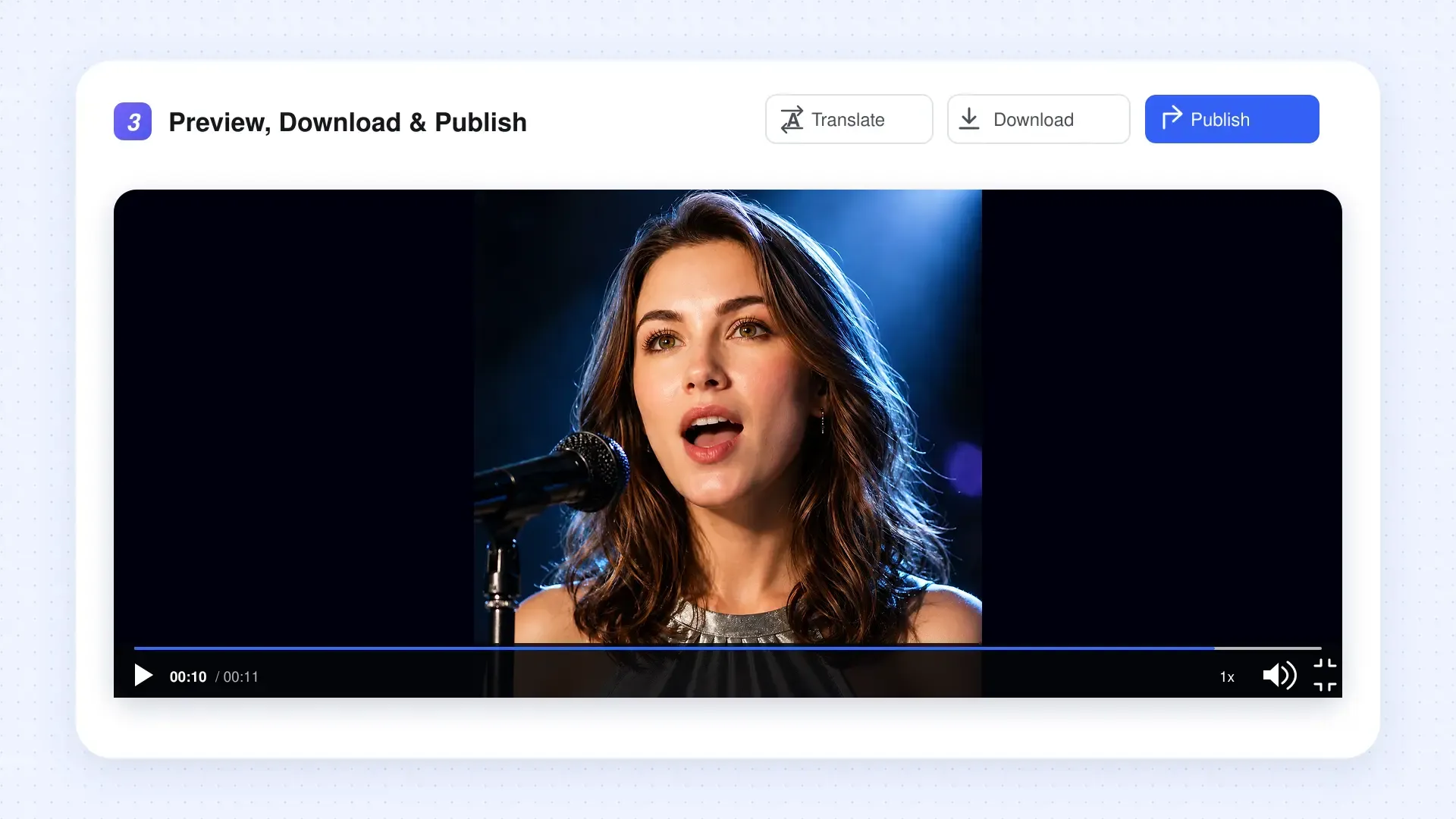
Generate the video and watch the result from beginning to end with sound. Treat the first output as a draft to review, not an automatic final cut.
New JoggAI users receive free credits after registration. You can use those credits to try Singing Photos and generate your first video for free before deciding whether you need additional credits.
Pay close attention to fast lyrics, wide vowel sounds, mouth corners, teeth, and head turns. Does the expression match the mood? Does the face remain recognizable? If one section feels wrong, try a cleaner excerpt, clearer crop, or different emotion. Change one variable at a time so you can see what actually improves the photo to singing video result.
Once the lip sync and expression hold up throughout the clip, download the version you want to use.
Turn your idea into a performance: open JoggAI Singing Photos, start with a short hook, and build from the most natural result.
How to Make the Singing Video Look More Natural
AI handles the animation, but the quality of the input still shapes the output. These checks make the biggest practical difference.
Start With One Clear Subject
A single dominant face gives the system an unambiguous subject. If you are working from a group photo, crop it to the intended singer. Keep the eyes and mouth visible, and leave a little room around the head for natural movement.
Use Audio With Clear Vocals
Lip sync follows vocal timing, not simply the beat. Audio with buried vocals, heavy crowd noise, or several overlapping singers is harder to assess. Clean up the track or select a clearer passage before repeatedly regenerating the video.
Match the Emotion to the Song
A mouth can be technically synchronized while the overall performance still feels wrong. The eyes, expression, and energy need to agree with the lyric. Choose the emotion based on the performance rather than the genre label alone.
Review at Normal Playback Speed
Watch the clip once at normal speed, once with headphones, and once on the device where it will be published. Slow-motion review can reveal a problem, but normal playback tells you whether viewers are likely to notice it.
JoggAI’s Lip Sync 3.0 update documents improvements to clarity, stability, and side-view performance. It is useful background when you are evaluating a difficult or angled source image.
Can You Make Any Photo Sing?
The phrase make any photo sing sounds simple, but not every image is equally suitable. A tool may detect faces across selfies, portraits, illustrations, and artwork, yet a visible face is still essential for convincing animation.
Photos are more likely to produce a usable result when:
-
The face is large enough to inspect.
-
The mouth is not covered by a hand, microphone, hair, or object.
-
The image is not heavily blurred or compressed.
-
The head is not cropped too tightly.
-
The subject’s identity and expression remain clear.
If an old family picture or piece of artwork fails, do not immediately abandon it. Try improving the crop, increasing clarity carefully, or testing a shorter audio excerpt. The goal is not to force every source through the same settings; it is to give the model the clearest possible face and vocal timing.
Practical Ways to Use Singing Pictures
A short photo to singing video works best when it delivers one clear idea. Useful applications include:
-
Social media hooks: Animate a portrait or original character for the strongest line of a song.
-
Personalized greetings: Pair a permitted family photo with an original birthday or holiday recording.
-
Music teasers: Give album artwork, a fictional performer, or an artist-approved image a brief vocal moment.
-
Mascots and campaign characters: Turn an original brand character into the performer of a jingle or event announcement.
-
Educational content: Use a historical illustration or original classroom character to introduce a memorable rhyme, with appropriate permissions and context.
Keep the clip focused. One hook, punchline, greeting, chorus, or teaching point is usually more effective than asking a single generated performance to carry an entire song.
Which JoggAI Photo Tool Fits Your Project?
Not every animated picture needs to sing. Choose the workflow according to the source you have and the result you want.
| Your goal | Recommended JoggAI workflow |
|---|---|
| Turn a still picture and song into a performance for free | Singing Photos |
| Make a still photo deliver spoken narration | Talking Photo |
| Add general movement to a portrait or image | Photo Animator |
| Synchronize an existing avatar or video with audio | AI Lip Sync |
Use Singing Photos when the song is the center of the clip. If you need spoken narration, Talking Photo provides a more direct voice-led workflow. If the image only needs visual movement without speech or singing, Photo Animator is the better starting point.
Use Photos and Music Responsibly
Only animate a person’s likeness when you have permission to use it. Do not present an AI-generated performance as something a real person recorded or endorsed, especially when the subject is a public figure, employee, customer, or minor.
Music rights are separate from photo permission. The U.S. Copyright Office explains that a musical composition and a sound recording are separate copyright-protected works. Use music you created, properly licensed audio, public-domain material, or music provided under terms that cover your intended use.
Platform rules also matter. YouTube recommends using eligible music from the Shorts Audio Library or royalty-free tracks from its Audio Library to reduce copyright-claim risk. Music cleared for a personal post may not automatically cover advertising, client work, or off-platform distribution.
Frequently Asked Questions
How do I make a picture sing with AI?
To make a picture sing, upload a clear image to JoggAI Singing Photos, choose an emotion, add an MP3 or WAV song, and generate the video. Review the complete clip before downloading it.
Can I make a photo sing online for free?
Yes. New users receive free credits after registering for JoggAI, and those credits can be used with Singing Photos. This lets you make a photo sing online for free and test the complete workflow before purchasing additional credits. The number of available generations depends on your credit balance and the current credit cost of each generation.
Can I make pictures sing online without animation experience?
Yes. JoggAI handles the facial animation and lip sync, so you do not need to animate the mouth manually. Basic editing can still help with cropping the picture, trimming the audio, adding captions, and formatting the final video.
What is the best image to use?
Use a sharp, well-lit image with one recognizable face and a visible mouth. Front-facing portraits are the easiest starting point, although moderately angled faces, illustrations, and artwork can also work. If you want to make image sing content from an unusual source, begin with a short audio test.
Can I make a photo sing my own song?
Yes. Upload your MP3 or WAV file and pair it with the picture. If you plan to publish or monetize the result, confirm that you have permission to use both the musical composition and the particular recording.
Why does the mouth movement sometimes look unnatural?
Common causes include a small or obstructed face, unclear vocals, overlapping singers, an emotion that does not fit the track, or an especially difficult head angle. Change one input at a time and compare short generations before producing a longer version.
Make Your First Picture Sing
Learning how to make a picture sing comes down to three good inputs: one clear face, clean vocals, and an emotion that suits the performance. Start with a short hook, review it at normal speed, and refine the photo or audio only when you can identify a specific problem.
When you are ready, make a picture sing with JoggAI and turn your still image into a shareable performance.