
(https://statics.mylandingpages.co/static/aaanxdmf26c522mpaaakina2mv3zhvfl/image/b0199e0e9adf4bd298b4a3a8b8156c85.webp)
You want to know how to add music to a video? It is easier than you might think. Most editing tools let you upload your video, pick a music track, and drag it onto your timeline. You can trim the song, adjust the volume, and make your video more fun. You just need to follow a few simple steps to get started.
How to Add Music to a Video
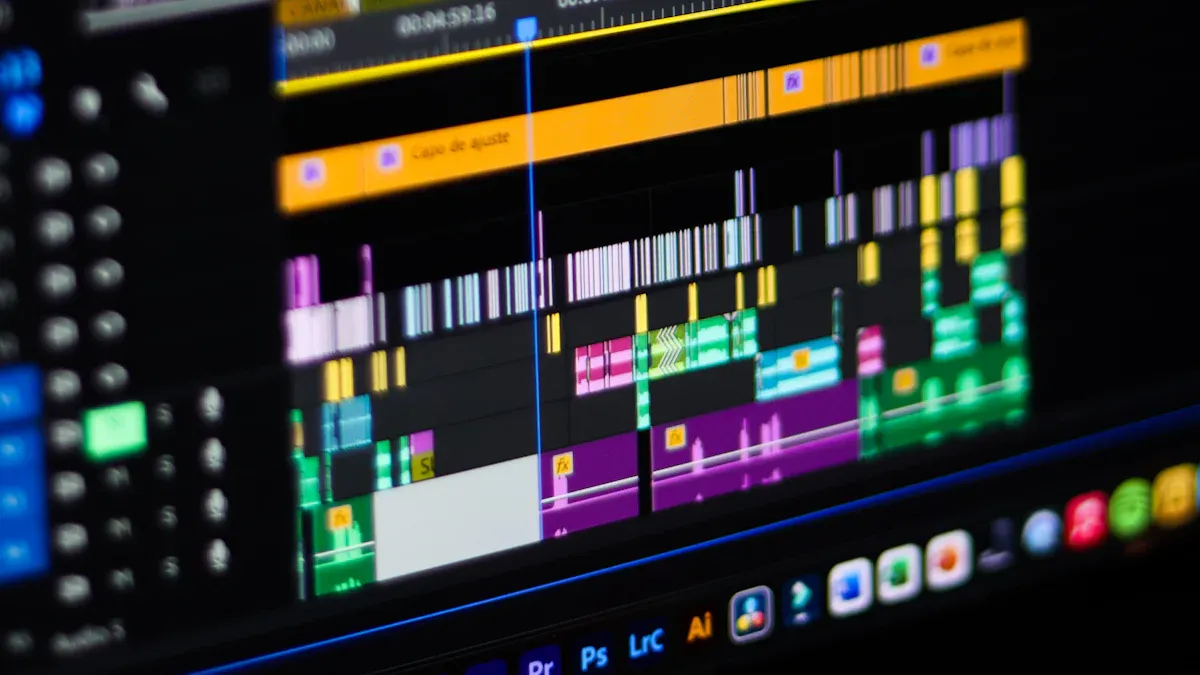
Image Source: pexels
JoggAI
JoggAI makes it simple to add music to your videos. You can use it online, so you do not need to download anything. Here is how to add music to a video with JoggAI:
-
Open JoggAI in your browser.
-
Upload your video file.
-
Look for the music or audio section in the editor.
-
Click to upload your own music or choose from the built-in tracks.
-
Drag the music onto your video timeline.
-
Trim the music so it fits your video.
-
Adjust the volume to make sure your voice or other sounds are clear.
-
Preview your video before saving.
Tip: Always listen to your video after adding music. Make sure the music does not cover up important sounds.
Canva
Canva is a popular tool for both beginners and pros. You can use it on your computer or phone. Here is how to add music to a video in Canva:
-
Start a new video project or open an existing one.
-
Upload your video clip.
-
Click on the “Audio” tab in the left menu.
-
Pick a track from Canva’s library or upload your own song.
-
Drag the music onto your timeline below the video.
-
Move and trim the music to match your video’s length.
-
Use the volume slider to balance the music with your video’s audio.
-
Click play to check your work, then download your finished video.
Note: Canva offers free and paid music. Make sure you have the right to use the track you pick.
Adobe Express
Adobe Express gives you lots of creative options. You can use it online or on your phone. Here is how to add music to a video using Adobe Express:
-
Open Adobe Express and start a new video project.
-
Upload your video file.
-
Click the “Music” button or look for the audio section.
-
Choose a song from Adobe’s library or upload your own audio file.
-
Drag the music onto the timeline.
-
Trim the music so it matches your video.
-
Adjust the volume to keep your video’s sound clear.
-
Preview your video and export it when you are happy.
Tip: Try fading the music in or out for a smooth start and finish.
CapCut
CapCut is a favorite for mobile editing. You can use it on your phone or computer. Here is how to add music to a video in CapCut:
-
Open CapCut and create a new project.
-
Import your video.
-
Tap or click the “Audio” button.
-
Pick a song from CapCut’s library or add your own music file.
-
Drag the music onto the timeline under your video.
-
Trim the music to fit your video’s length.
-
Adjust the volume so the music does not overpower your video.
-
Play back your video to check the sound, then export it.
Tip: CapCut lets you add sound effects too. Try mixing music and effects for a fun result.
Clipchamp
Clipchamp works well for both beginners and advanced users. You can use it online. Here is how to add music to a video with Clipchamp:
-
Go to Clipchamp and start a new video project.
-
Upload your video.
-
Click on the “Music & SFX” tab.
-
Browse the music library or upload your own track.
-
Drag the music onto the audio track in the timeline.
-
Trim and move the music to match your video.
-
Use the volume controls to balance the sound.
-
Preview your video and export it when you are done.
Note: Clipchamp has free and premium music. Check the license before you use a song.
VEED.IO
VEED.IO is an easy online editor. You can use it on any device. Here is how to add music to a video in VEED.IO:
-
Open VEED.IO and upload your video.
-
Click on the “Audio” or “Music” button.
-
Upload your own music or pick from the built-in tracks.
-
Drag the music onto the timeline.
-
Trim the music so it fits your video.
-
Adjust the volume to make sure your video sounds good.
-
Preview your video and export it.
Tip: VEED.IO lets you add more than one audio track. You can mix music, voice, and sound effects for a richer video.
If you want to know how to add music to a video, these tools make it easy. You just need to upload your video, pick your music, and use the timeline to put everything together. Try different tools to see which one you like best.
Adding music can turn your video into something special. You now know how to add music to a video with easy tools. Try different songs and see what fits your story best. Always use music you have permission for. Follow best practices to keep your videos sounding great. If you want your videos to stand out, start experimenting today!