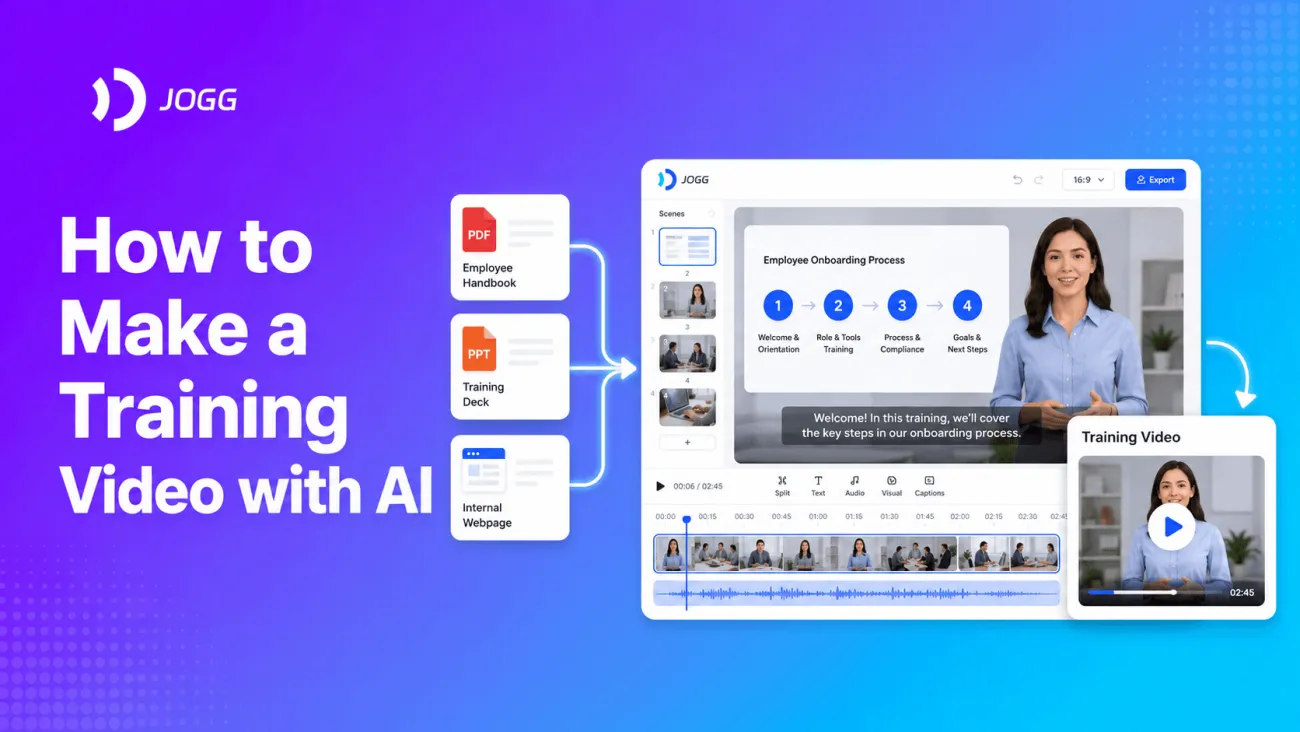

Training content rarely begins as a finished video. It usually exists across onboarding handbooks, policy documents, PowerPoint decks, internal webpages, lesson plans, and notes from subject matter experts. The challenge is turning that information into a clear learning structure, suitable visuals, and a video that can be updated when the content changes.
JoggAI simplifies this process by letting you start with the materials you already have. It helps turn approved information into structured scenes with narration, AI presenters, animated slides, B-roll, voiceovers, and captions, while keeping the resulting project editable.
This handbook explains how to make a training video, choose the right JoggAI workflow, review the generated content, direct the visuals, edit the video, and keep the training current as the information changes.
Quick Answer: How Does JoggAI Help You Create a Training Video Faster?
JoggAI reduces the manual work between source content and a finished training video. Instead of using separate tools for scripting, slide design, recording, and editing, you can use JoggAI as an AI training video generator to organize the content, build the scenes, add presenters and narration, and prepare an editable video for review.
There are three starting points for people learning how to make a training video with AI: JoggAI Animated Presentation Video for topics and source materials, PPT to Video for existing decks, and Smart Video for planning in ChatGPT or Codex and producing the video in a local studio.
Who This Handbook Is For
This handbook is designed for people who already know what they need to teach and have materials to work from, but need a faster way to turn that knowledge into a clear, polished video.
It is especially useful for:
-
Independent course creators and educators turning PPTs, PDFs, lesson plans, and research materials into an online course video for platforms such as Kajabi, Teachable, Thinkific, and Skool.
-
Coaches and subject matter experts sharing their knowledge through structured educational videos without appearing on camera or recording every lesson.
-
Learning and development and HR teams producing an employee training video, onboarding content, or internal skills program that can be updated over time.
-
Compliance and operations teams explaining policies, workflows, and standard operating procedures consistently across teams and locations.
-
Customer education and sales enablement teams converting product knowledge and existing presentations into reusable training content.
You do not need advanced video production experience. The workflows are intended for people who understand their subject but want to spend less time scripting, recording, designing slides, and editing video.
Choose the Right JoggAI Workflow
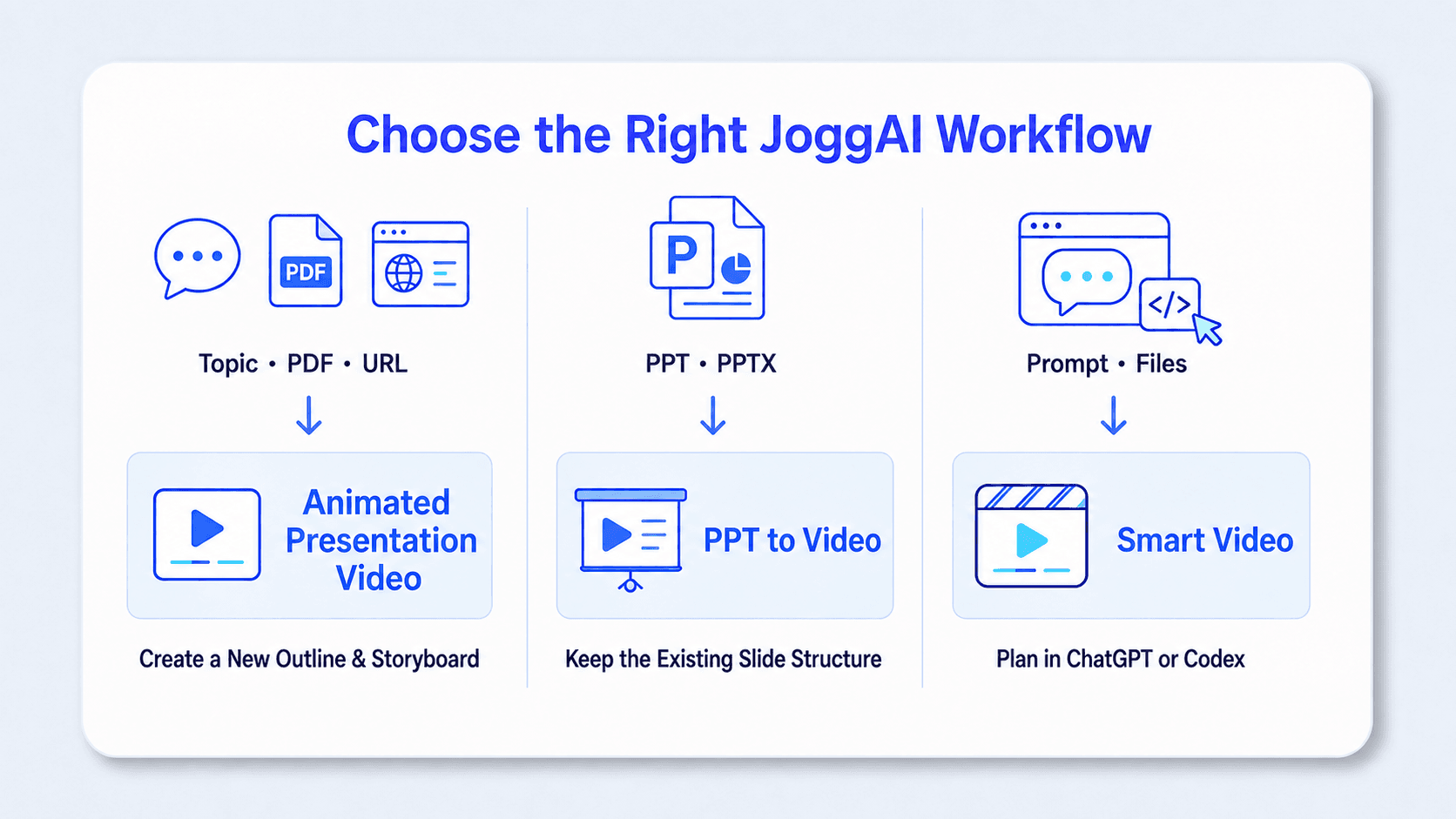
The best workflow depends on what materials you already have, whether the training structure has been finalized, and where you want to produce the video.
| What you already have | Recommended workflow | What happens next |
|---|---|---|
| A topic, PDF, document, webpage, URL, or multiple sources that still need to become a structured training story | Animated Presentation Video | JoggAI analyzes the materials and creates a new Script Outline and storyboard for each scene. You can review the narration, direct the visual format, and generate an editable online video. |
| A PPT, PPTX, or PDF that should remain the visual foundation of the training | PPT to Video | Choose whether JoggAI should generate a Solo Presentation, Talk Show, or Debate script, keep the uploaded content unchanged, or use existing speaker notes. Then select the language and continue editing in JoggAI. |
| A topic or source files that you want to develop through ChatGPT or Codex and produce locally | Smart Video | Plan the brief, script, and storyboard through conversation, assemble the media in an editable local project, and render the finished MP4 locally. |
Watch the Animated Presentation Video Workflow
This tutorial uses an employee onboarding example to demonstrate how Animated Presentation Video turns existing company materials into an editable training video. It covers adding source materials, reviewing the Script Outline and storyboard, choosing an AI presenter and voice, refining the visuals in the editor, and rendering the finished video.
Although the example focuses on employee onboarding, the same workflow can be adapted for online courses, compliance training, internal skills development, standard operating procedures, and policy updates.
The following guide breaks the workflow into individual steps and explains what to review and customize at each stage.
How to Make a Training Video with JoggAI Animated Presentation Video
Step 1: Define the Learning Goal and Add Your Sources
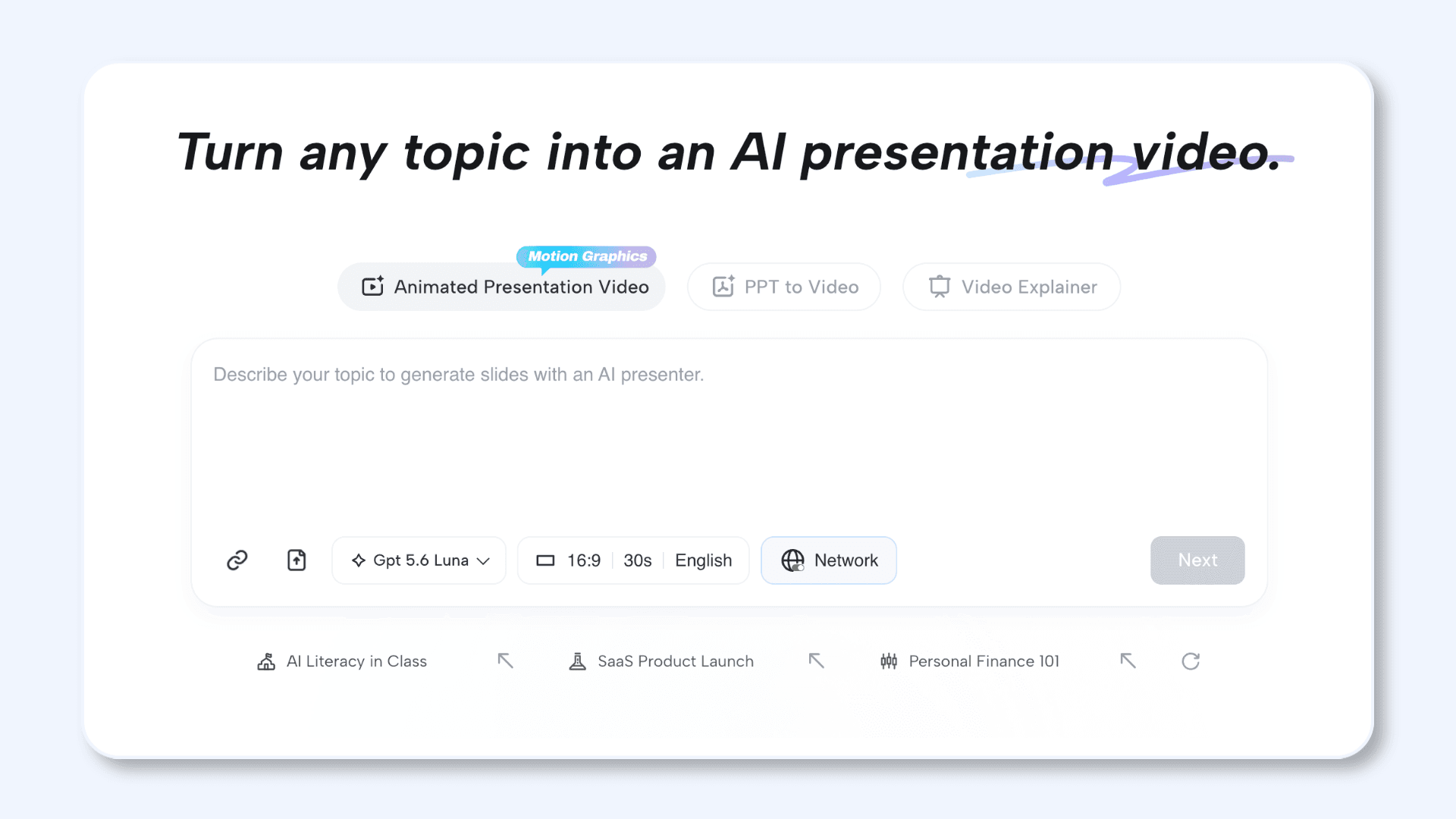
Open the AI Presentation Maker in JoggAI and select Animated Presentation Video.
Begin with one clear learning goal. Decide what viewers should understand or be able to do after watching, such as completing an onboarding checklist, following a new approval process, or applying a method taught in an online course.
Next, enter your topic and add the source materials JoggAI should use. These can include PDFs, documents, webpages, URLs, internal guides, policy files, lesson plans, and standard operating procedures. You can combine several sources in one project when the information needs to become one connected story.
Use current and approved materials whenever possible. This helps JoggAI follow your actual process, terminology, teaching points, and requirements.
A useful brief should identify the audience, learning objective, required information, and which sources JoggAI should prioritize.
For example:
Create a lesson for a beginner project management course. Explain how to define the project scope, identify key stakeholders, create the first timeline, and prepare a kickoff checklist. Use the attached course outline, lesson notes, and workbook as the primary sources.
Then set the language, model, duration, and aspect ratio. Choose a duration that gives the topic enough room without combining unrelated learning goals. A landscape 16:9 format is suitable for most learning management systems, course platforms, company intranets, and business presentations.
Step 2: Review the Script Outline Before Generating the Video
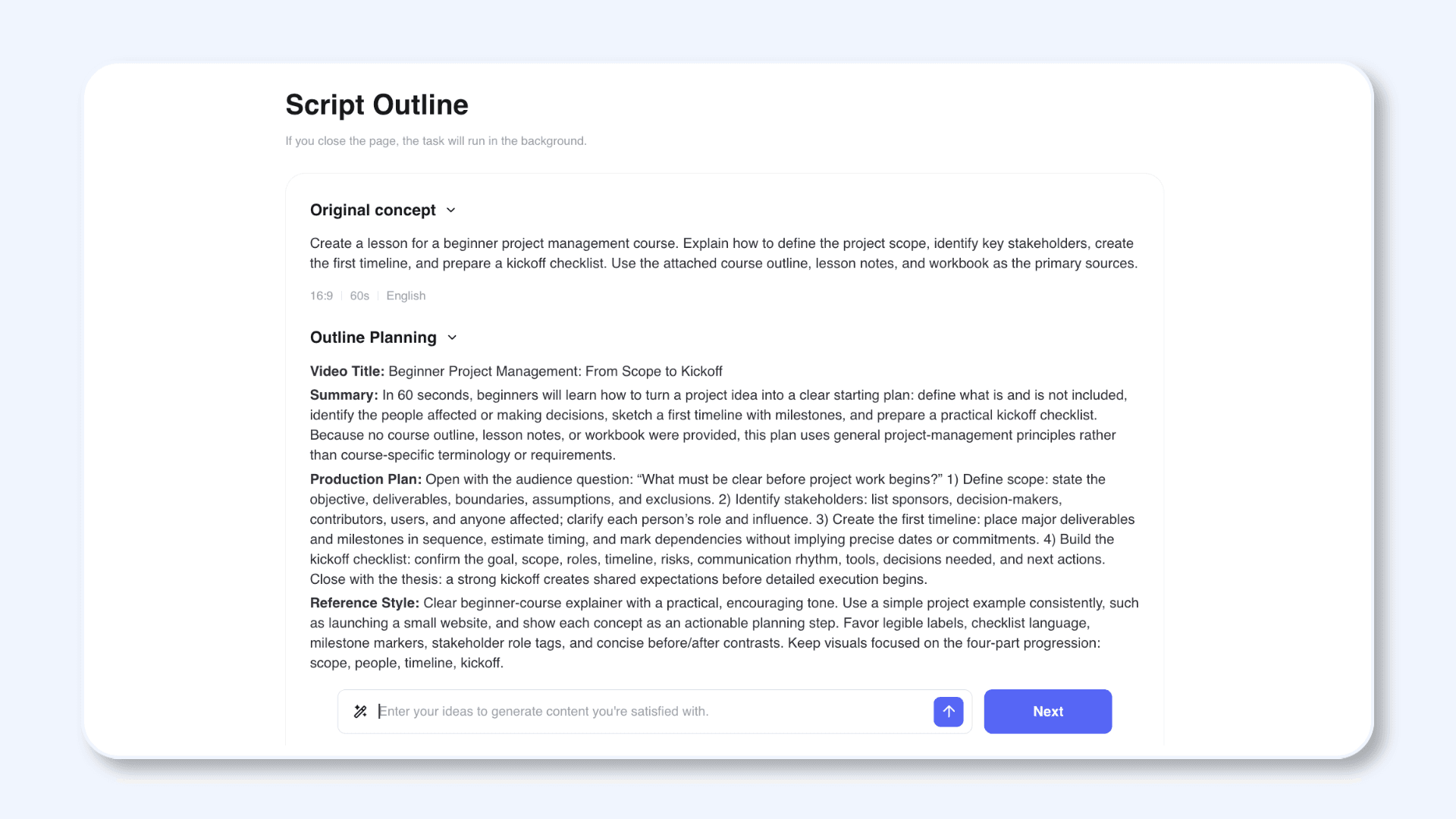
JoggAI first interprets your topic, settings, and source materials, then presents them as a Script Outline for review.
The Original Concept section shows your initial instructions along with the selected aspect ratio, duration, and language. Under Outline Planning, JoggAI generates four parts:
-
Video Title: The proposed title of the training video
-
Summary: The audience, learning objective, key content, and any important source limitations
-
Production Plan: The planned content sequence and how the explanation should progress
-
Reference Style: The proposed visual direction, including the overall look, graphics, footage, and presentation style
Check that the Video Title accurately reflects the topic, the Summary captures the intended learning outcome, and the Production Plan places the information in a logical order. The Reference Style should also suit the subject and make the training easy to follow.
For focused training, the Production Plan should support one main objective and be easy to divide into scenes with one key takeaway in each scene.
If the plan needs revision, use the field labeled **“Enter your ideas to generate content you’re satisfied with.”**Describe the result you want rather than rewriting every section manually.
For example:
Revise the Outline Planning into four sections: (1) Welcome and learning objective, (2) Team responsibilities and tools, (3) Escalation process, and (4) First week checklist. Keep the Summary focused on what new hires should understand by the end. In Reference Style, use clean blue training visuals, concise labels, and simple process graphics.
Review the updated Script Outline, then select Next to continue to the storyboard.
Step 3: Review and Direct the Storyboard
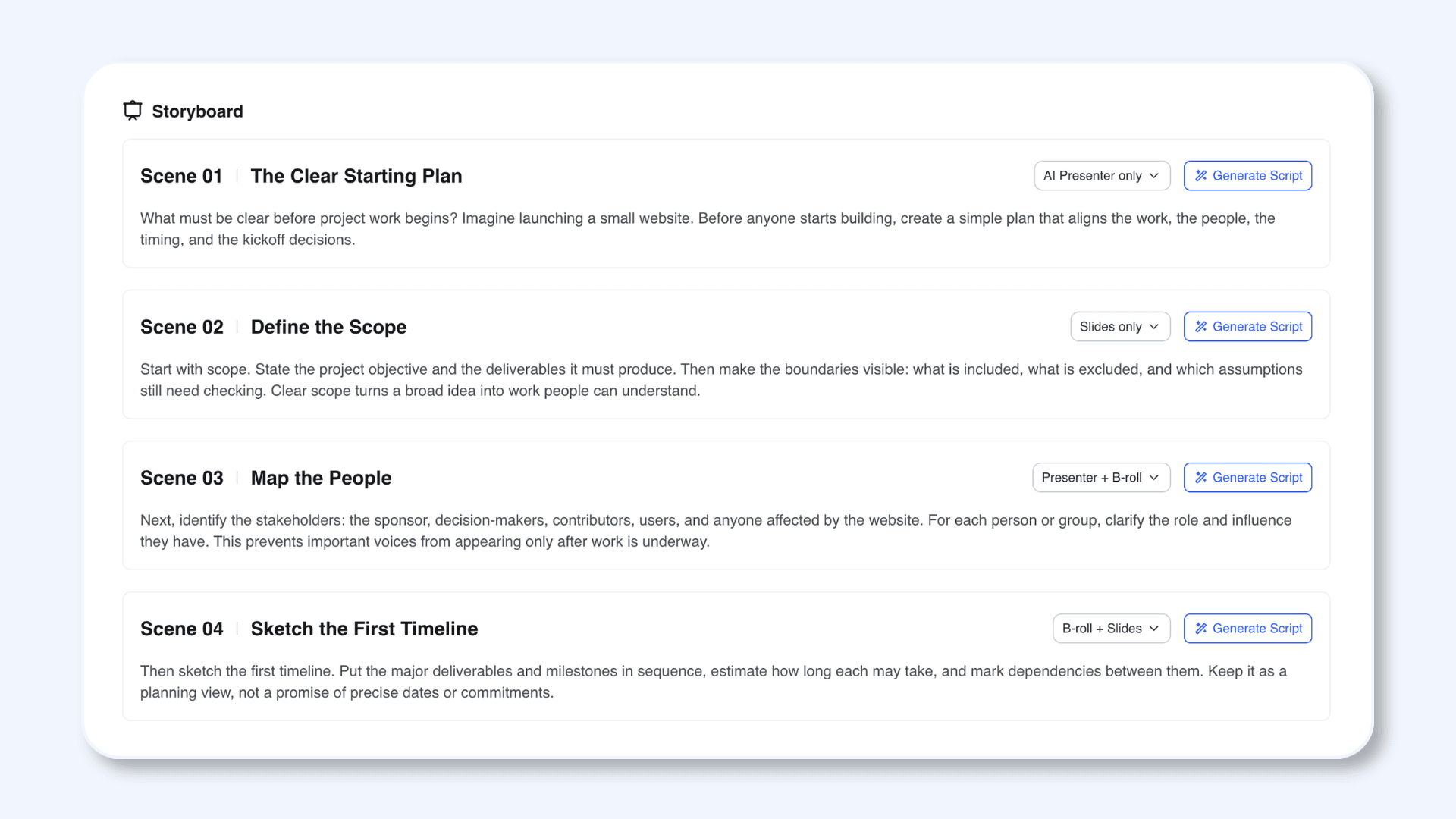
JoggAI turns the approved plan into a storyboard for individual scenes. Each scene includes a title and narration script. The default visual format is Slides only, so review each scene and choose the format that communicates its content most clearly.
You can edit the existing narration directly or select Generate Script when a scene needs a new script. Use the scene layout menu to change Slides only to an AI presenter, B-roll, or a combined layout when appropriate.
Use this guide when directing the storyboard:
| Training content | Recommended visual | Why it works |
|---|---|---|
| Welcome or instructor introduction | AI Presenter only | Adds a visible speaker, warmth, and trust |
| Course data, research, or milestones | Slides only with an animated Magic Slide | Draws attention to numbers, charts, and key facts |
| Old process versus new process | Slides only with a comparison layout | Makes the differences visible at a glance |
| SOP, approval, or request process | Slides only with an animated process graphic | Reveals each step in sequence with the narration |
| Culture, values, or abstract concepts | B-roll with Slides | Connects principles with concrete examples |
| Workplace, product, or real world example | B-roll only | Shows the context behind the explanation |
| Summary and next steps | Presenter with Slides | Combines human guidance with a visible action list |
When you use a slide based layout, Magic Slides can organize text, charts, timelines, comparisons, and process graphics as individual visual elements. These elements can appear in sequence with the narration, helping viewers follow the explanation without reading a crowded slide all at once.
Review every scene individually. A presenter can make an introduction more personal, while a process is usually clearer as a visual sequence. B-roll can strengthen a real world example, but it should not replace a diagram when viewers need to understand specific steps.
Step 4: Choose the AI Presenter and Voice
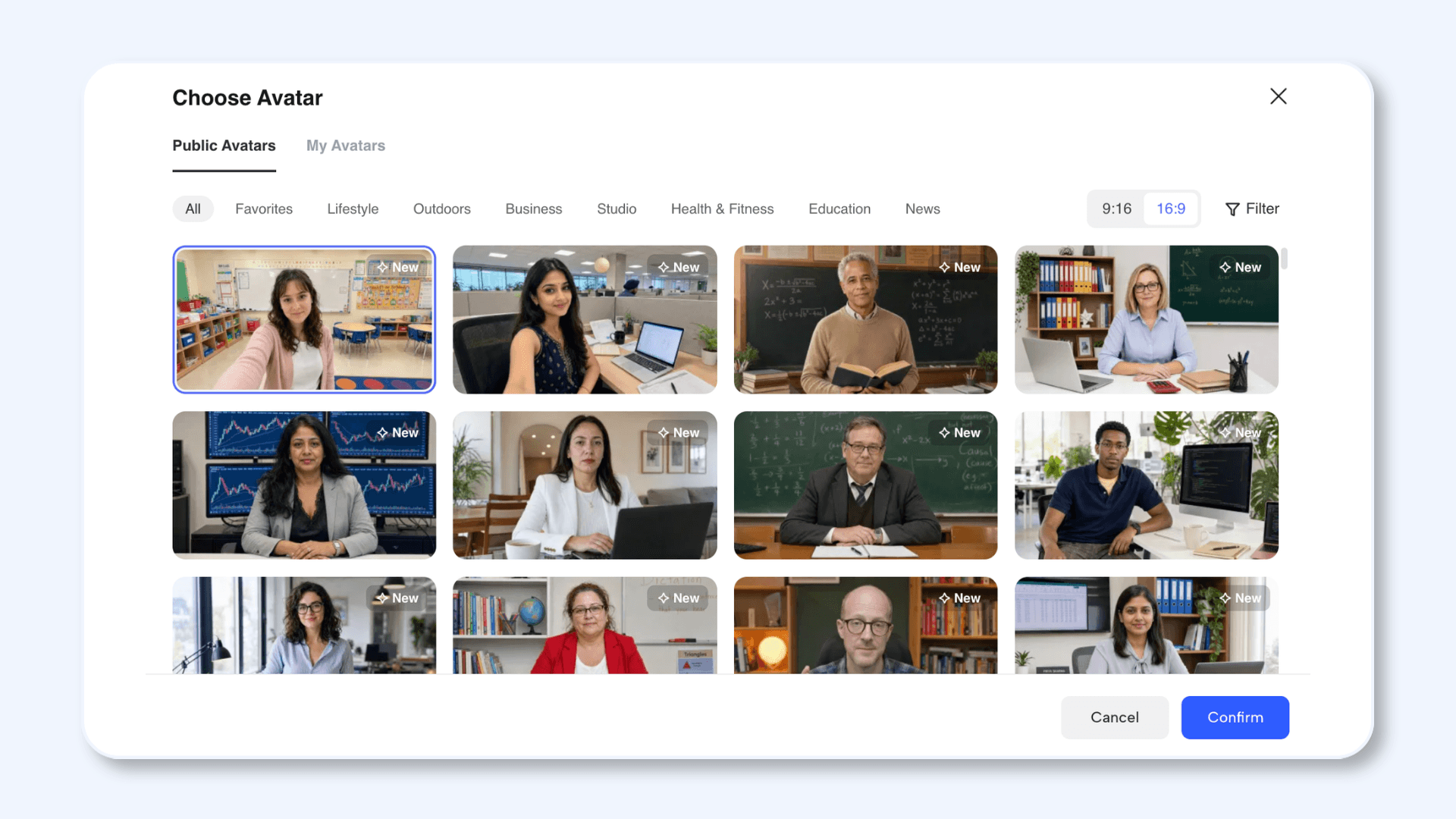
Once the content and visual direction are confirmed, choose the presenter and voice.
JoggAI provides more than 1,000 AI presenters, or you can create a custom avatar in your own likeness. A familiar instructor, coach, HR lead, department manager, or subject matter expert can give a course or internal training program a consistent presence without recording every update.
JoggAI’s voice library includes options from MiniMax, ElevenLabs, and JoggAI. Some voices are labeled with characteristics or use cases, while others provide basic information such as language, gender, or age. Preview several options and choose the delivery that best suits the subject and audience.
For example, compliance training may work better with a serious, measured voice, while employee onboarding or an introductory course may benefit from a warmer and more conversational voice.
JoggAI offers more than 10,000 AI voices and supports scripts, voiceovers, and captions in over 50 languages. This makes it possible to create localized versions while maintaining the same presenter, visual structure, and brand.
Step 5: Preview and Edit the Generated Video
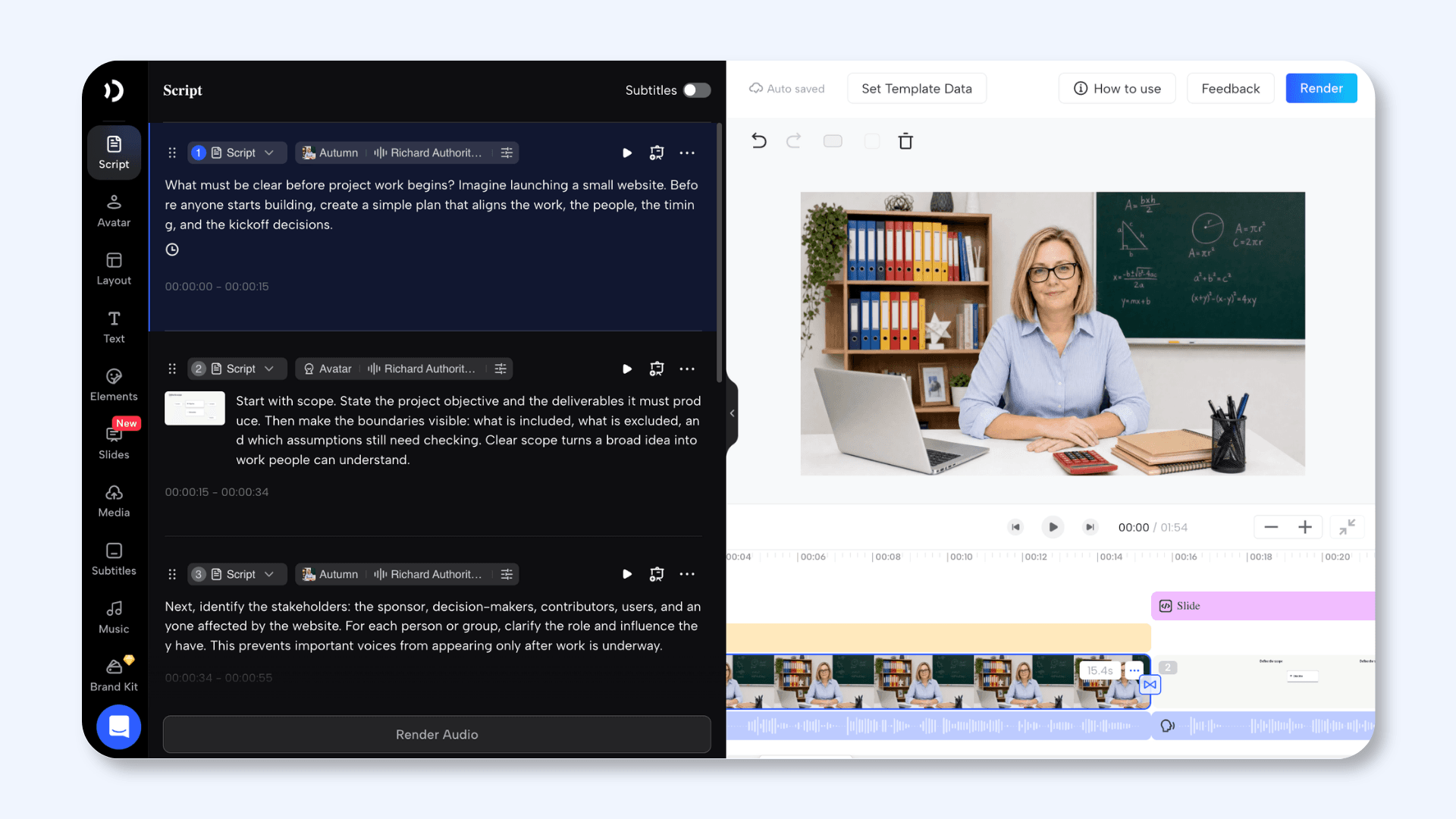
When you generate the video from the storyboard, JoggAI creates the project and takes you directly to the editor.
Watch the complete preview before concentrating on individual scenes. Check whether the opening establishes the purpose, the scenes follow a logical order, the visuals support the narration, and the ending tells viewers what to do next.
Use the JoggAI editor to refine the script, presenter, voice, B-roll, Magic Slides, captions, music, and layout. If one scene does not work, update or regenerate that scene without rebuilding the complete project.
To revise a Magic Slide, select a slide template as the Reference, then describe what the slide should contain, how it should look, and how its elements should appear. Include the exact copy, labels, numbers, and approved values that must be shown. Specific information helps JoggAI produce a more accurate and useful slide.
For a process scene, try:
Create a clean horizontal first week process with four steps: Day 1, Set Up Account Access; Day 2, Review the Handbook; Day 3, Shadow Two Support Calls; and Day 5, Complete Three Practice Cases. Reveal one step at a time with the narration and keep completed steps visible in a lighter brand color.
For a comparison scene, try:
Create a two column comparison labeled Before and After. Under Before, show: Submit by Email, Ask the Manager for Status, and Store Approval in the Inbox. Under After, show: Submit in the Portal, Track Status in the Dashboard, and Save Approval Automatically. Reveal the matching rows one at a time and highlight the final improvement.
Replace these sample labels and values with information approved for your organization or course.
Use the Media panel to add or update B-roll. You can search available public media resources, upload relevant office photos, product images, screenshots, course assets, and team materials from your Brand Kit, or generate new footage with the Seedance 2.5 model.
Turn captions on and review them carefully, especially when the training includes policy language, compliance requirements, acronyms, product terminology, or specialist vocabulary.
Step 6: Render, Deliver, and Keep the Training Current
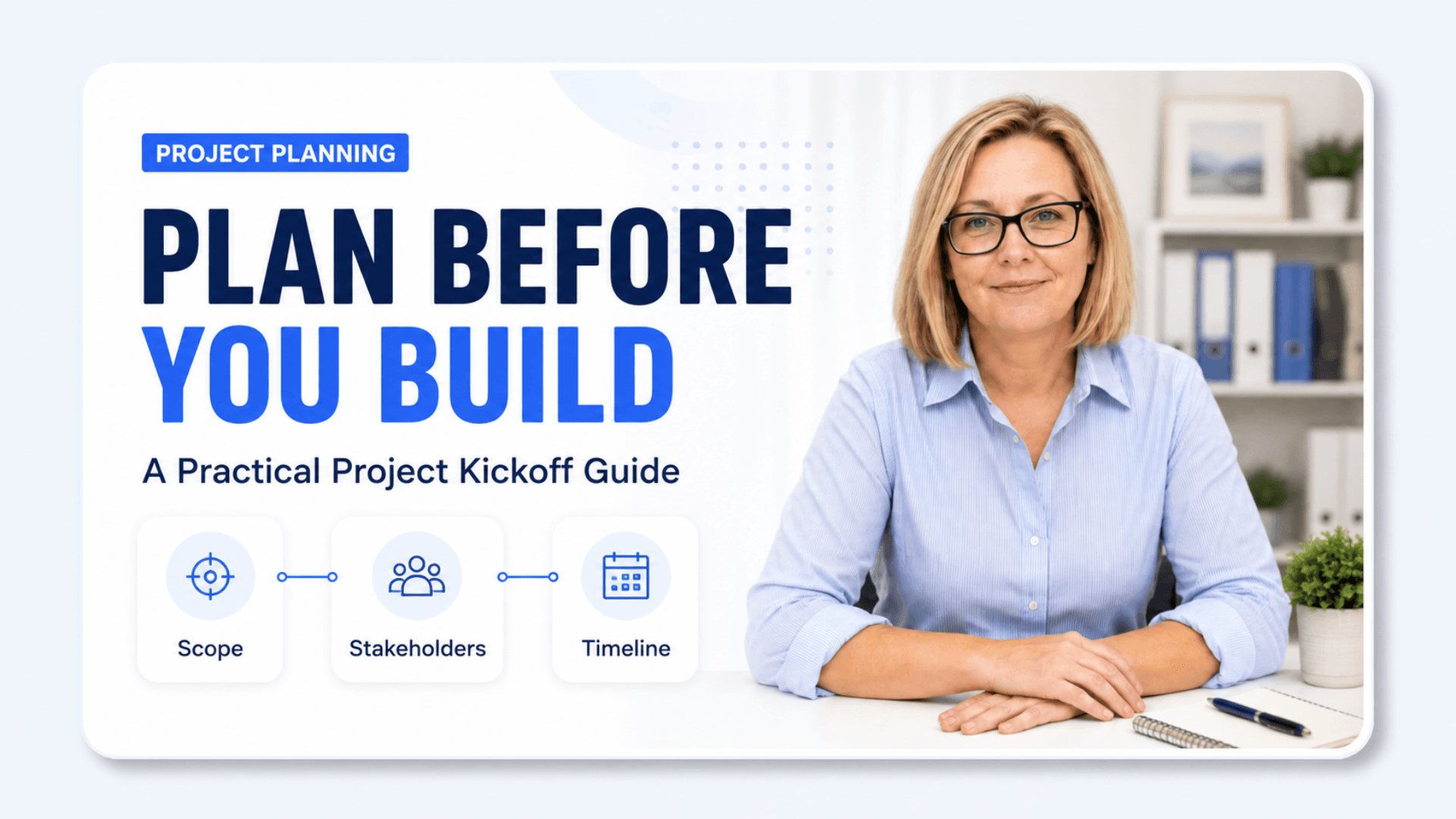
Render the finished video with the presenter, narration, animated slides, B-roll, and captions. It can then be used in an online course, employee training program, onboarding module, learning management system, internal knowledge base, or business presentation.
Keep the editable JoggAI project after publishing. When a policy, product, lesson, or process changes, update the affected script or scene and render a current version. You do not need to film the presenter again or rebuild the complete training from the beginning.
The editable project makes the training easier to maintain, localize, and reuse after its first release.
Already Have the Slides but Still Need a Training Video?
A completed training deck still depends on someone to present it, explain each slide, and repeat the session for every new audience. JoggAI’s PPT to Video turns that deck into a narrated, presenter led video while keeping the original presentation as its visual foundation.
Step 1: Upload Your Presentation
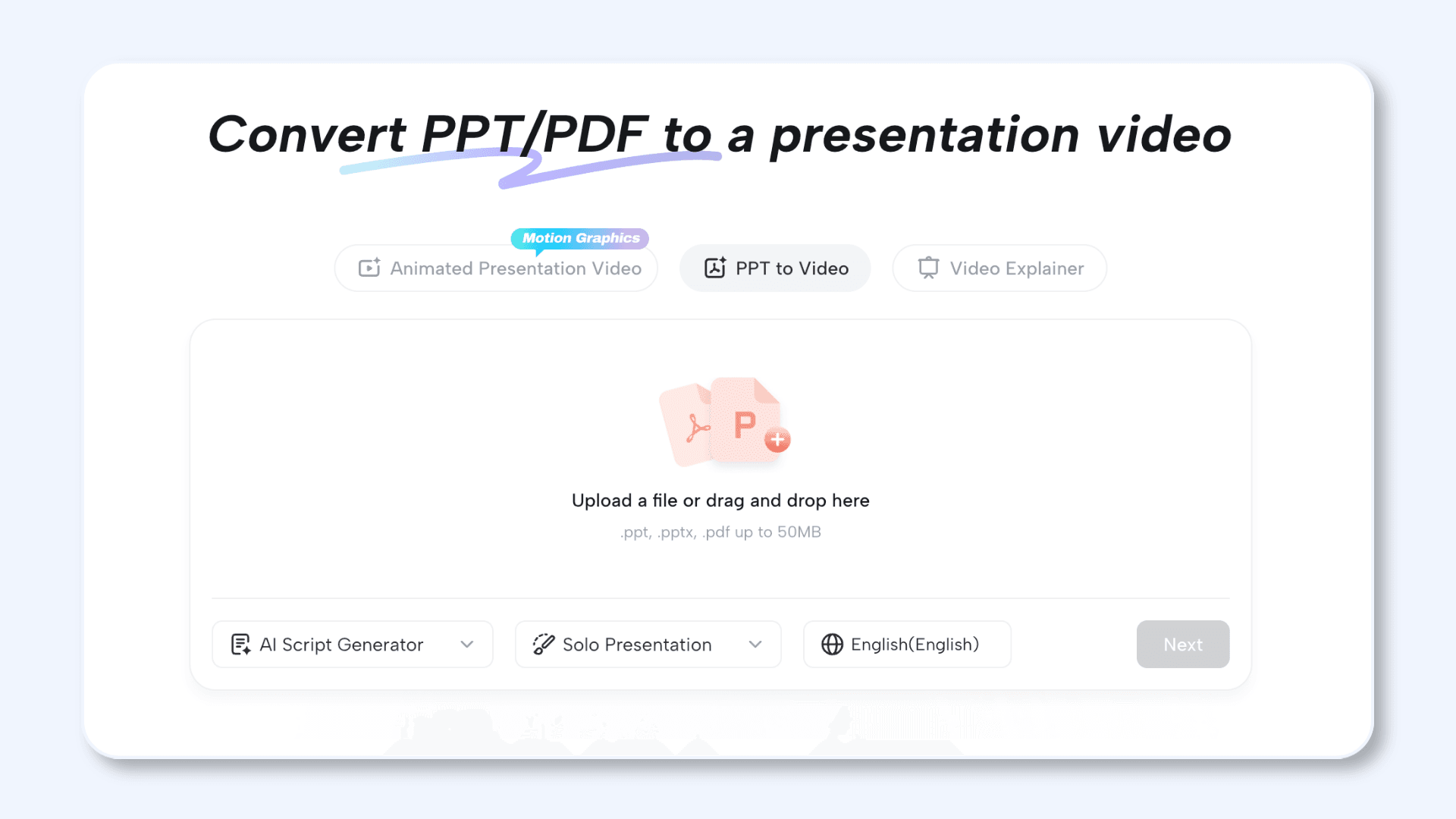
Upload a PPT, PPTX, or PDF file of up to 50MB. For PPT and PPTX files, JoggAI retains the existing slide sequence, visual structure, and supported animations. A PDF can also be used as the visual foundation, although it does not contain PowerPoint animations or speaker notes.
Review the uploaded slides to confirm that the content, order, and design are ready for video production.
Step 2: Choose How the Narration Should Be Created
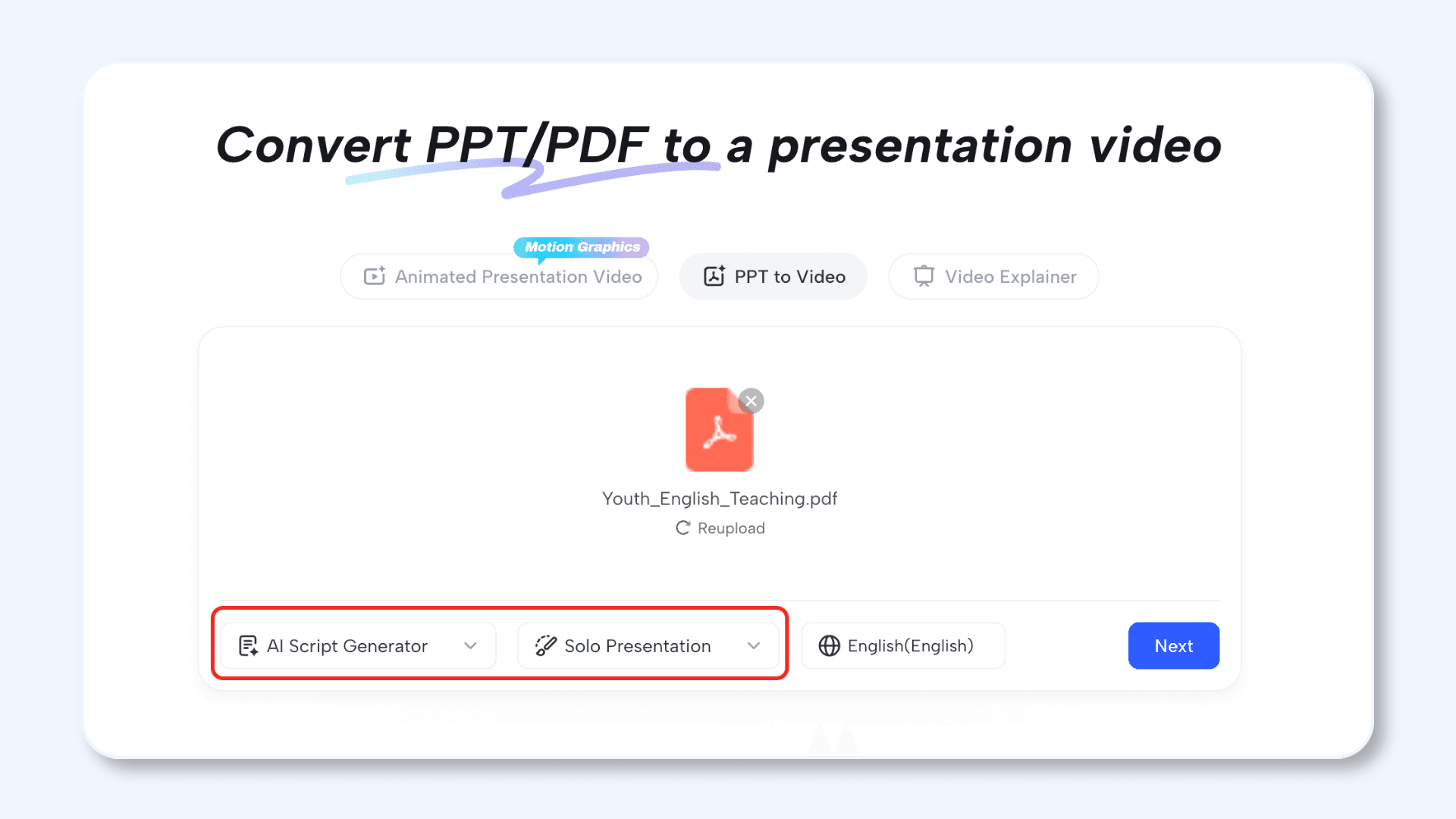
After uploading the presentation, choose one of three ways to handle the script:
-
AI Script Generator: JoggAI analyzes the information on the slides and creates a new narration script. Select Solo Presentation for a single speaker, Talk Show for a two person conversation, or Debate for two speakers presenting contrasting viewpoints. You can also select the output language.
-
Manual Input: JoggAI keeps the uploaded content without rewriting it and takes the presentation directly into the editor. A default AI presenter is added automatically, but you can replace the presenter and customize the voice, script, captions, and layout.
-
Use Speaker Notes: JoggAI extracts the existing speaker notes from a PPT or PPTX and uses them as the narration for the corresponding slides. This is useful when the deck already includes an approved presenter script. Select the project language before continuing.
Choose the option based on how complete the existing narration is. Use AI Script Generator when the slides need to become a spoken explanation, Manual Input when you want full control in the editor, or Use Speaker Notes when the presentation already contains an approved script.
Step 3: Customize the Video in the Editor
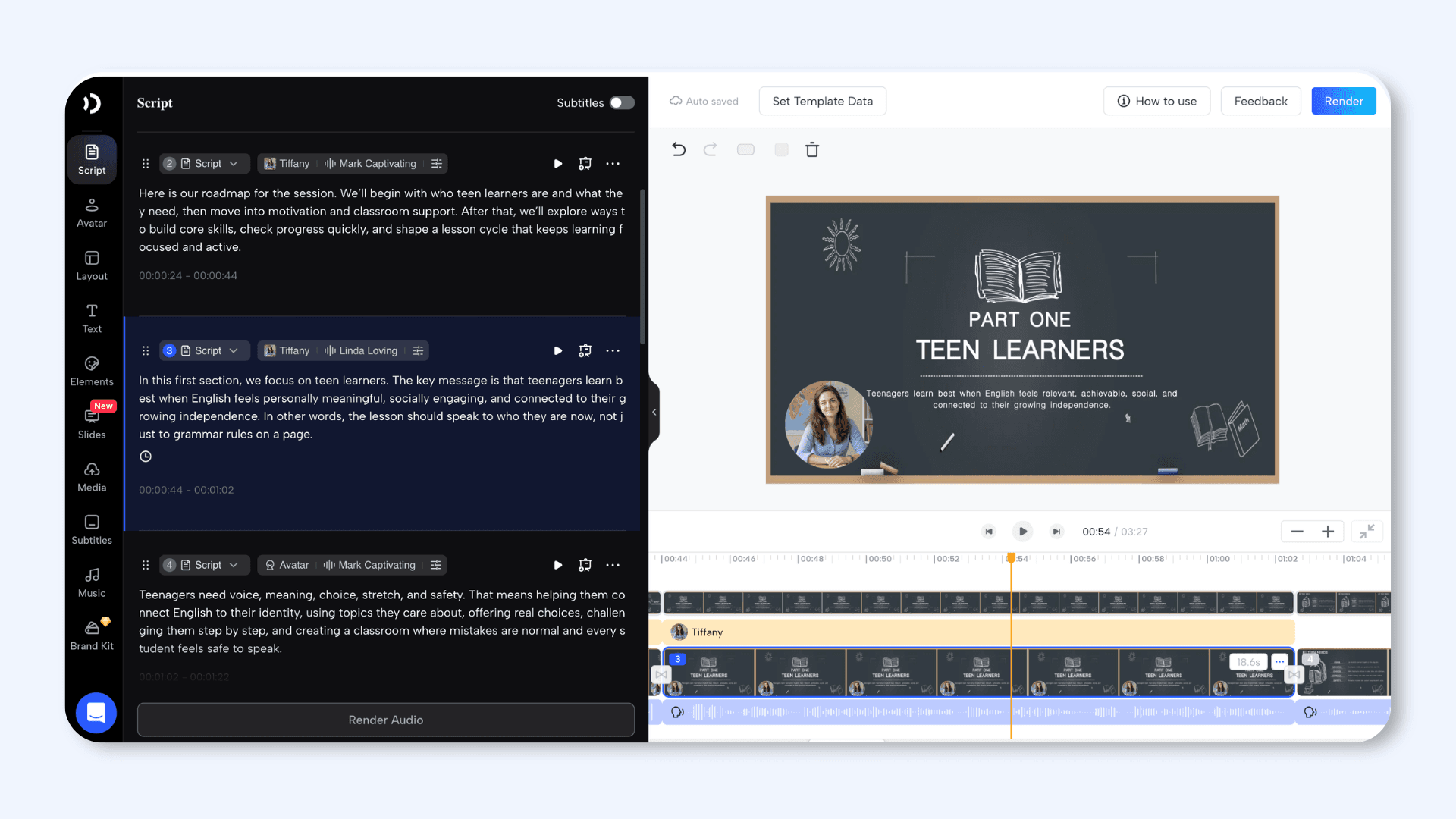
Once the presentation has been processed, continue in the JoggAI editor. Choose from more than 1,000 AI presenters or use a custom avatar, then select a suitable voice from a library of more than 10,000 options across over 50 languages.
Adjust the presenter’s placement so it does not cover important slide content. Review the narration and make sure it explains the slide instead of simply reading every visible word.
You can also create animated Magic Slides when a concept needs a clearer chart, timeline, comparison, or process graphic. Add B-roll by uploading your own media, searching available public resources, or generating new footage with Seedance 2.5. Finish the project by adjusting the captions, music, visual elements, and scene layouts.
Step 4: Preview and Render the Training Video
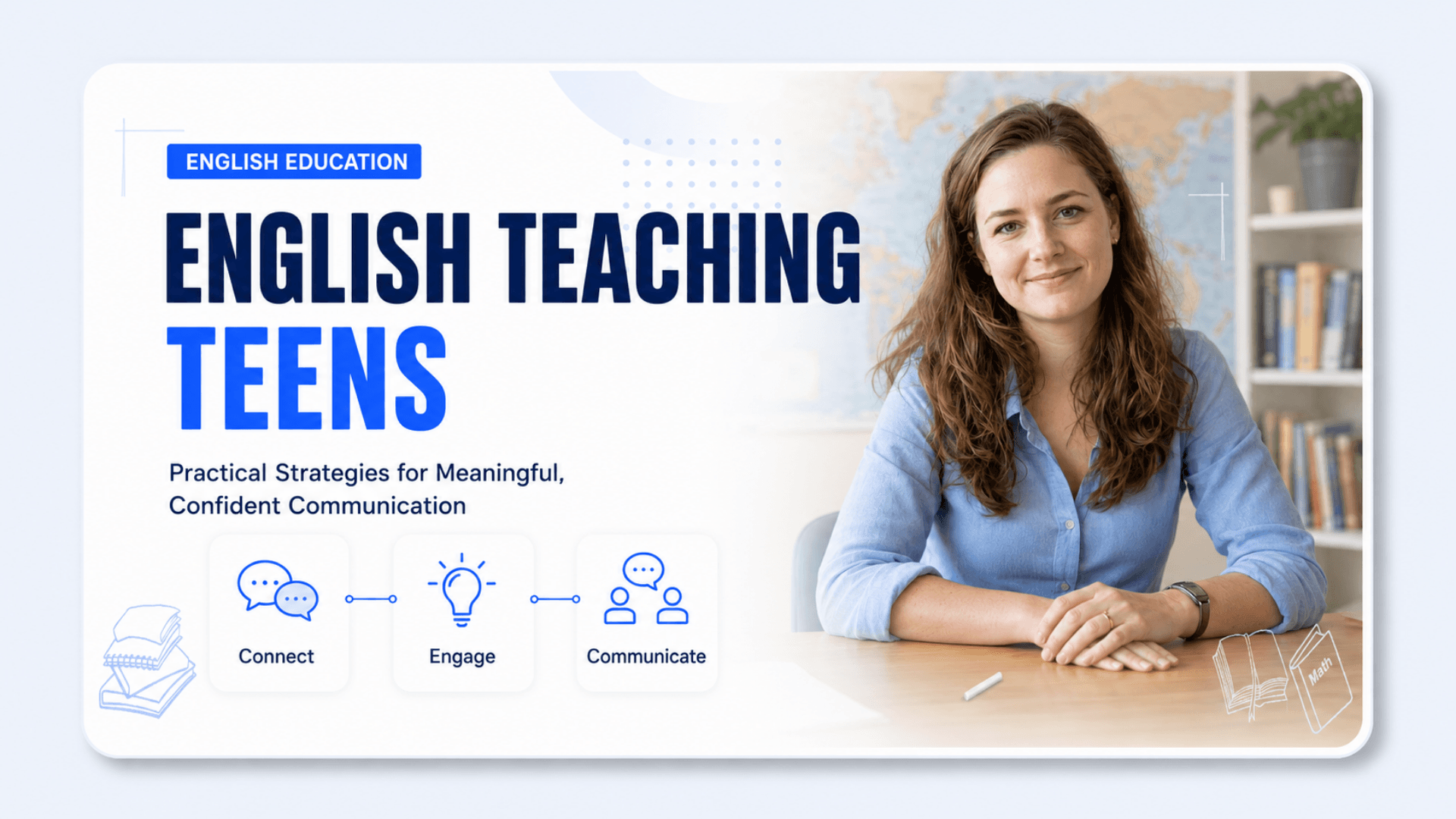
Watch the complete video and check that each section of the narration matches the correct slide. Review the pacing, pronunciation, captions, presenter placement, animations, and transitions. For a Talk Show or Debate, confirm that the speakers and voices alternate correctly.
Once the presentation is clear and ready to follow without a live instructor, render the finished training video for your learning management system, internal knowledge base, online course, or onboarding program.
Create in ChatGPT or Locally with Smart Video
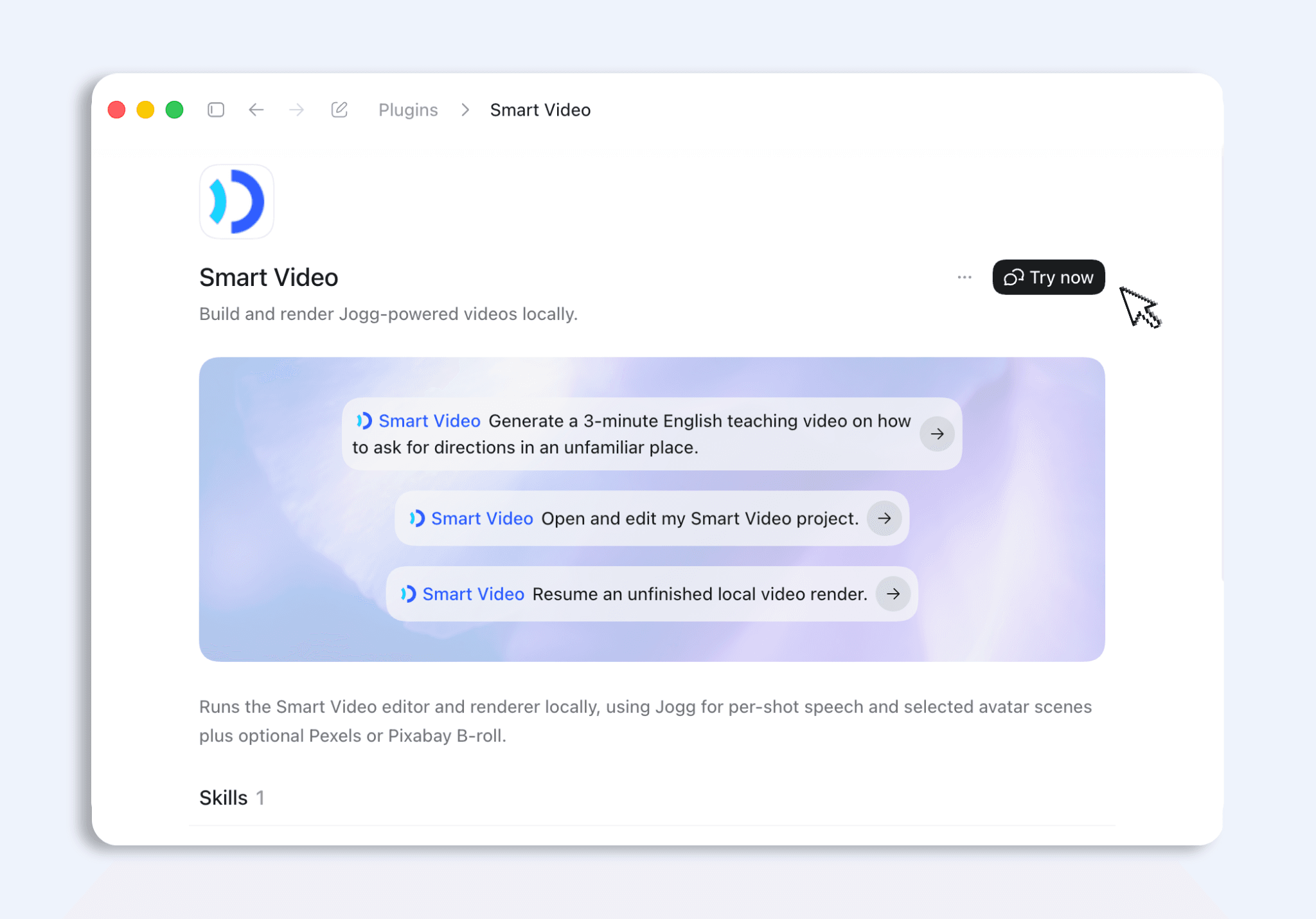
The JoggAI Smart Video Plugin combines Codex planning with a local video production studio. It is designed for longer, structured videos rather than a single generated clip.
Starting with a topic or source files, Smart Video can create the brief, full script, and storyboard. It can use JoggAI voice and avatar services, collect B-roll, build HTML or SVG information slides and ECharts data visualizations, add captions and background music, and assemble everything into a local editable project. You can preview the project, revise individual scenes, recover an unfinished task, and render the final MP4 locally.
Smart Video supports six scene combinations:
-
AI presenter only
-
B-roll only
-
AI presenter with B-roll
-
AI presenter with a slide
-
B-roll with a slide
-
Slide only
Before you start: The local workflow requires Node.js 22 or later, Python 3.10 or later, Chrome, and FFmpeg. Smart Video also checks the available JoggAI and Pexels services before production begins.
Step 1: Install Smart Video
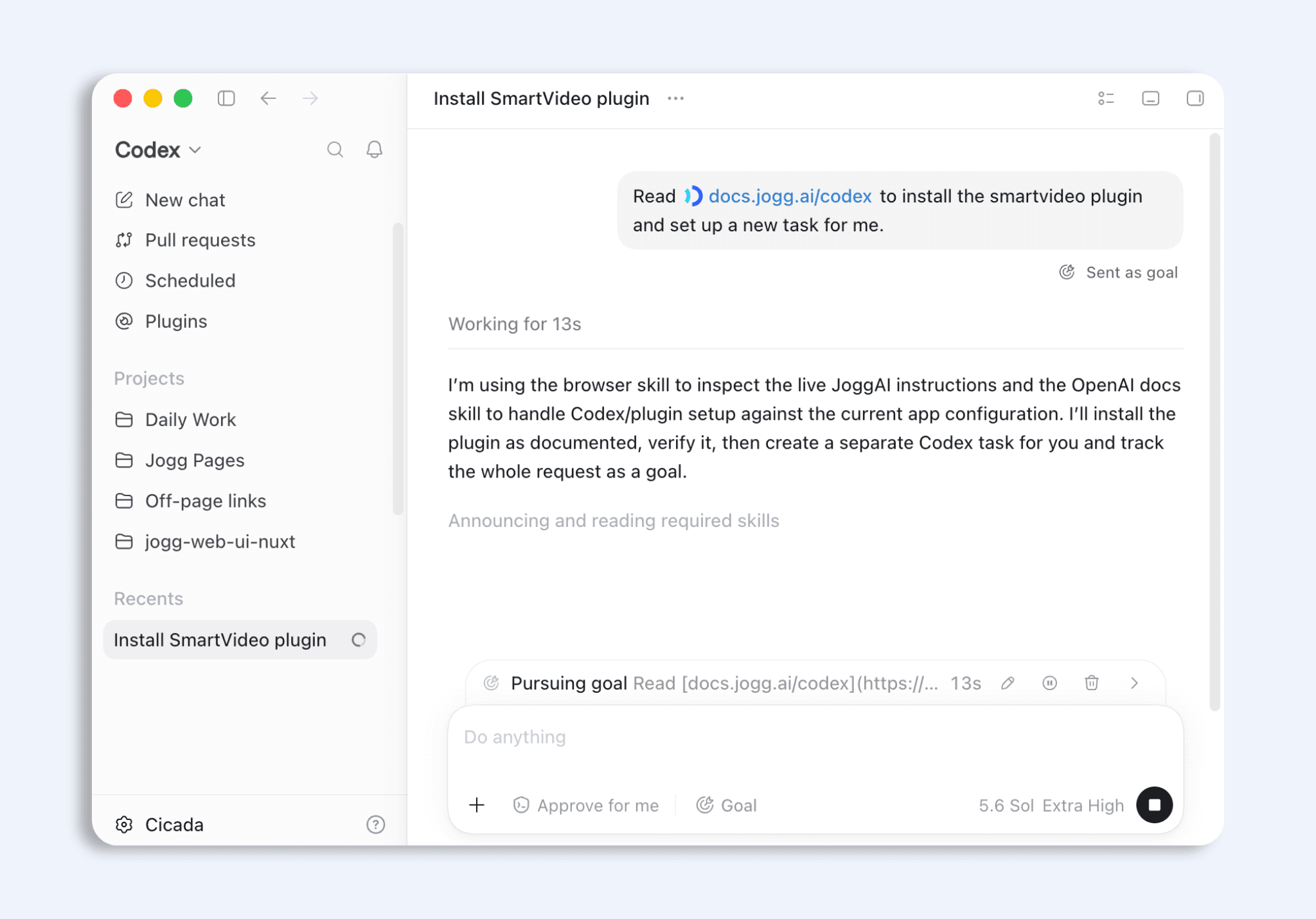
Start a new task in the ChatGPT desktop app and paste the setup command from the Smart Video Plugin page:
/goal Read https://docs.jogg.ai/codex to install the smartvideo plugin and set up a new task for me.
Follow the setup instructions and allow Smart Video to check the local production environment.
Step 2: Describe the Training Video
Provide the topic, audience, language, duration, aspect ratio, and learning goal. You can also attach a PPT, PDF, document, or other source material.
For example:
Create an onboarding video for new sales representatives. Use the attached sales handbook and product overview. Cover the first week schedule, required tools, qualification process, and escalation path. Use a professional but welcoming tone.
Smart Video turns this request into a Brief for review before it writes the full script and storyboard.
Step 3: Approve the Script, Storyboard, and Scene Mix
Review the proposed structure and confirm which scenes need an AI presenter, B-roll, a slide, or a combined layout. Ask for changes if a scene is missing information, emphasizes the wrong point, or uses the wrong visual format.
Before media generation begins, confirm the presenter, voice, B-roll, and slide requirements. This approval step gives you control before paid or time consuming generation starts.
Step 4: Connect JoggAI Media or Choose Local Media
JoggAI online voice and avatar generation uses API Credits. Copy the required Voice ID from JoggAI and provide an Avatar ID when the storyboard contains presenter scenes.
If JoggAI services are not connected, choose Local Media explicitly. Local presenter scenes require an optional Presenter resource pack, currently available in classroom and office styles. Automatic B-roll downloads also require a configured Pexels connection.
Step 5: Preview, Edit, and Render Locally
Smart Video generates the required media, builds the animated slides and charts, and opens the project in the local editor. Preview the complete training, revise the script or media, and render the final MP4 when the project is ready.
The workflow preserves the task ID and generation progress. If production or rendering stops, you can resume the unfinished task without repeating completed paid requests. Projects, credentials, cache files, and generation state are stored under ~/.codex/smartvideo/ rather than inside the plugin cache.
Final Review Checklist
Before publishing the training video, confirm:
-
The learning objective is clear and every scene supports it.
-
Policy, compliance, course, and process details have been reviewed.
-
Each visual format matches the information being explained.
-
The presenter and real company or course assets are used where they add value.
-
Captions match the final narration.
-
The final scene gives viewers a clear next step.
Frequently Asked QuestionsFrequently Asked Questions
What is a training video?
A training video is instructional content designed to help viewers understand a subject, complete a task, follow a process, or develop a skill. Common examples include employee onboarding, compliance training, standard operating procedures, product education, internal skills development, and online course lessons.
How do I make a training video with AI?
To make a training video with AI, begin with one clear learning objective and gather the relevant source materials. Use an AI training video generator to create the outline, narration, and storyboard. Review the information for accuracy, choose the appropriate presenter and visuals for each scene, add a suitable voice and captions, and preview the complete video before rendering it.
Can AI create a training video from documents or PowerPoint?
Yes. JoggAI Animated Presentation Video can turn a topic, PDF, document, webpage, URL, or several sources into a newly structured animated presentation video. If the training already exists as a deck, PPT to Video can use the uploaded PPT, PPTX, or PDF as the visual foundation while adding narration, an AI presenter, and captions.
What should an effective employee training video include?
An effective employee training video should have one clear learning objective, an easy-to-follow structure, accurate information, relevant visuals, readable captions, and a specific next step. Each scene should support one key point rather than presenting too much information at once. Policies, procedures, and technical details should also be reviewed by the appropriate subject matter expert before publishing.
How long should a training video be?
A training video should be as short as possible without leaving out information learners need to understand or act correctly. Focus on one main objective in each video. If the subject includes several unrelated tasks or outcomes, divide it into shorter modules that viewers can complete separately.
Do I need a camera or video editing experience to create a training video?
No. An AI presentation maker can combine AI presenters, generated voiceovers, animated slides, B-roll, music, and captions without requiring you to appear on camera or record every lesson manually. You can still upload your own images, footage, screenshots, and brand assets when the training requires company-specific examples.
What is JoggAI Animated Presentation Video?
JoggAI Animated Presentation Video is a workflow for turning a topic or collection of source materials into a structured, editable video presentation. JoggAI creates a Script Outline and scene-by-scene storyboard for review. You can edit the narration and choose Slides only, an AI presenter, B-roll, or a combined layout for each scene before generating the video.
Can I update or translate a training video later?
Yes. You can return to the editable project, revise the affected script, slide, presenter, or media, and render an updated version without recreating the entire video. JoggAI also supports scripts, AI voices, and captions in more than 50 languages, making it possible to adapt an online course video or employee training program for different audiences.
Turn Existing Knowledge Into Training That Stays Current
Learning to create training videos with AI is not simply about generating content faster. A useful training video still begins with reliable source materials, one clear learning goal, and a structure that helps viewers understand what they need to know or do. AI can accelerate the script, storyboard, narration, and visual production, while your review keeps the information accurate and appropriate for its audience.
JoggAI brings these production steps into an editable workflow. Instead of coordinating several tools or recording the presenter again whenever something changes, you can reuse existing documents and presentations, direct how each scene communicates its message, and update only the affected content later.
The result is training that is easier to produce, maintain, localize, and deliver consistently across course audiences, employees, learners, teams, and locations.