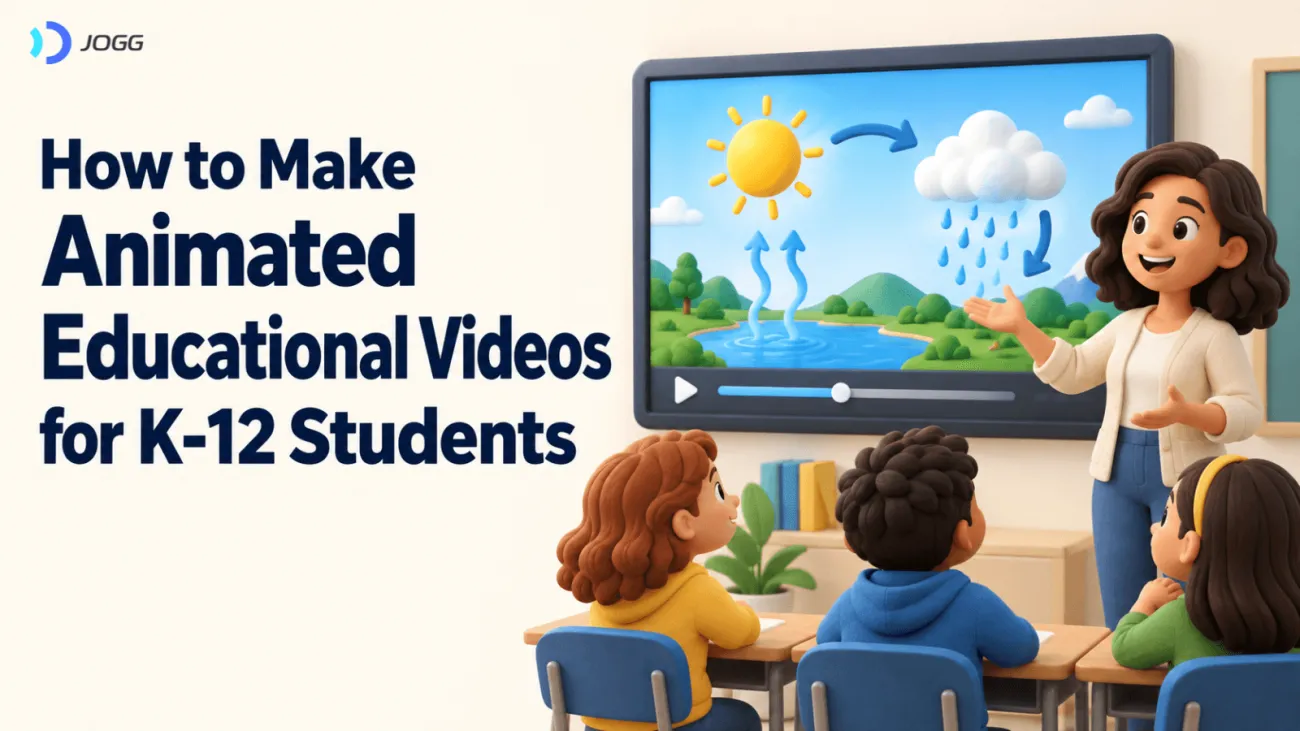

Teachers want to explain a concept clearly. Schools want to give them practical tools for preparing lessons and creating more engaging classroom materials. Yet finding the right video can mean searching several sources, only to use one short clip that still misses the detail or emphasis the lesson needs.
This guide explains how to make animated educational videos from a lesson topic, using JoggAI Educational Video Maker as one creation option. It also shows how schools can start with a small teaching project and evaluate its usefulness.
Why Teachers and Schools Create Animated Educational Videos
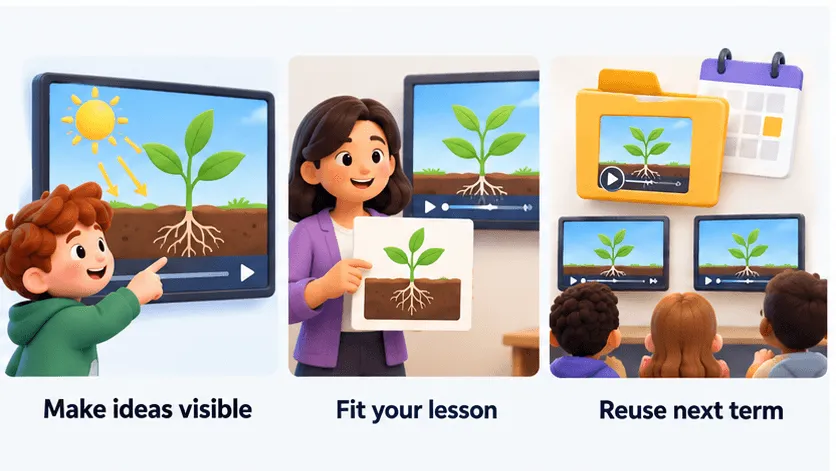
Give abstract ideas a visible explanation. Animation can show water changing state or one half being divided into two fourths. Match the narration to each change, then ask students to explain what happened. CAST’s “Illustrate through multiple media” (2024) recommends connecting concepts in text with other representations.
Create material that fits the lesson. Choose the topic, vocabulary, examples, and depth your class needs. A lesson on evaporation can focus on a shrinking puddle without covering the whole water cycle. This gives the new video a clear purpose and a reason to exist alongside available resources.
Build a more reusable preparation process. A saved topic prompt and reviewed video give teachers a starting point for another class or next year’s lesson. A school can organize these materials by subject and objective in its existing resource library. The opportunity to reduce repeated preparation is something to test in practice, including the time needed for checking and corrections.
Traditional Video Production vs. the JoggAI Workflow
A manual animation workflow can involve writing a script, planning scenes, finding or drawing visuals, arranging narration, and editing everything into a video. Templates and existing assets may help, but the teacher or production team still has to put those pieces together.
Even when using existing videos, teachers can spend considerable time searching, previewing, and comparing resources without finding one that fits the lesson topic, grade, and depth of explanation. Sometimes only one clip is useful, and it still needs editing or additional explanation. Paid assets, licensing, or outsourced editing can add expenses. The cost of existing resources can therefore include both preparation time spent finding and adapting material and any additional fees.
With JoggAI Video Explainer workflow, a topic is enough to get started. AI drafts the outline and scene scripts, generates the visuals, and assembles the video with narration and subtitles. Teachers can review the proposed content and make needed changes before generating the finished video.
| Part of the work | Traditional manual production | JoggAI workflow |
|---|---|---|
| Starting material | Develop the topic into a script and scene plan. | Enter a topic; optionally provide a URL or reference file. |
| Script | Write the explanation and narration. | Review and adjust AI-drafted outline and scene scripts. |
| Visuals | Find, draw, or animate the material for each scene. | Generate scene visuals using the selected visual direction. |
| Narration and assembly | Record or source narration, then combine it with visuals and captions. | Select available narration settings; JoggAI assembles the generated scenes, narration, and subtitles. |
The practical change is in how production begins. A teacher can bring a teaching idea to JoggAI without first preparing a complete script, storyboard, and collection of animation assets.
For example, start with “How evaporation works.” To make the result more specific to your class, expand the topic into a short instruction:
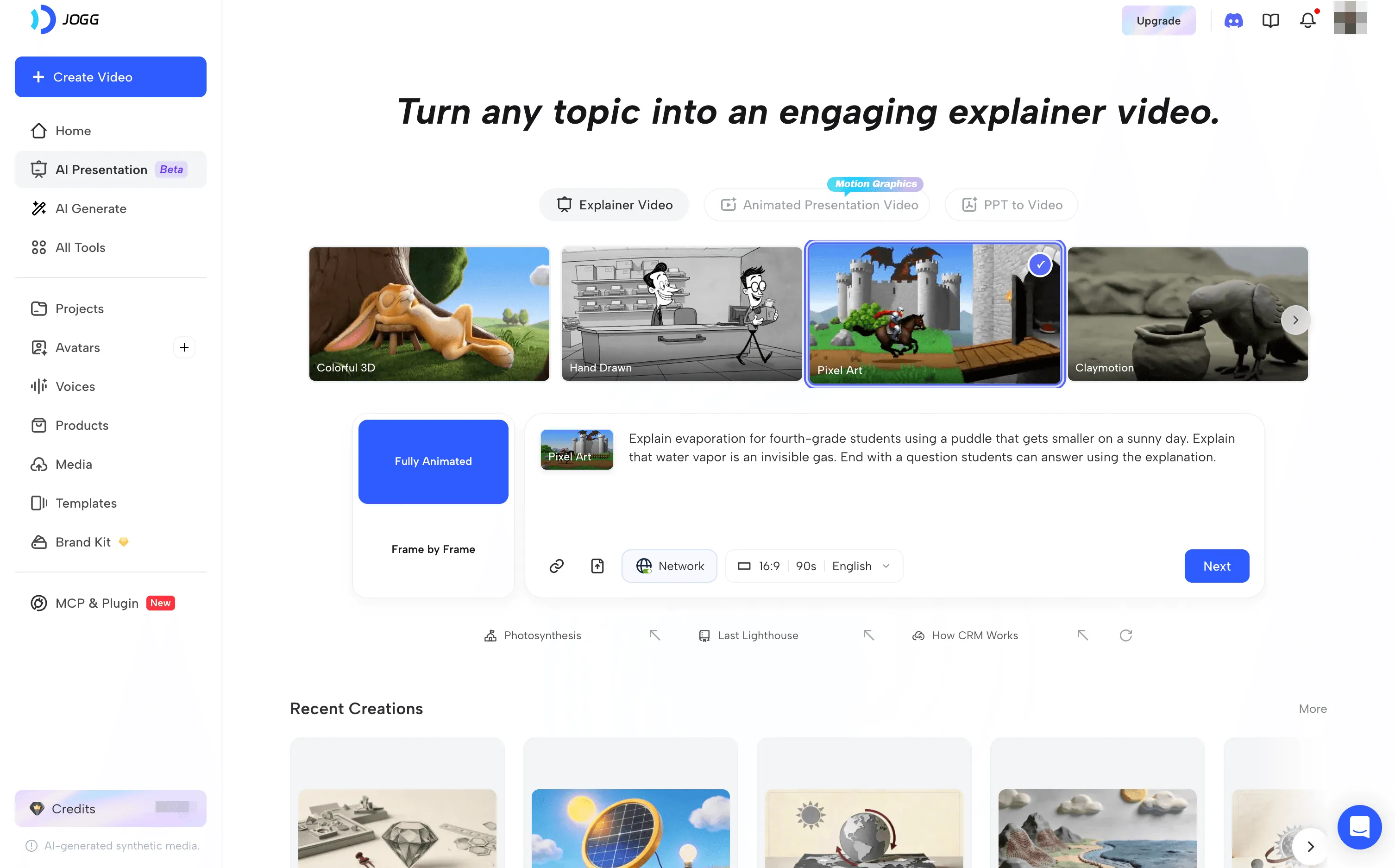
Explain evaporation for the fourth grade students using a puddle that gets smaller on a sunny day. Explain that water vapor is an invisible gas. End with a question students can answer using the explanation.
Add the grade and teaching focus when you want to give the system more specific instructions.
Before using the video, check the explanation, visuals, pronunciation, and captions against the lesson. Remove student information from inputs and use materials you have permission to share.
How to Make Educational Videos with JoggAI
Explainer Video
Use JoggAI’s Explainer Video to explain a concept or process. Start with a lesson topic and choose a visual style, without preparing a complete script or building each animated scene yourself.
1. Enter the topic you want to explain. For example, “How do solar panels turn sunlight into electricity?” You can also specify an audience, such as middle-school students, to make the explanation more relevant to your class.
2. Choose a visual style. Select a look that suits the subject and students’ age, such as clay or cartoon animation. JoggAI plans the explanation and animated scenes around the topic, so teachers do not have to source material for every shot.
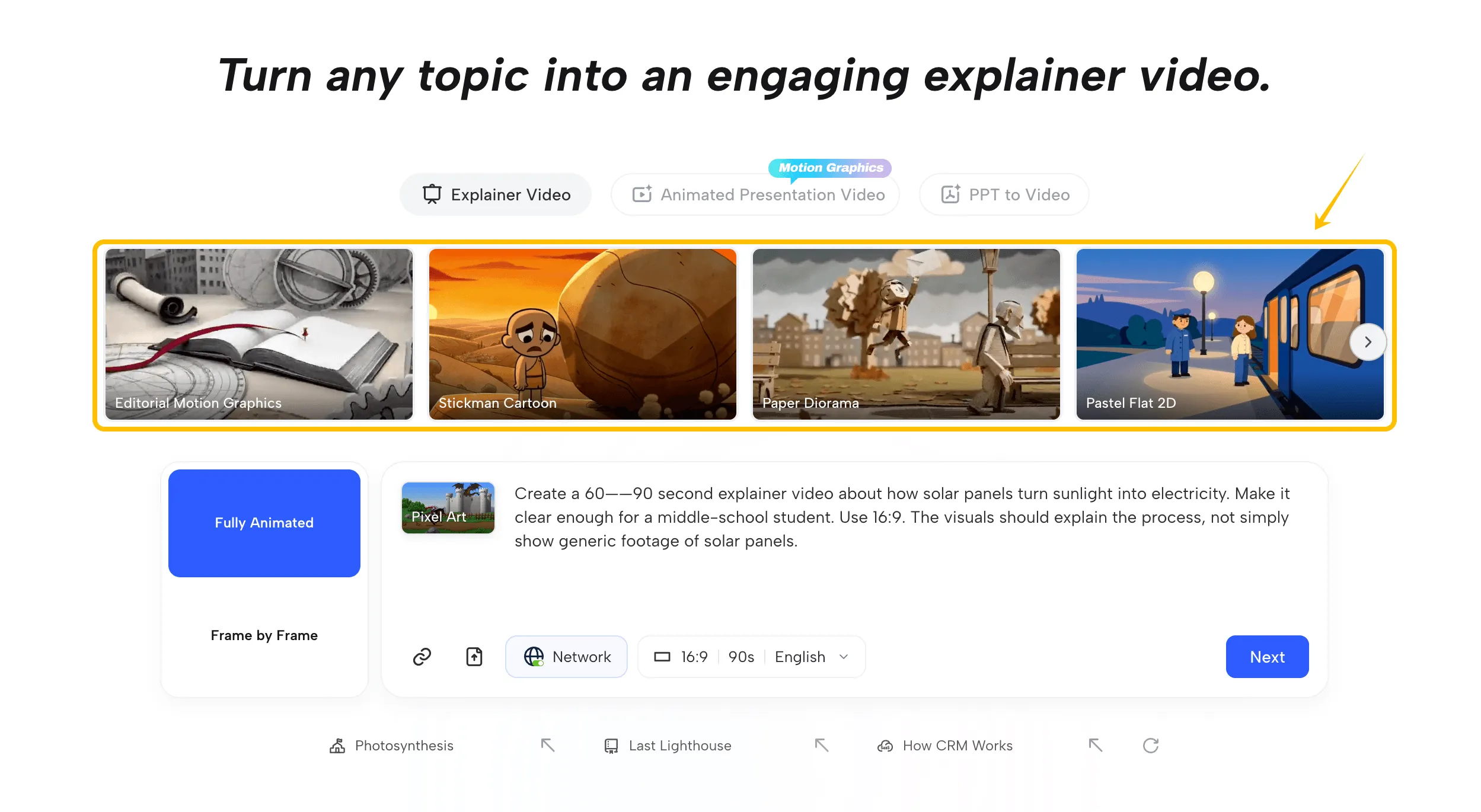
3. Review the content and generate the video. Before rendering, check the outline and revise individual scene scripts to match the lesson’s sequence, terminology, and teaching focus. Then generate the complete animation. For the solar-panel example, the visuals can follow sunlight reaching the cells, electricity being produced, the inverter, and household use, helping students follow the process.
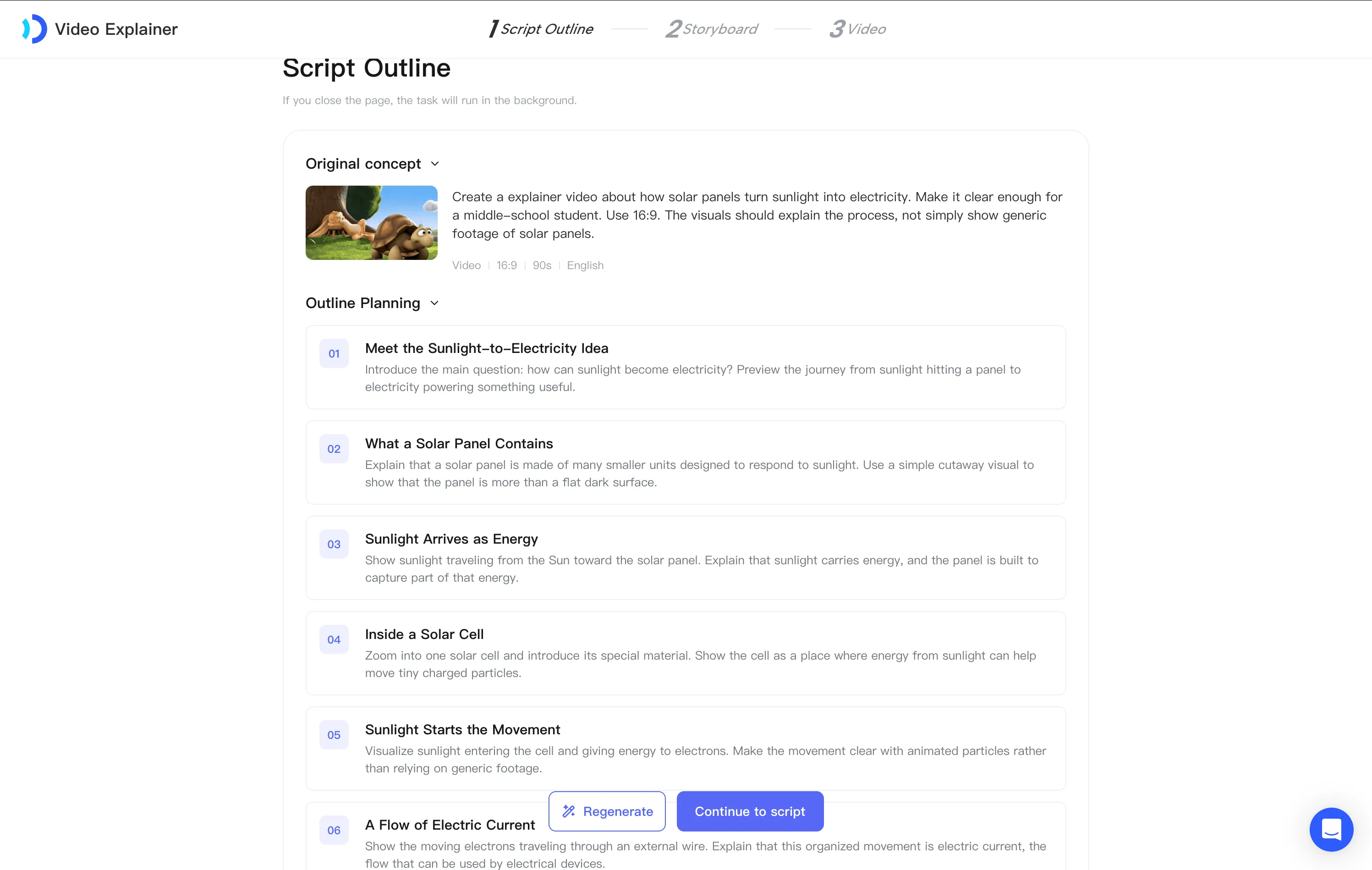
Check factual accuracy and visual clarity before classroom use. After generation, you can edit subtitles, but you cannot directly replace visuals or change scene order or duration. Review the outline and scripts before rendering with those limits in mind.
How to Adapt Animated Educational Videos for Different K-12 Grade Levels
Adapt the explanation to prior knowledge, reading demands, and learning needs. Grade bands offer a starting point; students within the same grade may need different supports.
| Grade level | Instructional priorities | Visual and language considerations | Water-cycle example |
|---|---|---|---|
| Elementary, K–5 | Connect a familiar observation with a few key ideas. | Introduce terms alongside examples; reveal one change at a time. Adjust language substantially between early and upper elementary grades. | Start with a shrinking puddle; introduce evaporation and, when appropriate, condensation and precipitation. |
| Middle school, 6–8 | Explain relationships and connect a model to observations. | Use consistent symbols, more precise vocabulary, and questions about where the model is simplified. | Trace water through evaporation, condensation, precipitation, runoff, and collection. |
| High school, 9–12 | Connect mechanisms, evidence, and model limitations. | Add detail needed for the course objective; explain assumptions and connect diagrams with data where useful. | Relate water movement and changes of state to energy transfer and a watershed model. |
For multilingual learners, introduce essential subject terms with clear visuals and check translated terminology with someone qualified to review it. Preserve the subject challenge while adjusting language support.
How Schools Can Start Using AI Video in Teaching
Start with one unit and a small group of teachers. Choose a concept for which existing video materials do not fit the lesson, then make a version teachers can actually use. This gives the school a concrete AI project to assess.
Agree on a shared starting point. Record the topic, intended grade, and teaching focus. A subject colleague can check the first video before classroom use. Keep review responsibilities clear so the project does not create an undefined extra task.
Save the materials another teacher will need. Store the topic prompt, video, captions, and any source notes in a school-approved location. Label the topic, grade, review date, and person responsible for updates. Another teacher can then assess what needs changing for their class.
Compare the work and the classroom use. Record time spent preparing, generating, reviewing, and revising. Check whether students can explain the target concept, and ask teachers whether they would reuse the material. Include the preparation needed for a second teacher to use it. These observations give a school a basis for deciding whether to continue, adjust, or expand the project.
Start with one topic on JoggAI’s educational video creation page and use the project to assess the teaching material and the work involved.
Pricing
Choose a plan around how often you will create videos and how many people need access. The following USD prices were checked against JoggAI’s public subscription catalog on October 27, 2026. See JoggAI’s pricing page for current offers and terms.
| Plan | Monthly billing | Annual billing: total per year | Equivalent monthly cost with annual billing |
|---|---|---|---|
| Starter | $29/month | $288/year | $24/month |
| Creator | From $49/month | From $488/year | About $40.67/month |
| Team | Annual billing only | $2,580/year | $215/month |
The annual monthly equivalents are comparisons; the selected annual plan is billed yearly. Creator has several usage tiers, so its price rises with the selected allowance.
For an individual teacher, Starter offers the lower paid entry point. Compare the included usage with a real lesson project, including revisions, before choosing a higher Creator tier.
For a school involving multiple teachers, Team’s current catalog includes two seats. Confirm the cost of additional seats and the usage terms for your intended group. Match the budget to videos teachers actually use and reuse, including the work needed to review them. For more teachers or larger-scale use, book a demo to discuss an Enterprise plan and a suitable quote for your school.
Frequently Asked Questions
How do you make an animated educational video?
With JoggAI, enter a lesson topic to start the Video Explainer workflow. AI develops the content and generates the video; you can review and adjust the proposed explanation. Check the finished result before using it with students.
Can teachers create videos from existing lesson materials?
Yes, where the chosen tool supports the source format. Select only material needed for the objective, remove student information, and confirm your permission to use it. Review the generated explanation against the original source.
How can a school decide whether AI video is worth paying for?
Run a small classroom project and compare the full preparation effort, review work, video usefulness, and reuse by other teachers. Check current pricing and licensing against that use. A generated video alone does not establish that a paid plan meets the school’s needs.
How can teachers make educational videos accessible?
Provide accurate captions, descriptions of essential visuals, and a suitable transcript or other alternative. CAST’s Teaching with Accessible Video and W3C WAI’s media accessibility guidance (updated 2024) explain these supports, including accessible players. Choose what your learners need.
How can teachers check AI-generated videos for accuracy?
Compare the script and every generated scene with trusted subject materials. Check labels, numbers, units, pronunciation, and relationships shown visually. Correct or replace misleading content before showing it to students.