
Creating an animated presentation involves more than adding transitions to a slide deck. You still need to organize the information, decide what viewers should see, write the narration, and make sure the visuals appear at the right time.
AI can simplify much of that work. With JoggAI, you can start with a topic, PDF, document, webpage, or several related sources. The platform organizes the information into an outline and storyboard, then turns it into a video with animated Magic Slides, voiceover, captions, B-roll, and optional AI presenters.
This guide explains how to create an animated presentation with JoggAI and what to review at each stage so the finished video is clear, useful, and easy to follow.
What Is an Animated Presentation?
An animated presentation is a video-based presentation in which text, charts, diagrams, and other visual elements appear as the topic is explained.
Unlike a standard slide deck, it does not depend on a live speaker to provide context. The narration, visuals, animations, and captions are combined into a complete video that viewers can watch and revisit on their own.
This format works particularly well for online courses, employee training, project reports, business proposals, and topics that involve data, timelines, frameworks, or step-by-step processes.
Choose the Right JoggAI Workflow
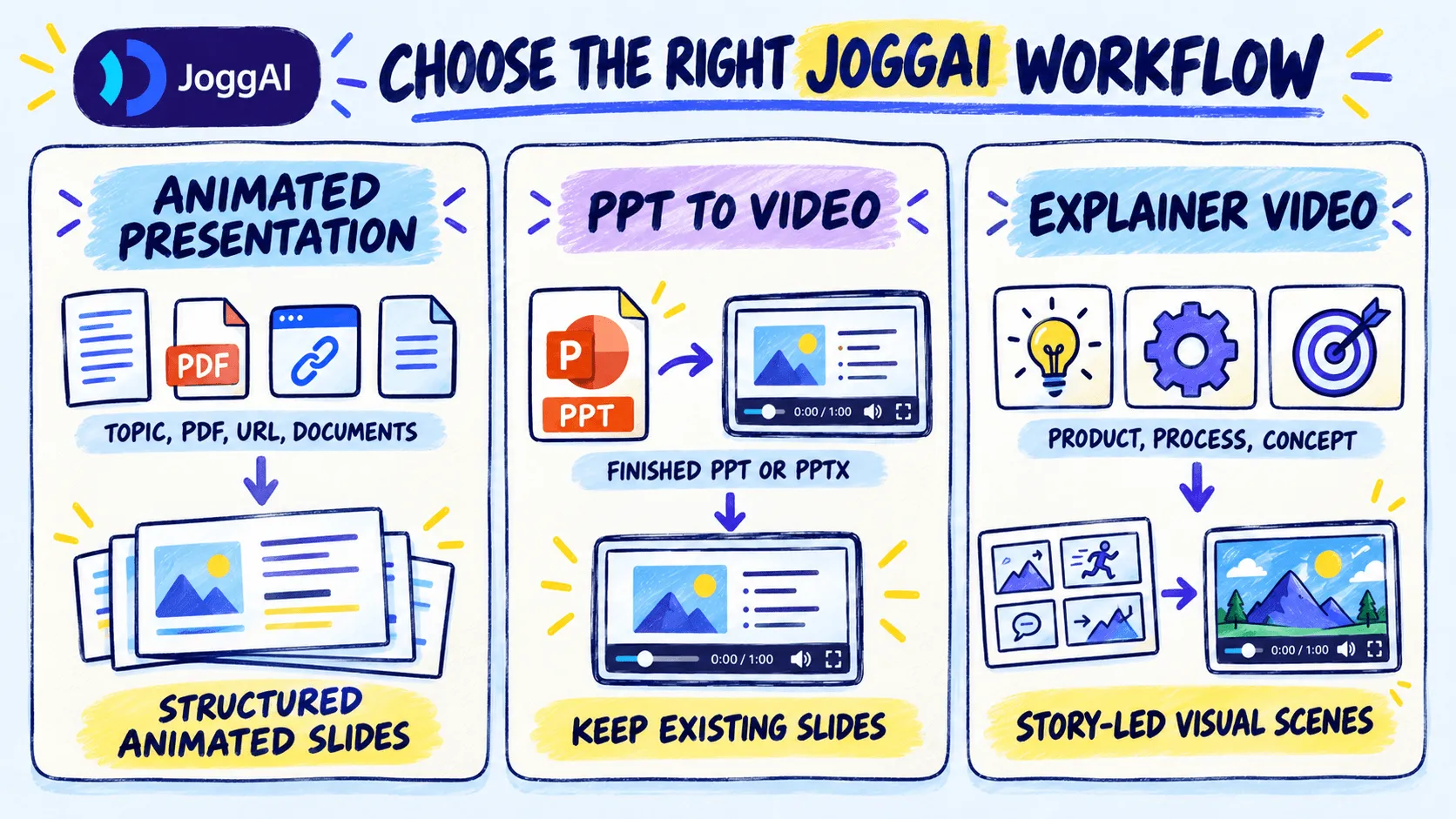
JoggAI offers three related workflows. Although they accept some of the same source materials, they are designed for different types of videos.
| What you have and what you want to make | Recommended workflow | Best suited for |
|---|---|---|
| A topic, PDF, webpage, document, or multiple sources that need to be organized | Animated Presentation Video | Narrated presentations built around animated slides and a clear information structure |
| A finished PPT or PPTX that you want to turn into a video | PPT to Video | Videos that retain the existing slide order, design, and supported animations |
| A product, process, or concept that you want to explain through continuous visual scenes | Explainer Video | Short, visually consistent videos with a more cinematic or story-led structure |
This tutorial focuses on the JoggAI Animated Presentation Maker.
If you already have a finished deck, the PPT to Video converter provides a more direct route. If you want to explain an idea through a sequence of generated video scenes rather than a presentation-style format, try the AI Explainer Video Maker.
Before You Create Your Animated Presentation
Begin by deciding who the presentation is for and what viewers should understand or do after watching it.
For example, “Explain our expense policy” is a broad topic. “Help new employees complete their first expense claim in five minutes” gives the presentation a clearer audience, purpose, and scope.
You do not need to upload every file you can find. Choose materials that are directly relevant and reasonably up to date. If several sources describe the same topic differently, decide which version you want the presentation to follow before starting the project. This will help you avoid contradictory scenes later.
You should also check whether you have permission to use any third-party images, videos, or other media included in your materials. If you use openly licensed content, follow the relevant license conditions and the Creative Commons attribution guidelines.
How to Create an Animated Presentation with JoggAI
Step 1: Add Your Topic and Source Materials
Open JoggAI’s Animated Presentation Video workflow and enter the subject you want to explain. You can also add PDFs, documents, webpages, URLs, and other relevant materials.
Try to include the intended audience, purpose, and key points in your instructions. Instead of entering only “customer service process,” for example, you could write:
Create a three-minute training presentation for new employees. Explain how to receive a customer request, determine its priority, and escalate it when necessary.
You can also select the language, duration, aspect ratio, and other project settings before moving forward.
Step 2: Review the Script Outline
JoggAI first generates a Script Outline based on your topic and source materials. Review this outline before generating the full video.
Check whether the opening introduces the subject quickly, whether the main points appear in a logical order, and whether the ending gives viewers a clear conclusion or next step.
For example, a training presentation should usually explain why the process matters before taking viewers through the individual steps. A business report may work better when it begins with the main finding and then presents the supporting data.
If a section feels repetitive, appears too early, or moves away from the main subject, revise the outline now. Fixing the structure at this stage is easier than rebuilding several finished scenes later.
Step 3: Review the Storyboard and Narration
Once the outline is ready, JoggAI develops a storyboard with narration for each scene. At this stage, check what viewers will see and what they will hear.
The narration should not simply read every word shown on the slide. Suppose a scene introduces three reasons sales increased. The slide might display the three reasons and their key figures, while the narration explains why each change occurred and what it means for the business.
This gives viewers one clear message through two complementary channels. The screen shows the essential information, while the voice adds explanation and context.
The presentation design guidance from UC San Diego similarly recommends limiting on-screen text and revealing visual elements when they become relevant to the explanation.
Read each narration script aloud if possible. Sentences that look acceptable on the page can still sound unnatural when spoken. Shortening long sentences and removing unnecessary transitions will usually make the voiceover easier to follow.
Step 4: Choose the Right Visual Format for Each Scene
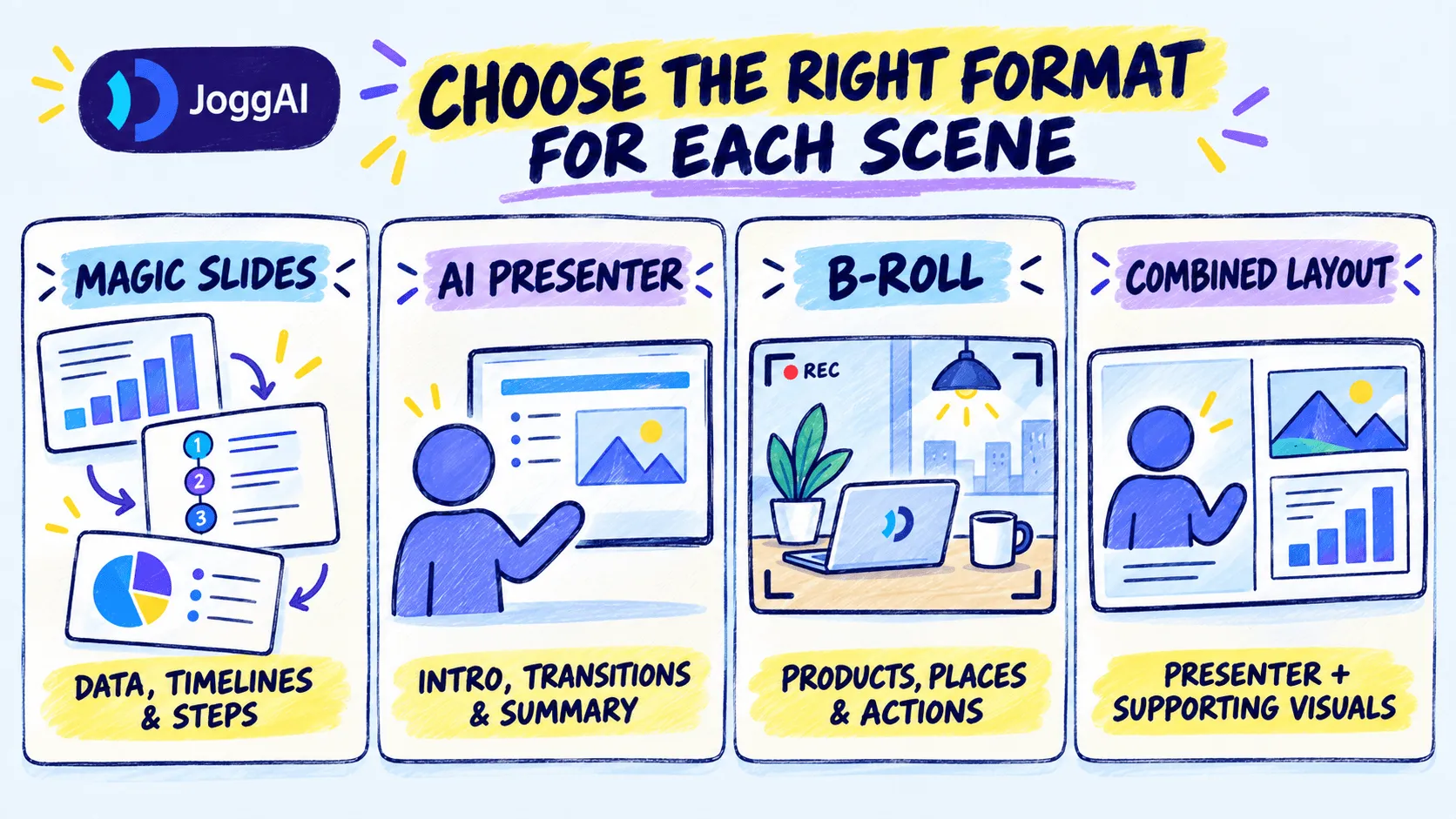
JoggAI allows you to build scenes with Magic Slides, an AI presenter, B-roll, or combined layouts. Choose the format according to what each scene needs to communicate.
Magic Slides are useful for data, comparisons, timelines, frameworks, and step-by-step processes. Their elements appear in sequence with the narration, helping viewers focus on the point currently being explained.
An AI presenter can work well in the introduction, during important transitions, or at the end of the video. The presenter creates a more personal connection, but does not need to remain visible throughout the entire presentation.
B-roll is helpful when the narration refers to a physical environment, a real-world activity, a product, or a specific situation. Combined layouts can show a presenter alongside supporting visuals when both contribute to the explanation.
The goal is not to use every available format. Select the one that makes each scene easiest to understand.
Step 5: Select an AI Presenter and Voice
If the presentation needs an on-screen host, choose an AI presenter that fits the subject and audience. JoggAI provides more than 1,000 AI presenters and also supports custom avatars.
Next, select a voice that matches the tone of the presentation. Employee training often benefits from a steady and clear delivery. An educational video may sound more approachable, while a business presentation may need a concise and confident tone.
JoggAI supports more than 50 languages and offers over 10,000 AI voices. This makes it possible to create multilingual versions of the same animated slide presentation without recording every version manually.
You can explore the wider presenter, voice, slide, and localization capabilities on the JoggAI AI Presentation Maker page.
Step 6: Preview, Edit, and Render the Video
Watch the complete preview from beginning to end before rendering the final video. Focus on whether the presentation is easy to understand, not only on whether the visuals look polished.
If a slide disappears before viewers can read it, shorten the text or give the scene more time. If a voiceover sentence sounds awkward, rewrite it in simpler language. If a visual appears before the narration introduces it, adjust the timing or scene design.
JoggAI’s editor lets you refine the script, Magic Slides, B-roll, presenter, voice, captions, music, timing, and layout. You can also regenerate an individual scene without rebuilding the entire project.
Once the narration, captions, visuals, and pacing work together, render and export the finished animated video presentation.
How to Make an Animated Presentation Easier to Follow
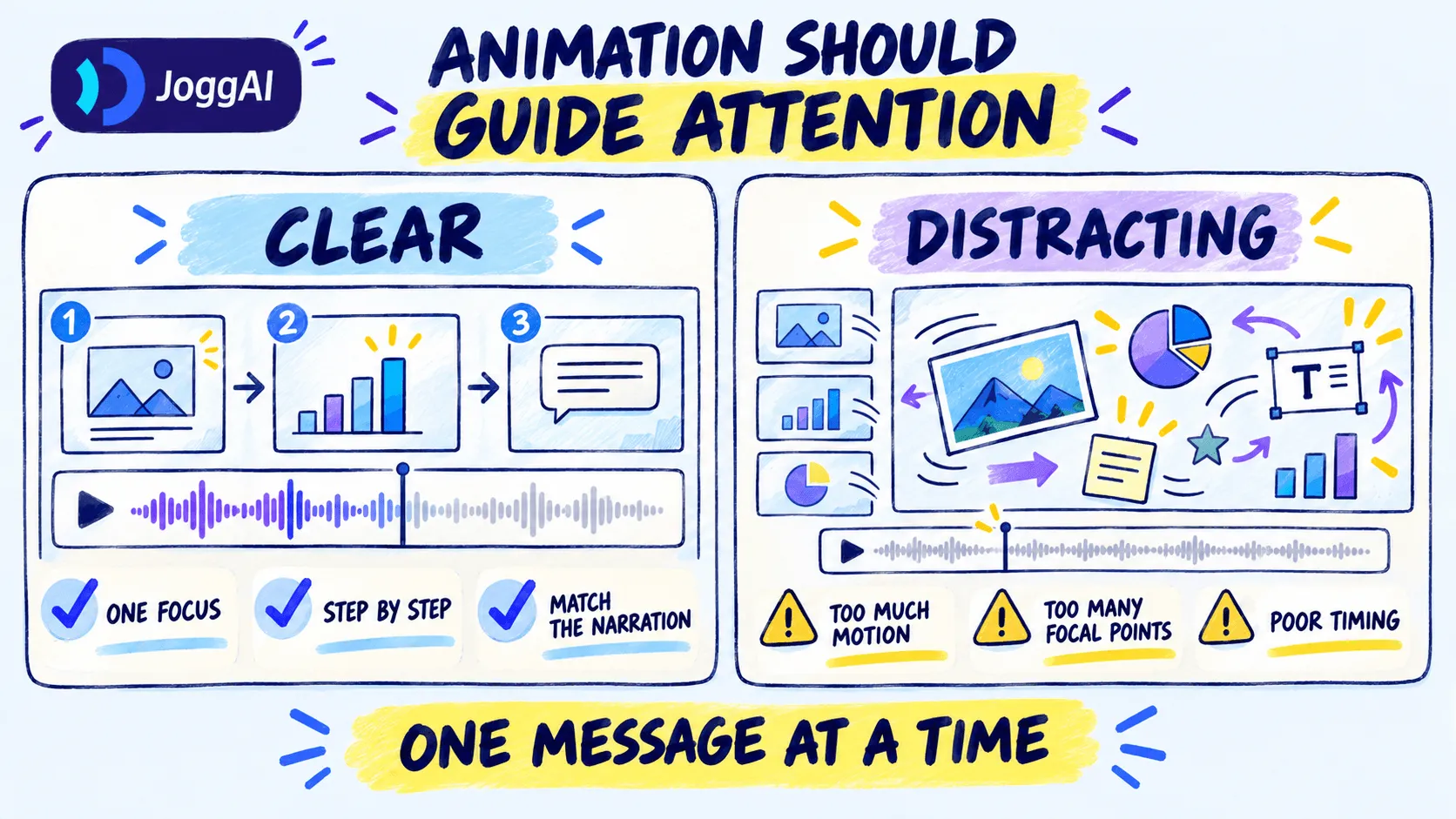
A strong animated presentation does not need to fill every scene with information. Give each scene one clear purpose, such as introducing a problem, presenting a figure, explaining a step, or summarizing a conclusion.
Animation should also help viewers follow the explanation. When describing a process, reveal the steps one at a time. When discussing a chart, show the full chart first and then highlight the data point being explained. If everything moves at once, the animation becomes a distraction rather than a guide.
After editing, ask someone unfamiliar with the topic to watch the video. If they can explain its main point and remember the most important information, the presentation is doing its job. If they remember the visual effects but not the message, simplify the content.
When Should You Use an Animated Presentation?
Animated presentations are best for information that needs a visible structure.
Course creators can turn lesson plans, research, PDFs, and webpages into video lessons. Companies can convert policies, standard operating procedures, and onboarding materials into consistent training videos. Business teams can present reports, strategies, proposals, and internal processes in a format that is easier to share than a live meeting.
An explainer video may be a better choice when the content depends more on product storytelling, use cases, or continuous generated visuals. A simple way to decide is to consider the intended viewing experience: use Animated Presentation when the content should unfold like a guided presentation, and Explainer Video when it should feel more like a short visual story.
Create Your First Animated Presentation
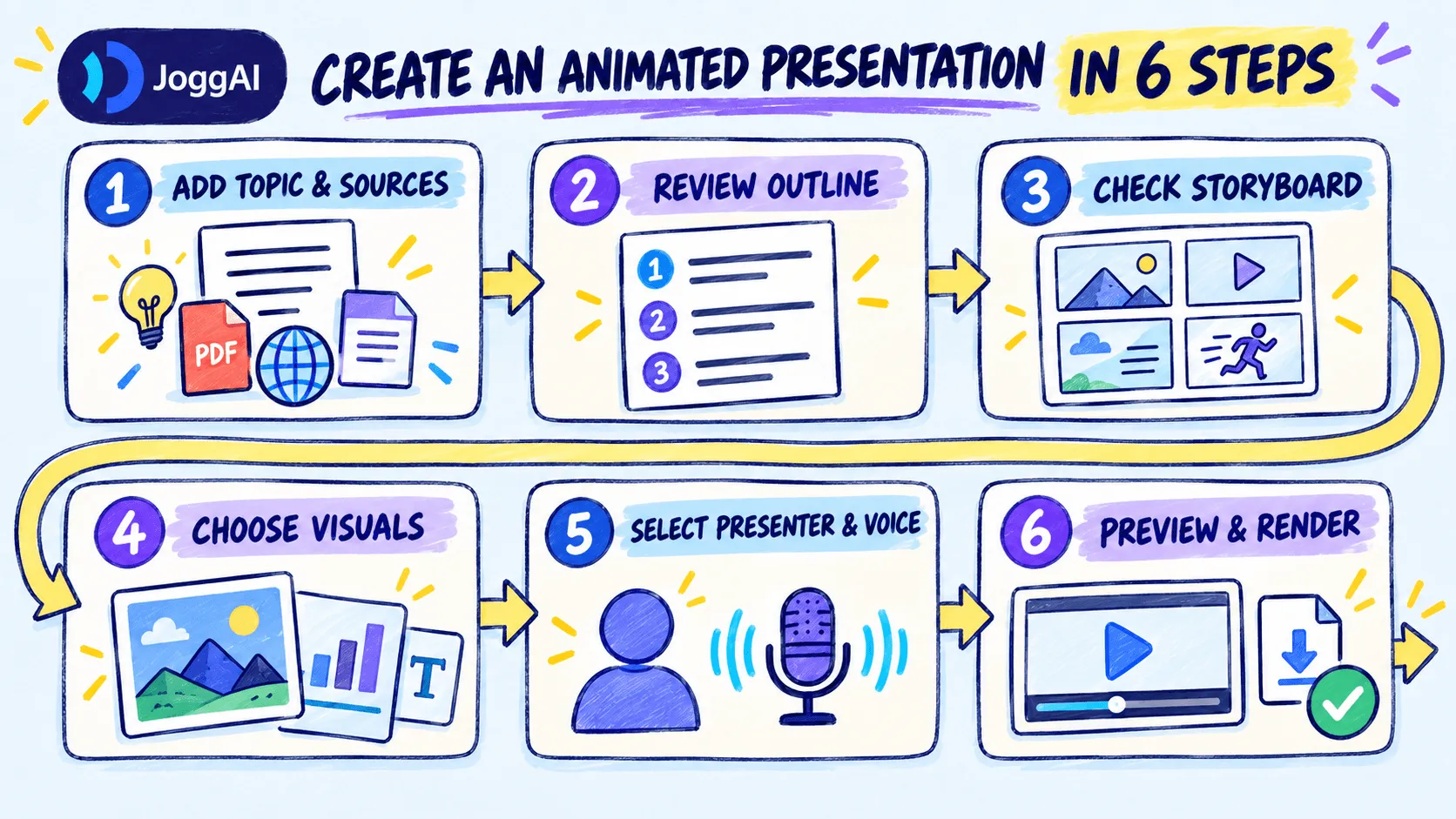
You now know how to create an animated presentation: define the audience and purpose, add your topic and sources, review the outline and storyboard, choose the right visuals, select a presenter and voice, and edit the preview before rendering.
The most effective presentation is not the one with the most animation. It is the one that helps viewers follow the explanation, understand the important points, and remember the conclusion.
Start with a topic, PDF, document, or webpage using the JoggAI Animated Presentation Maker and turn your source material into a complete presentation video.
Frequently Asked Questions
Can AI create an animated presentation?
Yes. An AI presentation maker can organize a topic or source materials into an outline, narration script, and storyboard, then combine them with animated slides, presenters, B-roll, voiceover, and captions. You should still review the facts, structure, and final wording before publishing.
Can I turn a document into an animated presentation?
Yes. JoggAI can create a presentation from PDFs, documents, webpages, URLs, and multiple related sources. It analyzes the information and builds a Script Outline rather than simply copying each document page into a slide.
Can I use an existing PowerPoint?
Yes. If your PPT or PPTX is already complete, use JoggAI’s PPT to Video workflow. It retains the existing slide order, visual structure, and supported PowerPoint animations while adding an AI presenter, narration, and captions.
What is the difference between an animated presentation and an explainer video?
An animated presentation is organized around slides and a presentation structure, making it suitable for courses, training, reports, and process explanations. An explainer video uses continuous scenes and a consistent visual style to explain a product, process, or concept in a more story-led format.
Do I need presentation design experience?
No. JoggAI can generate the outline, storyboard, narration, and Magic Slides for you. However, you should still check whether the information is accurate, whether each scene is easy to understand, and whether the voice and visuals suit your audience.