
If you are wondering how to turn a PowerPoint into a video, there are two practical approaches. The traditional way is to record narration and slide timings in PowerPoint, then export the presentation as a video. The AI-powered way is to upload the deck to JoggAI, keep its original slide structure and animations, and add an AI presenter, voiceover, and captions within the same workflow.
This guide explains both methods step by step, including how to keep your PowerPoint content intact and choose the right workflow for training, education, sales, or asynchronous business communication.
Quick Answer: How Can I Convert PPT to Video?
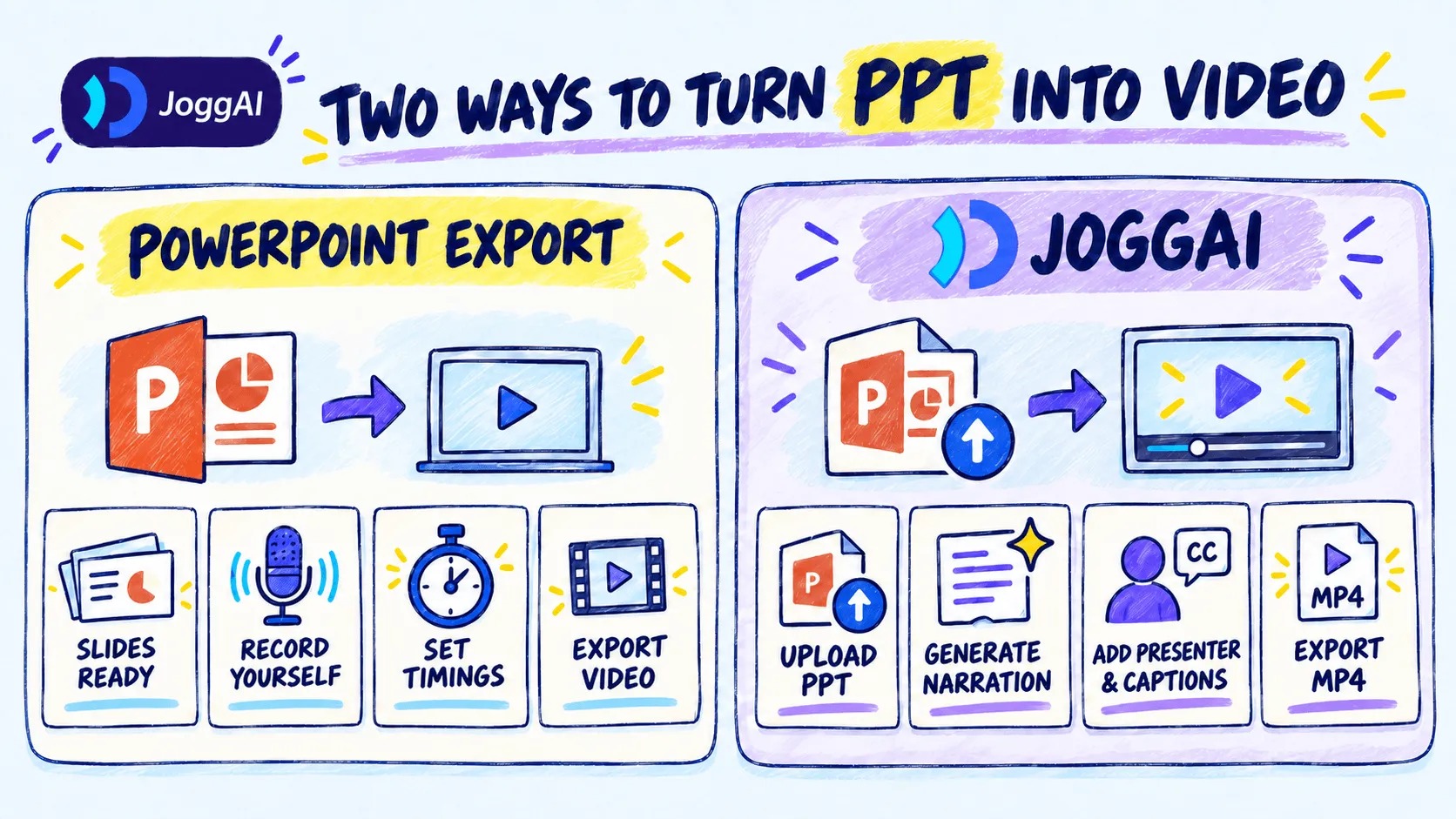
To convert PPT to video, either use PowerPoint’s built-in File > Export > Create a Video option or upload the presentation to an AI PPT-to-video tool. Native export is suitable when your deck, narration, and timings are already complete. An AI workflow is more useful when you still need a script, voice, presenter, captions, or multilingual versions.
| Workflow | Traditional PowerPoint export | AI conversion with JoggAI |
|---|---|---|
| Starting point | A finished presentation | A finished presentation that still needs video production |
| Narration | Record it yourself | Use an AI-generated script, manual script, or Speaker Notes |
| Presenter | Record a person separately | Choose an AI presenter |
| Voice | Your own recording | Choose from 10,000+ AI voices |
| Original slides | Retained | Retained |
| Animations and transitions | Included in the native export | Preserved from the uploaded PowerPoint |
| Captions | Require additional setup | Added within the video workflow |
| Localization | Record each version separately | Generate voiceovers and captions in 50+ languages |
| Best for | A deck that is already ready to play | Training, courses, sales, and multilingual presentation videos |
Method 1: Export PowerPoint as a Video Manually
PowerPoint includes a built-in export option that converts a completed slide show into a video file. This method works well when you have already recorded the narration, set the slide timings, and finalized every animation.
Step 1: Prepare and record the presentation
Play the full slide show before exporting. Check the slide order, transitions, animations, fonts, embedded video, and audio. If the presentation needs narration, use PowerPoint’s recording feature and advance through the slides at the pace viewers should see.
PowerPoint can save recorded narration, pointer movements, animations, and slide timings in the presentation. Without recorded timings, it assigns a default duration to each slide, which may not suit a deck in which some ideas need more explanation than others.
Step 2: Export the PowerPoint as a video
According to Microsoft’s official instructions for turning a presentation into a video, the standard process is:
-
Save the latest version of the PowerPoint.
-
Select File > Export > Create a Video.
-
Choose the output quality.
-
Select whether to use recorded timings and narrations.
-
Set the time spent on each slide if you are not using recorded timings.
-
Select Create Video, choose the file location, and save it.
PowerPoint offers video quality options ranging from 480p to 4K, depending on the software version and operating system. Higher resolution produces a larger file, so choose the setting based on where the video will be viewed.
Step 3: Review the exported video
Watch the finished file from beginning to end. Check whether slides advance too early, animations match the narration, embedded media plays correctly, and any long pauses are intentional.
Microsoft notes that some older media, QuickTime media, macros, and OLE or ActiveX controls may not appear in the exported video. Replace or update those elements before exporting if they are important to the presentation.
When the traditional method is enough
Use PowerPoint’s native export when:
-
The slides, narration, and timings are already complete.
-
You are comfortable recording your own voice.
-
You only need a straightforward video version of the slide show.
-
You do not need an AI presenter or multiple language versions.
If the deck is finished but the video production is not, the AI method below provides a more complete workflow.
Method 2: Turn PowerPoint into a Video with JoggAI
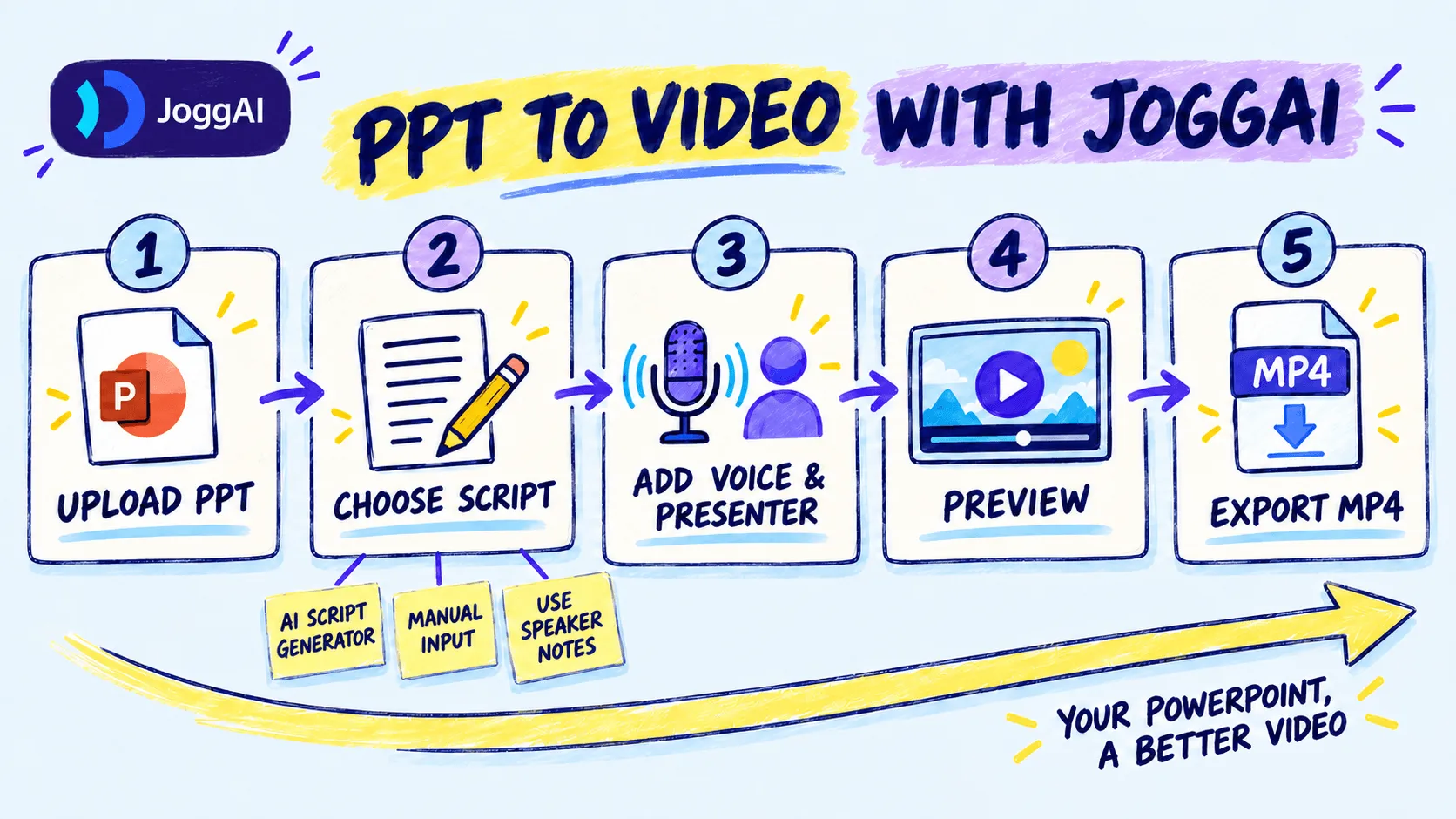
JoggAI is an AI video creation platform with a dedicated PPT to video converter. Instead of recording the presentation yourself, you can upload an existing deck, choose how the narration should be created, add an AI presenter and voice, review the result, and export an MP4.
JoggAI accepts PPT, PPTX, and PDF files up to 50MB. For PPT and PPTX files, it retains the slide order, original animations, page transitions, embedded audio, and Speaker Notes. PDF is supported as a static visual input but does not contain PowerPoint-specific animations, transitions, or notes.
Step 1: Prepare your PowerPoint
AI simplifies video production, but the source deck still determines what viewers see. Before uploading it, remove hidden or outdated slides, shorten text that will be difficult to read on video, and check that charts and labels remain legible. If you plan to use Speaker Notes as narration, review them as well. Test any animations, transitions, and embedded audio you want to keep in the final video.
The narration should add context rather than read every line on screen. Let the slide summarize the point while the voiceover explains what it means.
Step 2: Upload the PPT, PPTX, or PDF
Open the PPT to Video workflow and upload the presentation. Use PPT or PPTX when you need to retain PowerPoint animations, transitions, embedded audio, and Speaker Notes. Use PDF when the static appearance and page order are sufficient.
If the presentation was created in Google Slides, first download it as PPTX or PDF. Review the downloaded file before uploading because fonts, media, and animation behavior can change during format conversion.
Step 3: Choose how to create the narration
JoggAI provides three script options:
| Script option | Best used when |
|---|---|
| AI Script Generator | You want JoggAI to create a narration draft from the presentation content. |
| Manual Input | You already have an approved script or need precise wording. |
| Use Speaker Notes | The presentation notes already contain the narration for each slide. |
This choice is central when you convert PowerPoint to video with audio. Use Speaker Notes when the deck has an approved explanation for each slide. Use Manual Input when the wording must follow a fixed script. Use AI Script Generator when the slides contain the necessary information but still need a spoken narrative.
After selecting an option, click Next to open the JoggAI editor.
Step 4: Edit the video in JoggAI
In the editor, the left panel displays the script created from the option you selected, while the video canvas on the right keeps the visual style and structure of your PowerPoint. This lets you refine the narration without rebuilding the presentation from scratch.
Start by reviewing the script slide by slide. Correct names, numbers, acronyms, dates, product terms, and technical vocabulary, and make sure the narration adds context instead of simply reading the text on screen.
You can then customize the video within the same editor:
-
Select an AI voice for the video that matches the language, tone, and pace of the content.
-
Add an AI presenter when the video needs a visible guide. You can use an existing presenter or create a custom AI avatar. Keep the slides as the main focus when charts and diagrams need more space.
-
Generate AI slides when you need additional visual material beyond the uploaded presentation.
-
Add B-roll to illustrate a point, break up text-heavy sections, or make the video more engaging.
JoggAI offers more than 1,000 AI presenters and over 10,000 AI voices across more than 50 languages. Presenter-led layouts work especially well for onboarding, lessons, sales presentations, and internal updates. If the PowerPoint contains detailed charts or diagrams, position the presenter carefully so important information remains visible.
Step 5: Preview, render, and export the MP4
Preview the complete video before rendering. Check that the script matches each slide, the pronunciation and pacing sound natural, the presenter and B-roll do not cover important content, and the captions are accurate and easy to read. Captions also support viewers who are deaf or hard of hearing, as explained in the W3C guidance on video captions.
Once everything is aligned, render the project and export the final MP4. Review the downloaded file once more before publishing it to a website, learning management system, knowledge base, video platform, or internal communication channel.
What Does JoggAI Preserve from the Original PowerPoint?
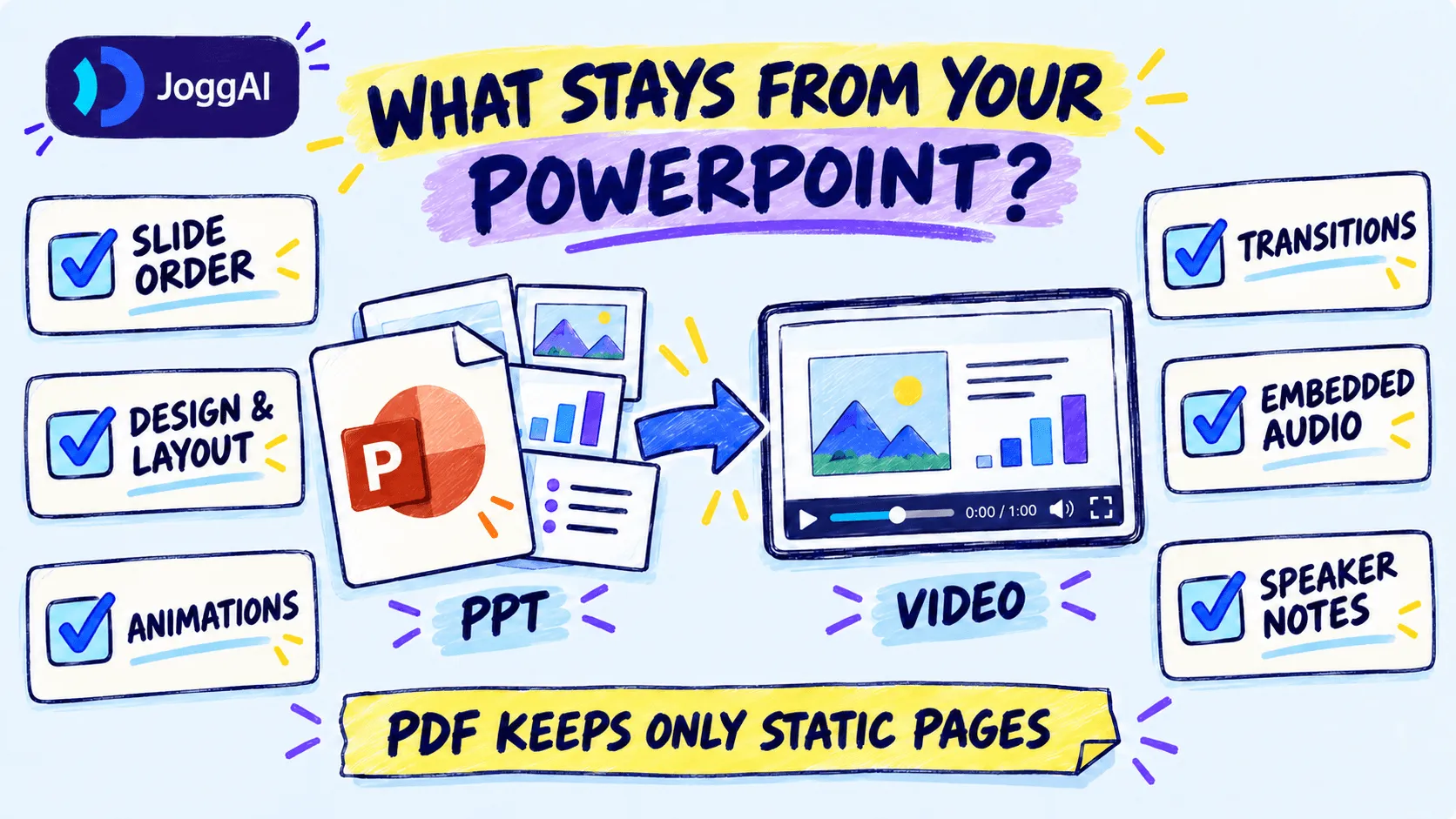
When you make a PowerPoint into a video, rebuilding every slide defeats the purpose of conversion. JoggAI keeps the original presentation structure while adding the video layer.
| PowerPoint element | How JoggAI handles it |
|---|---|
| Slide order | Preserved in the original sequence |
| Slide design and layout | Retained from the uploaded deck |
| Original animations | Preserved |
| Page transitions | Preserved |
| Embedded audio | Preserved |
| Speaker Notes | Available through Use Speaker Notes |
| Narration | Generated, entered manually, or created from Speaker Notes |
| Presenter | Optional AI presenter |
| Captions | Added to the video workflow |
| Final output | Exported as MP4 |
These preservation features apply to PowerPoint files. A PDF keeps only the static appearance and order of its pages because it does not contain PowerPoint animation or Speaker Notes data.
Traditional PowerPoint Export or JoggAI: Which Should You Use?
Choose the traditional method when your presentation already includes the finished narration and timings and only needs to become a playable video file.
Choose JoggAI when:
-
You do not want to record yourself on camera.
-
The deck needs an AI-generated or manually entered voiceover.
-
Speaker Notes should become the narration.
-
You want an AI presenter to guide the audience.
-
The video needs captions or multiple language versions.
-
You want to keep the original PowerPoint while completing the remaining production in one workflow.
The difference is not simply manual versus automatic. PowerPoint export packages an existing slide show as a video. JoggAI turns the deck into a more complete narrated, presenter-led, and shareable video experience.
What If You Do Not Have a Finished PowerPoint?
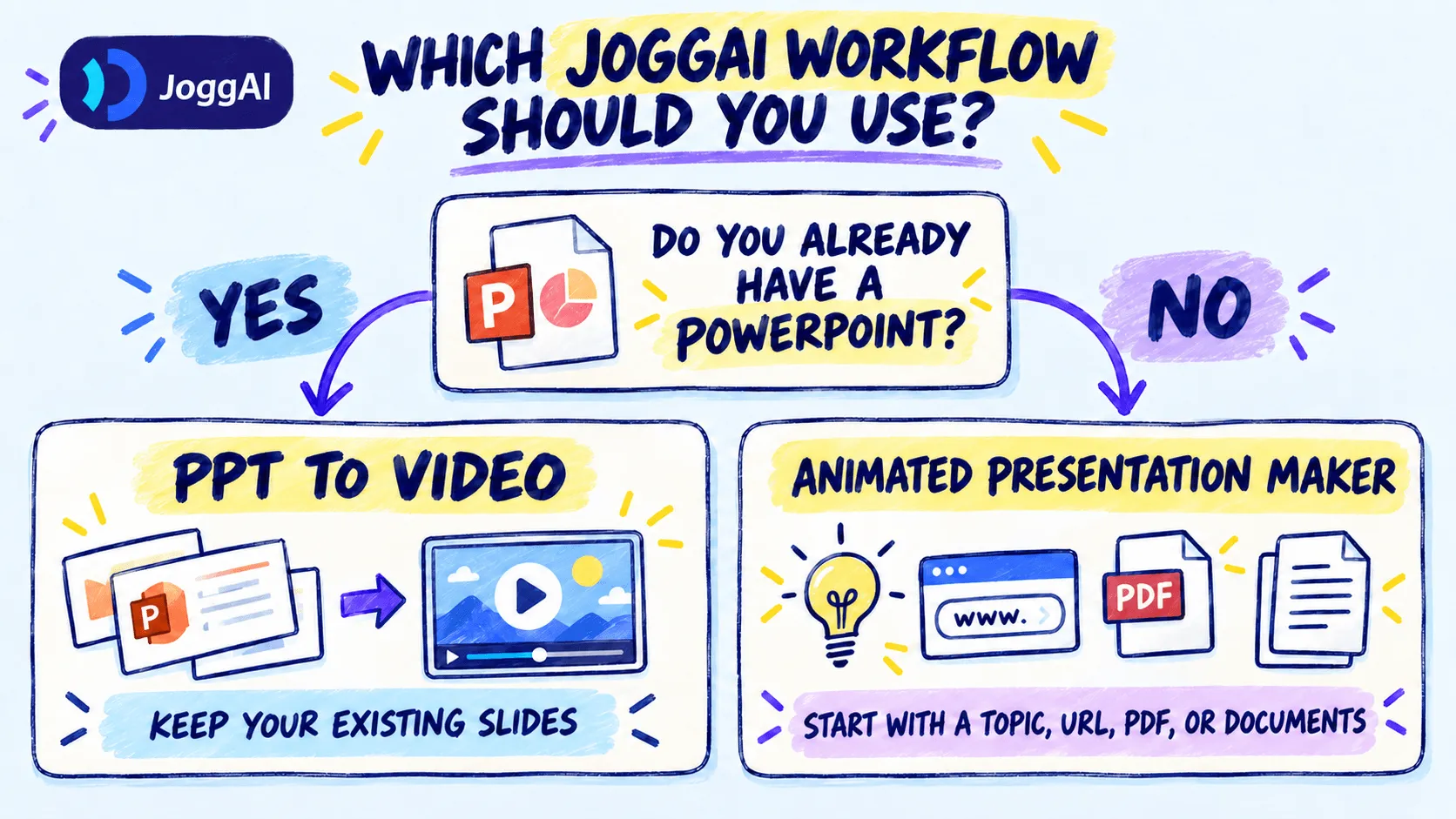
PPT to Video is the right route when the deck already exists. If you only have a topic, PDF, document, webpage, URL, or several related sources, use JoggAI’s AI presentation maker instead.
Its animated presentation maker analyzes the source material, organizes it into a Script Outline and storyboard, and creates an editable video with Magic Slides, AI presenters, B-roll, voiceover, and captions. This avoids building a PowerPoint first when the story and slides still need to be created.
Where Can You Use a PowerPoint Video?
A presentation video is useful whenever people need the same explanation without attending a live session.
-
Employee training and onboarding: Convert policies, procedures, and existing training decks into repeatable lessons. For the broader planning process, see how to make a training video with AI.
-
Online courses: Turn lecture slides into narrated modules that learners can pause and replay.
-
Sales presentations: Share a guided pitch before or after a meeting, or turn the deck into an AI product explainer video that prospects can watch on demand.
-
Customer education: Convert product instructions and support materials into reusable videos.
-
Asynchronous business communication: Present research, project updates, reports, or strategy across teams and time zones.
Common PowerPoint-to-Video Mistakes
-
Giving every slide the same duration: A title needs less time than a chart or process diagram.
-
Reading every word on screen: Let the slide summarize and the narration explain.
-
Covering content with the presenter: Check the presenter’s position on every slide layout.
-
Ignoring audio overlap: Preview embedded audio together with the new voiceover.
-
Using PDF when animations matter: Upload PPT or PPTX if animations, transitions, or Speaker Notes must remain available.
-
Skipping the exported-file review: Watch the complete MP4 on the type of screen your audience will use.
Turn Your Existing PowerPoint into a Complete Video
The traditional method works when the deck, narration, and timing are already finished. JoggAI is the stronger option when you need to create video from PPT while adding a script, AI presenter, generated voice, captions, or multiple language versions.
Prepare the slides, choose the right narration source, review the original animations and audio, and check the exported MP4 from beginning to end. With JoggAI PPT to Video, the existing presentation remains the foundation while the rest of the video production happens in one workflow.
Frequently Asked Questions
Can AI turn a PowerPoint into a video?
Yes. An AI PPT-to-video tool can retain an existing presentation while adding generated narration, an AI presenter, captions, and multilingual voices. JoggAI accepts PPT, PPTX, and PDF files up to 50MB. After reviewing the slides, script, audio, and presenter, you can export the finished presentation as an MP4.
Does converting PowerPoint to video preserve animations?
PowerPoint’s native export can include the animations and transitions used in the slide show. JoggAI also preserves the original animations and page transitions in uploaded PPT and PPTX files. A PDF is static and cannot carry PowerPoint-specific animation data, so use the original PowerPoint file when motion must be retained.
Can Speaker Notes become the video narration?
Yes. Select Use Speaker Notes in JoggAI to use the notes attached to each PowerPoint slide as the narration script. Before generating the voiceover, revise the notes for spoken delivery: shorten long sentences, remove instructions intended only for the presenter, and check names, abbreviations, and technical terms.
How do I turn a PowerPoint into a video with audio?
You can record narration and slide timings in PowerPoint before exporting, or use JoggAI to generate the voiceover. In JoggAI, select AI Script Generator, Manual Input, or Use Speaker Notes, then choose a voice and review its timing against each slide. Existing embedded audio can also be retained from the PowerPoint.
Should I upload a PPT, PPTX, or PDF?
Upload PPT or PPTX when you want to retain the presentation’s slide structure, animations, transitions, embedded audio, and Speaker Notes. Upload PDF when you only need the static appearance and page order. Because PDF does not contain PowerPoint-specific animation or notes data, it is not the best choice for a fully animated presentation.
How do I turn Google Slides into a video?
Use File > Download to save the Google Slides presentation as PPTX or PDF, then upload the file to a PPT-to-video tool. Google’s instructions for downloading a presentation also cover the standard export process. Choose PPTX when you want to preserve more presentation data. After downloading, check the fonts, media, layout, and animations because some elements may change during conversion between Google Slides and PowerPoint formats.